
HVAC
Building Controls — Niagara HVAC System
Last updated: June 2026 | Audience: Building occupants & facilities staff | System: Niagara / Long Building Technologies
Vendor information
Kuck Mechanical — Hardware maintenance & repairs
|
Vendor / Company |
Kuck Mechanical |
|
Primary Contact |
Shelley O'Connor |
|
Phone |
970-730-6738 |
|
|
shelleyo@kuckmechanical.com |
|
Support Website |
www.kuckmechanical.com |
|
Account Number |
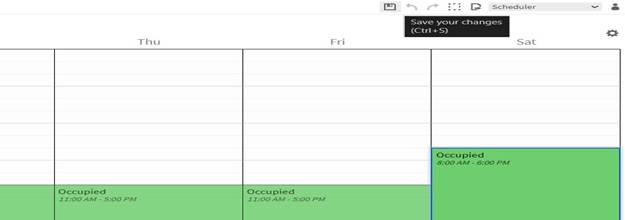
|
Long Building Technologies — Temperature & schedule controls
|
Vendor / Company |
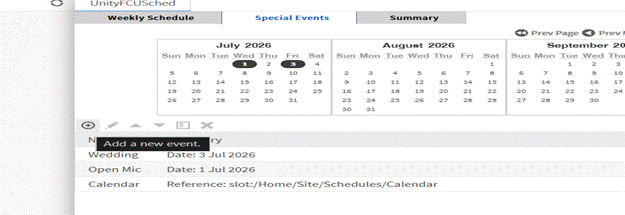
Long Building Technologies |
|
Primary Contact |
Brent Bass |
|
Phone |
Mobile: 757-876-6696 |
|
|
bbass@long.com |
|
Support Website |
www.long.com |
|
Account Number |
|
Equipment & serial numbers
The following Daikin equipment is installed at Foothills Unitarian Church and managed through the Niagara building control system.
|
# |
Equipment Type |
Model |
Serial Number |
|
1 |
Air Handler (AHU) |
OAH032GVGM |
FBOU230502052 |
|
2 |
DOAS Unit |
DPS016A |
FBOU221200188 |
|
3 |
VRV Outdoor Unit |
REYQ120XATJA |
2107033436 |
|
4 |
VRV Outdoor Unit |
REYQ120XATJA |
2107027244 |
|
5 |
VRV Outdoor Unit |
RXLQ120TATJA |
2206007430 |
|
6 |
VRV Outdoor Unit |
RXLQ120TATJA |
2206041585 |
|
7 |
VRV Outdoor Unit |
REYQ120XATJA |
2201019417 |
|
8 |
VRV Outdoor Unit |
REYQ120XATJA |
2201012079 |
Step-by-step instructions
Part 1 — Changing the temperature setpoint
The temperature setpoint is the target temperature your HVAC system tries to maintain. You can raise or lower it within the limits set by your building manager.
Step 1: Log in to the control system
1. Open a web browser and go to: http://192.168.100.5
2. You must be on the Foothills UU building network (or connected via VPN) for this address to work.
3. The Long Building Technologies login screen will appear showing FoothillsUnitarianChurch_WS. Enter your Username and Password, then click Login.
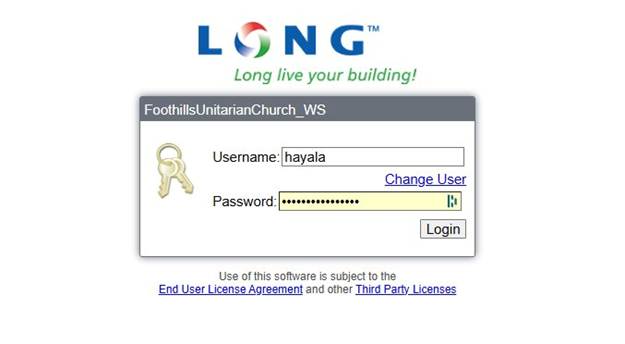
The Long Building Technologies login screen at http://192.168.100.5
Step 2: Find your zone using floor plans
4. After logging in you will see the Foothills Unitarian Church Home dashboard.
5. Under Floor Plans, click Main Level or Lower Level depending on where your space is located.
6. Click on your zone or room on the floor plan to open its detail view.
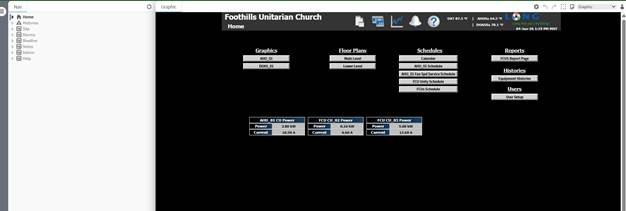
The Home dashboard — use Floor Plans to navigate to your zone
💡 Main Level zones include: Sanctuary, North Unity, South Unity, Admin Lobby, Commons, Corridor, and Family Lounge. Each zone shows its current temperature. Click any zone label to open its controls.
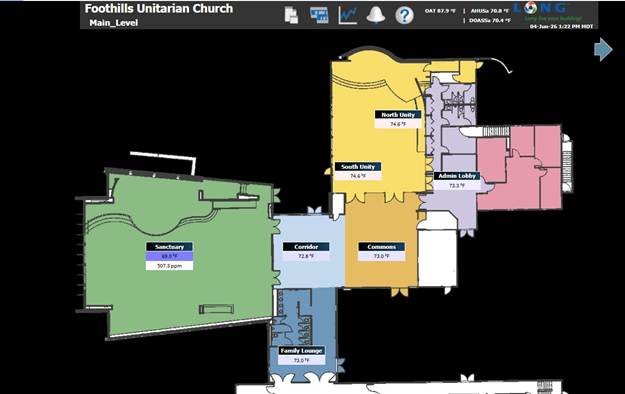
Main Level floor plan — click any zone label to open its controls
Step 3: Adjust the setpoint
7. Scroll down to the Misc Sensors & Settings section.
8. Find the Space Setpt field — this is the current target temperature for the space.
9. Right-click on the Space Setpt value. A small menu will appear with three options: Override, Auto, and Set.
10. Click Override.
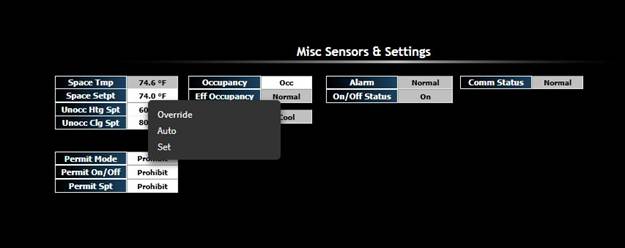
Right-click on Space Setpt — select Override to enter a new temperature
11. The Override dialog will appear.
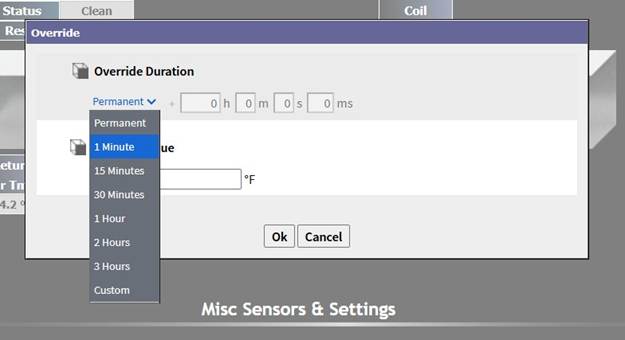
The Override dialog — set a duration and enter your desired temperature before clicking Ok
12. Set the Override Duration using the dropdown. Options: Permanent, 1 Minute, 15 Minutes, 30 Minutes, 1 Hour, 2 Hours, 3 Hours, or Custom.
13. ⚠️ Do not select Permanent — always choose only the time you actually need so the system returns to its normal schedule automatically.
14. Enter your desired temperature in °F, then click Ok.
💡 If you finish using the space early, right-click Space Setpt again and select Auto to cancel the override immediately.
Step 4: Confirm the change
15. Check the Operation Mode field — it will show Cool or Heat to confirm the system is working toward the new target.
💡 If the Space Setpt right-click menu is not available, Permit Spt may be set to Prohibit. Contact Kuck Mechanical to request a change.
Part 2 — Modifying the occupancy schedule
The occupancy schedule tells the system when your space is in use. During occupied hours the system maintains your normal setpoints; during unoccupied hours it shifts to energy-saving setbacks.
Step 1: Navigate to the schedule
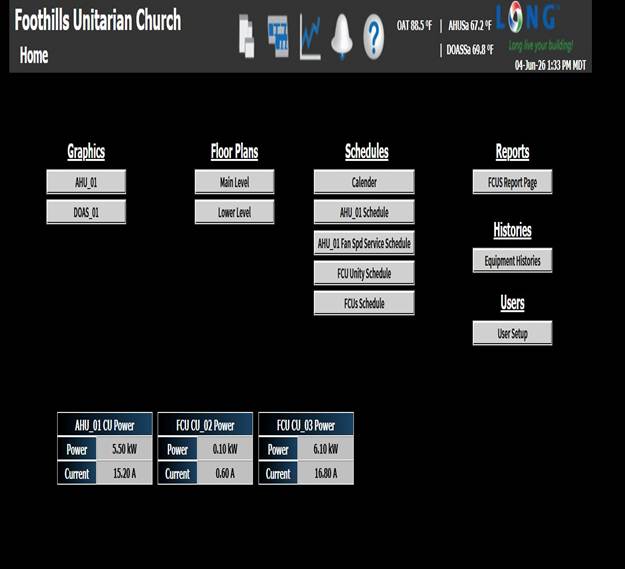
16. From the Home dashboard, look under the Schedules section and click the schedule for your space:
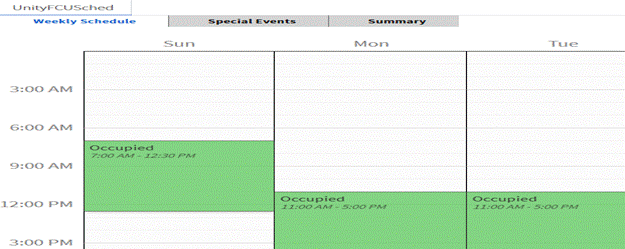
Home dashboard — select the schedule for your space
Schedule guide by space:
AHU_01 Schedule — Sanctuary
FCU Unity Schedule — North Unity and South Unity
FCUs Schedule — Commons and Family Lounge
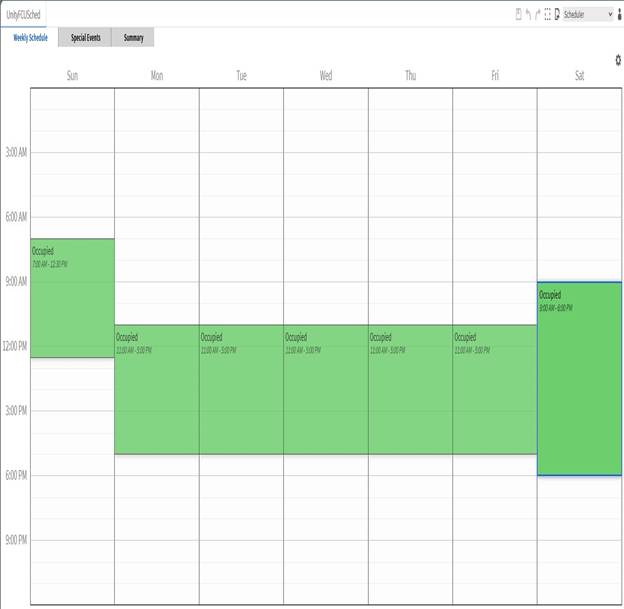
Step 2: View the weekly schedule
17. The Weekly Schedule tab shows a calendar grid. Green blocks = Occupied; white/empty = Unoccupied.
18. Review the existing blocks to identify what you want to change.
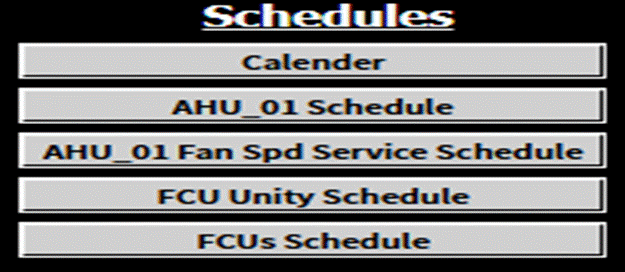
Weekly Schedule — green blocks show Occupied periods
💡 Three tabs at the top: Weekly Schedule (recurring), Special Events (one-time overrides), and Summary (text view). For routine changes use Weekly Schedule; for one-time events see Part 3.
Step 3: Edit occupied hours
19. Locate the green Occupied block for the day you want to change.
20. Hover over the top or bottom edge until your cursor changes to a resize arrow.
21. Drag the edge to your new start or end time. The block snaps to time intervals.
22. Release the mouse, then click the floppy disk icon (💾) top right or press Ctrl+S to save.
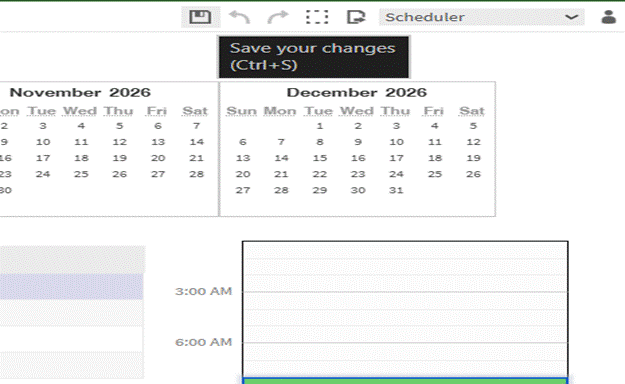
Click the save icon (top right) or press Ctrl+S after making changes
💡 To add a new block on a day with none, click and drag on the empty white area of that day's column. Remember to save.
Step 4: Copy the schedule to other days (optional)
23. Right-click on the green block you just edited and look for a Copy or Copy To option.
24. Select the days to copy to, then save.
Part 3 — Adding a special event
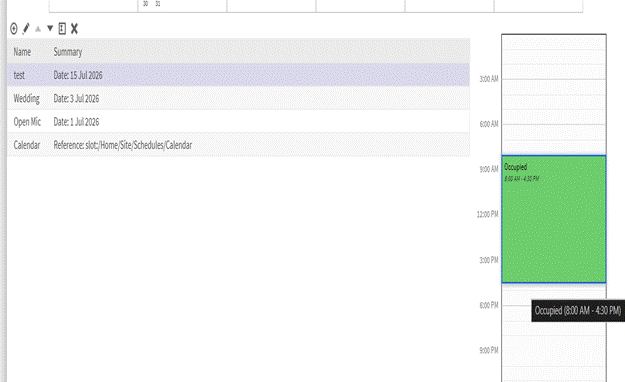
Use Special Events to add a one-time occupied period for a specific date — such as a wedding or open mic night. Special Events override the weekly schedule for that date only.
Step 1: Select the schedule and click Special Events
25. From the Home dashboard, click the schedule for the space you need.
26. Click the Special Events tab at the top of the scheduler.
Click the Special Events tab at the top of the scheduler
Step 2: Add a new event
27. On the Special Events screen, click the + (Add a new event) button in the toolbar below the calendar.
Click + to add a new event
Step 3: Name the event and set the date
28. Enter a Display Name (e.g. Wedding, Open Mic), set Type to Date, select the date, then click Ok.
Enter the event name and date, then click Ok
Step 4: Set the occupied hours and save
29. Click the event in the list — a day column appears on the right.
30. Click and drag on the white area to draw a green Occupied block, then drag the edges to fine-tune.
Drag to set the Occupied time block
31. Click the floppy disk icon (💾) or press Ctrl+S to save.
Save with the floppy disk icon or Ctrl+S
💡 To remove a special event, select it and click the X (delete) button in the toolbar, then save.
Troubleshooting
Problem: I can't log in to the system. Fix: Make sure you are on the Foothills UU building network or connected via VPN, then go to http://192.168.100.5. If the page doesn't load you may not be on the right network. If credentials don't work, contact Long Building Technologies.
Problem: I can't find my zone on the floor plan. Fix: Try both the Main Level and Lower Level floor plans. If your zone still isn't visible, contact Long Building Technologies to have it added.
Problem: The Space Setpt right-click menu is not available. Fix: Permit Spt may be set to Prohibit for your zone. Contact Long Building Technologies to request a setpoint change.
Problem: I set an override but the temperature isn't responding. Fix: Check that you did not select Permanent and that you entered a valid temperature. If the issue persists after a few minutes, contact Long Building Technologies.
Problem: I saved a schedule change but the temperature isn't responding. Fix: Schedule changes take effect at the next transition time. For immediate conditioning use the setpoint override instead. If the issue persists, contact Long Building Technologies.
Problem: The system shows my space as Unoccupied during normal hours. Fix: Check the Weekly Schedule to confirm occupied hours are saved correctly. Also check whether a Special Event is overriding today's schedule.
FAQs
How long does it take for a setpoint change to take effect? Typically within a few minutes. The system will begin heating or cooling right away, but how quickly you feel it depends on your space size and current conditions.
What's the difference between the Weekly Schedule and a Special Event? The Weekly Schedule is a permanent, repeating plan. A Special Event is a one-time override for a specific date — it takes priority over the weekly schedule for that day only.
Which schedule should I use for my space? AHU_01 Schedule = Sanctuary. FCU Unity Schedule = North Unity and South Unity. FCUs Schedule = Commons and Family Lounge. If unsure, contact Long Building Technologies.
What does Override vs. Auto vs. Set mean when I right-click the setpoint? Override temporarily changes the setpoint for a set duration, then returns to normal automatically. Auto cancels any override immediately. Set makes a permanent change — only use this if instructed by Long Building Technologies.
Who do I contact for temperature or schedule issues? Contact Long Building Technologies — Brent Bass at 757-876-6696 or bbass@long.com. For hardware issues contact Kuck Mechanical — Shelley O'Connor at 970-730-6738 or shelleyo@kuckmechanical.com.
Document prepared by Facilities Management • Foothills Unitarian Church
No comments to display
No comments to display