
How to Change or Add a Door Code
Last updated: June 2026 | Applies to: Keypad door locks | Contact: Church Office
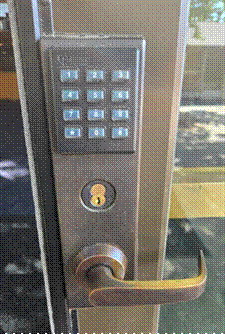
This guide walks you through programming the keypad door lock — including changing the administrator PIN, adding new user codes, and removing codes. Follow the steps in order and use the keypad on the door lock to enter each sequence.
|
💡 Tip: The current administrator PIN is 5010. The default from the factory was 9998, but it has been changed. |
Step-by-step instructions
Step 1: Enter programming mode
On the keypad, enter the following sequence to begin programming mode:
|
00# 5010# |
The lock will beep or flash to confirm it has entered programming mode. You must complete all programming steps before exiting.
Step 2: Add a new door code
To add a user door code, enter the following sequence. Each code must be a unique 4-digit number.
|
10# [4-digit code] # # |
Example — to add the code 4994:
|
10# 4994# # |
To add multiple codes, repeat the sequence with a different 4-digit number each time. You can add up to 1,000 codes total.
|
⚠️ Note: If you are adding codes to an existing setup (not starting fresh), skip to Step 3. |
Step 3: Exit programming mode
When you are done adding or changing codes, exit programming mode by entering:
|
99# |
The lock will beep or flash to confirm it has exited programming mode. Test the door with one of the newly added codes to verify it works.
How to remove a door code
To remove a specific user code, use the following sequence instead of Step 2:
|
11# [4-digit code to remove] # # |
Use the same Step 1 (enter programming mode) and Step 3 (exit programming mode) around it.
How to change the administrator PIN
The administrator PIN is used to enter programming mode — it is not a door code. You only need to change it if the PIN has been compromised or you want to update it for security reasons.
To change the administrator PIN, follow Steps 1 and 3 above (enter and exit programming mode), and add this sequence in between:
|
20# [new 4-digit PIN] # [same 4-digit PIN] # |
Example — to change the PIN to 3197:
|
20# 3197# 3197# |
|
⚠️ Note: Always record the new PIN in Dashlane immediately after changing it. If the administrator PIN is lost, the lock may need to be reset by the vendor. |
Troubleshooting
Problem: The lock does not respond when I enter 00# 5010#.
Fix: The administrator PIN may have been changed. Try 00# 5010# if you haven't already. If that does not work, check Dashlane for the current PIN or contact the church office.
Problem: The lock beeps three times and rejects my input.
Fix: You may have entered an incorrect sequence or the lock timed out of programming mode. Start over from Step 1.
Problem: A new code does not work after programming.
Fix: Make sure you exited programming mode (Step 3, enter 99#) before testing the code. Re-enter programming mode and try adding the code again.
Problem: I changed the administrator PIN and forgot the new one.
Fix: Check Dashlane for the stored PIN. If it is not there, the lock will need to be reset to factory defaults. Contact the church office for assistance.
FAQs
How many door codes can the lock hold?
The lock can store up to 1,000 unique 4-digit codes.
Do I have to change the administrator PIN every time I add a code?
No. To add codes without changing the PIN, go straight from Step 1 to Step 2, then Step 3.
What is the difference between the administrator PIN and a door code?
The administrator PIN is only used to enter programming mode — it cannot be used to open the door. Door codes (added in Step 2) are what people use to unlock the door.
Where is the current administrator PIN stored?
The current administrator PIN (5010) is stored in Dashlane under the door lock entry. Always update Dashlane if you change it.
Can I add a 3- or 5-digit code?
No. All user codes must be exactly 4 digits.
No comments to display
No comments to display