
RingCentral: How to Change Your Voicemail Greeting
Step-by-step instructions
|
💡 Before you start: Open your browser and go to service.ringcentral.com and have your RingCentral login credentials ready. |
Step 1: Log in to RingCentral
Open your web browser and go to service.ringcentral.com. Enter your work email address in the Email or Phone Number field and click Next. Enter your password on the following screen and click Sign In.
|
|
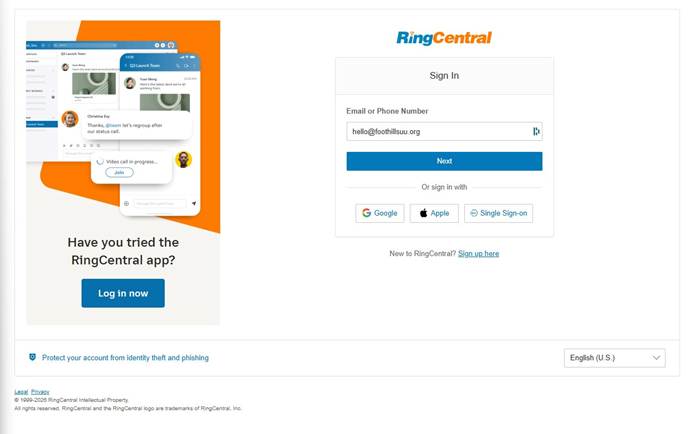
RingCentral login page — enter your email address and click Next
Step 2: Confirm you are signed in to the correct account
After signing in, click your profile icon (the circle with your initials) in the top-right corner. Confirm the name and extension shown match your account before continuing.
|
|
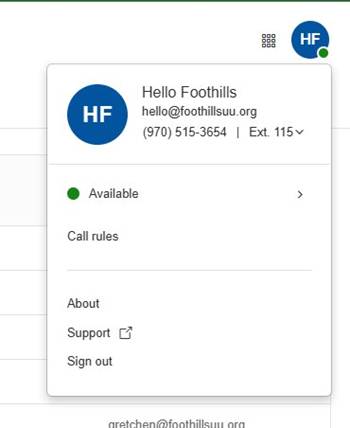
Step 3: Open Voicemail Greeting settings
On the Overview page, click the Voicemail greeting shortcut icon (it looks like a cassette tape). This takes you directly to the greeting settings.
|
|
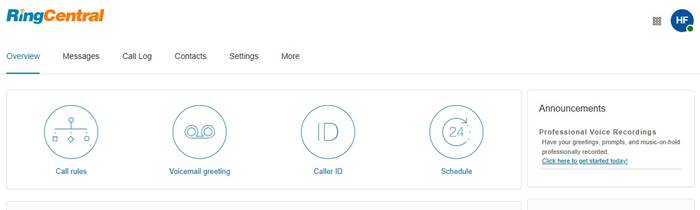
Overview page — click the 'Voicemail greeting' shortcut
Step 4: Record your custom greeting
The Voicemail greeting screen opens inside Settings > Phone. Follow these steps to record your greeting:
1. Confirm the dropdown in the top-right of the greeting box is set to Custom.
2. Click the red record button (●) to start recording. Speak clearly after it begins.
3. Click the record button again to stop.
4. Click the play button (▶) to preview your recording.
5. If you want to re-record, click the red record button again and repeat.
6. When satisfied, click Save in the bottom-right corner.
|
|
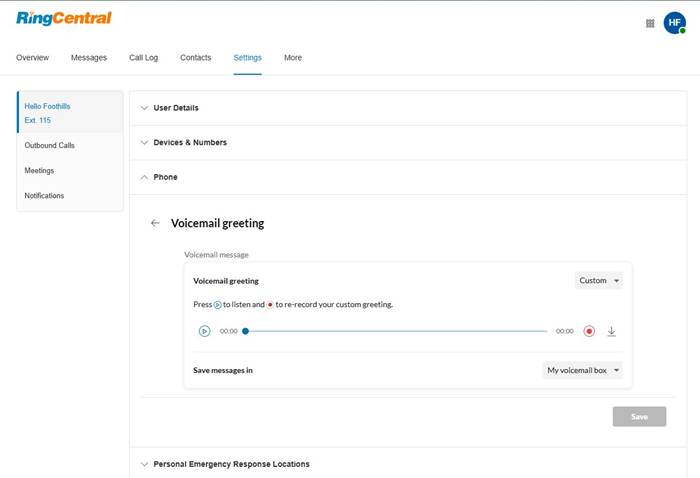
Voicemail greeting screen — use the red record button (●) to record, play button (▶) to preview
|
✅ Done! Your custom greeting is now active. Callers will hear your new message the next time they reach your voicemail. |
Troubleshooting
|
Problem |
Fix |
|
I can't log in to service.ringcentral.com |
Check that you're using your work email address. If you've forgotten your password, click Forgot Password on the sign-in screen. Contact your IT administrator if the issue continues. |
|
I don't see the Voicemail greeting icon on the Overview page |
Try clicking the Settings tab in the top menu, then go to Phone > Voicemail greeting to access the same screen. |
|
The record button isn't working |
Make sure your browser has permission to access your microphone. Check your browser's site settings and allow microphone access for service.ringcentral.com. |
|
My greeting didn't save |
After recording, make sure you clicked the Save button in the bottom-right corner of the greeting box. The page will confirm the save was successful. |
|
Callers still hear the old greeting |
Allow a few minutes for the change to take effect. If callers still hear the old greeting after 10 minutes, log back in and verify the Custom option is selected and the greeting was saved. |
FAQs
Q: Do I need to download the RingCentral app to change my greeting?
A: No. These steps use the web portal at service.ringcentral.com and work in any modern browser on any device.
Q: Can I upload a pre-recorded audio file instead of recording through the browser?
A: Not through the web portal's basic greeting screen. The web interface records directly through your microphone. For file uploads, use the RingCentral desktop app, which offers a file import option under Settings > Phone > Voicemail.
Q: How long can my voicemail greeting be?
A: RingCentral allows greetings up to 5 minutes long, but a brief 15–30 second greeting is recommended for callers.
Q: Can I set different greetings for work hours and after hours?
A: Yes. In the Voicemail greeting settings, look for an option to set a schedule. This lets you configure separate greetings for business hours and after hours.
Q: How do I listen to my voicemail messages?
A: You can listen to voicemails in the RingCentral web portal under the Messages tab, or dial *86 from your desk phone.
Questions? Contact your IT administrator or system manager.
No comments to display
No comments to display