
Ring Central Call Forwarding
How to Forward a Phone Number in RingCentral
Role: RingCentral Administrator | System: RingCentral Admin Portal | Last updated: June 2026
This guide walks you through forwarding calls for a user in RingCentral. Forwarding is set inside the individual user’s Phone settings in the Admin Portal. You must have administrator access to complete these steps.
Step-by-step instructions
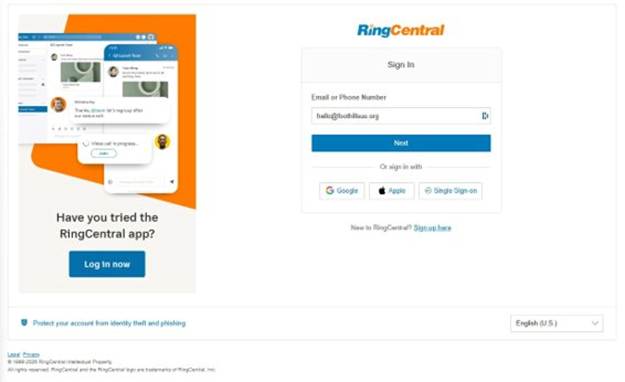
Step 1 — Sign in to the RingCentral Admin Portal
Open a web browser and go to service.ringcentral.com. Enter your admin email address and password, then click Next.
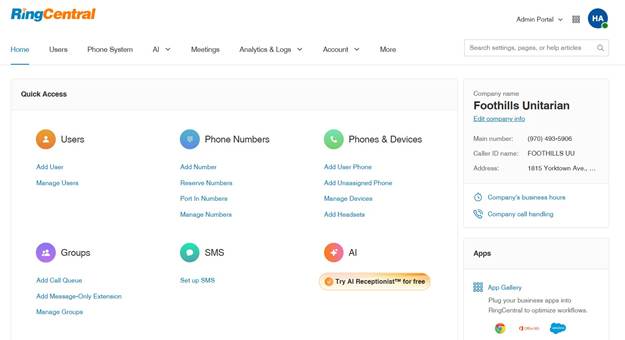
Step 2 — Confirm you are in the Admin Portal
After signing in, confirm that Admin Portal is shown in the upper-right corner (next to your initials). You will see the main navigation bar across the top with Home, Users, Phone System, and other menus.
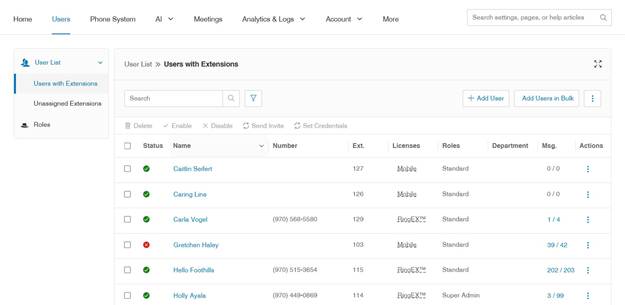
Step 3 — Go to Users
Click Users in the top navigation bar. The User List will open, showing all users with extensions on your account.
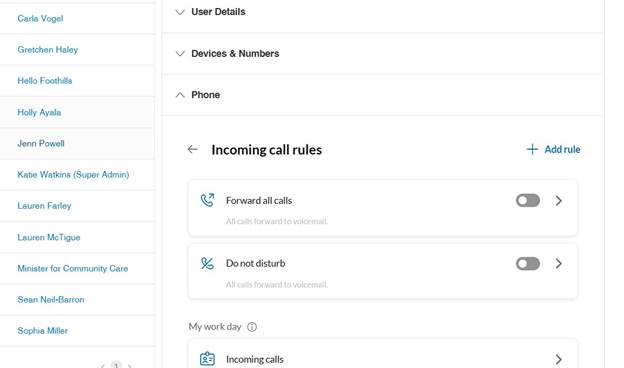
Step 4 — Open the user and go to Phone → Incoming call rules
Scroll through the list or use the Search bar to find the user by name or phone number. Click their name to open their settings.
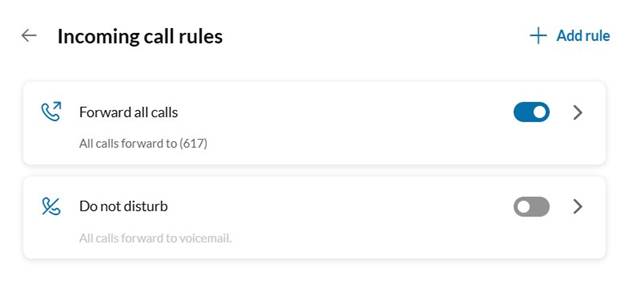
Inside the user’s settings, click the Phone section to expand it. You will see Incoming call rules with two options: Forward all calls and Do not disturb.
Step 5 — Select “Forward the call” and enter the destination number
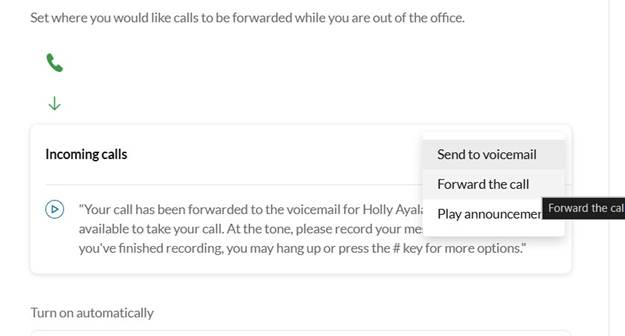
Click the Forward all calls row to open its options. A menu will appear with three choices: Send to voicemail, Forward the call, and Play announcement. Select Forward the call.
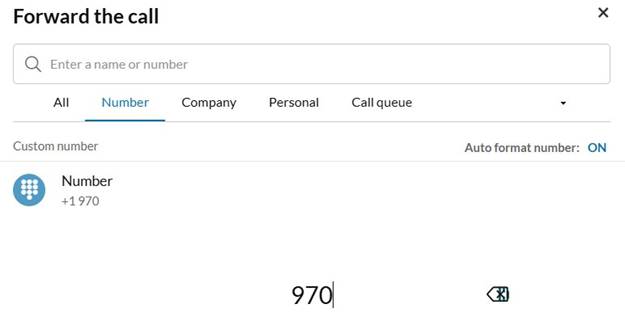
A Forward the call dialog will open. Click the Number tab, then type the destination phone number in the search/entry field. The number will appear below as you type — click it to confirm the selection.
Step 6 — Save your changes
Click Save to apply the forwarding rule. Wait for the confirmation before navigating away.
Step 7 — Test the forwarding
Call the user’s number from a cell phone or another line to confirm calls are routing correctly. Allow 1–2 minutes for changes to take effect if needed.
Turning off call forwarding
When you no longer need to forward calls, go back to the user’s Phone → Incoming call rules and click the blue toggle next to Forward all calls to turn it off. The toggle will turn grey and calls will route normally again.
Troubleshooting
|
Problem |
Fix |
|
I don’t see a Users option in the top menu. |
You may not have full admin permissions. Ask your RingCentral Super Admin to grant you the correct role. |
|
The user I need is not in the list. |
Try using the Search bar, or switch to Unassigned Extensions in the left sidebar. |
|
I don’t see a Phone section inside the user’s settings. |
Scroll down within the user record — User Details and Devices & Numbers appear above Phone. Click the Phone heading to expand it. |
|
The Forward the call option does not appear. |
Make sure you clicked the Forward all calls row itself, not just the toggle. A menu with Send to voicemail, Forward the call, and Play announcement should appear. |
|
The number I type is not being accepted. |
Make sure you are on the Number tab in the Forward the call dialog and that Auto format number is ON. Type the full 10-digit number. |
|
Calls are not routing after saving. |
Wait 1–2 minutes and test again. Log out and back in to confirm the setting saved correctly. |
FAQs
Q: Can I forward to a call queue or another extension instead of an external number?
A: Yes. In the Forward the call dialog, use the All, Company, or Call queue tabs instead of Number to select an internal destination.
Q: What does Send to voicemail do?
A: It sends all incoming calls directly to the user’s voicemail without ringing their phone or forwarding anywhere.
Q: Will forwarding affect the user’s voicemail greeting?
A: No — the user’s own voicemail greeting stays in place if calls eventually go unanswered at the forwarding destination.
Q: What is the difference between Forward all calls and Do not disturb?
A: Forward all calls redirects calls to a destination you choose. Do not disturb sends all calls straight to voicemail without forwarding them elsewhere.
Q: Is there a way to forward calls only during certain hours?
A: Yes. Use the My work day → Incoming calls section (visible below Incoming call rules in the Phone settings) to set different call handling for business hours vs. after hours.
Q: Who should I contact if I cannot access the Admin Portal?
A: Contact the church’s RingCentral Super Admin, or reach RingCentral support at 1-888-528-7464.
No comments to display
No comments to display