
East Main Entrance Automatic Door Lock
Vendor: Doormakaba
Customer Support: 866-367-6252
https://www.dormakaba.com/us-en
Our Sales person is:
Spencer Lee
Inside Account Manager
Phone: (303) 698-1898 • Fax: (303) 698-2094 • Direct: (303) 539-5258 • Mobile: (720) 641-2271
Web: www.imlss.com • Email: spencer.lee@imlss.com • GSA: GS-07F-0239W
Address: 999 South Jason Street, Denver, Colorado 80223
Foothills Church access control- ACCT# 231644
Serial #: JBL4914
Everything must be done using the Dell laptop on my desk. All passwords are stored in Dashlane.
Open Luna Access Control Software. This is the software for the door lock. Unless there are issues connecting to the lock this is the only software you will need access to.
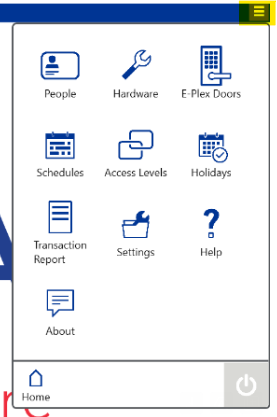
Once you open the software there will be 3 bars in the top right corner. This is where you will go to configure everything.

To add people:
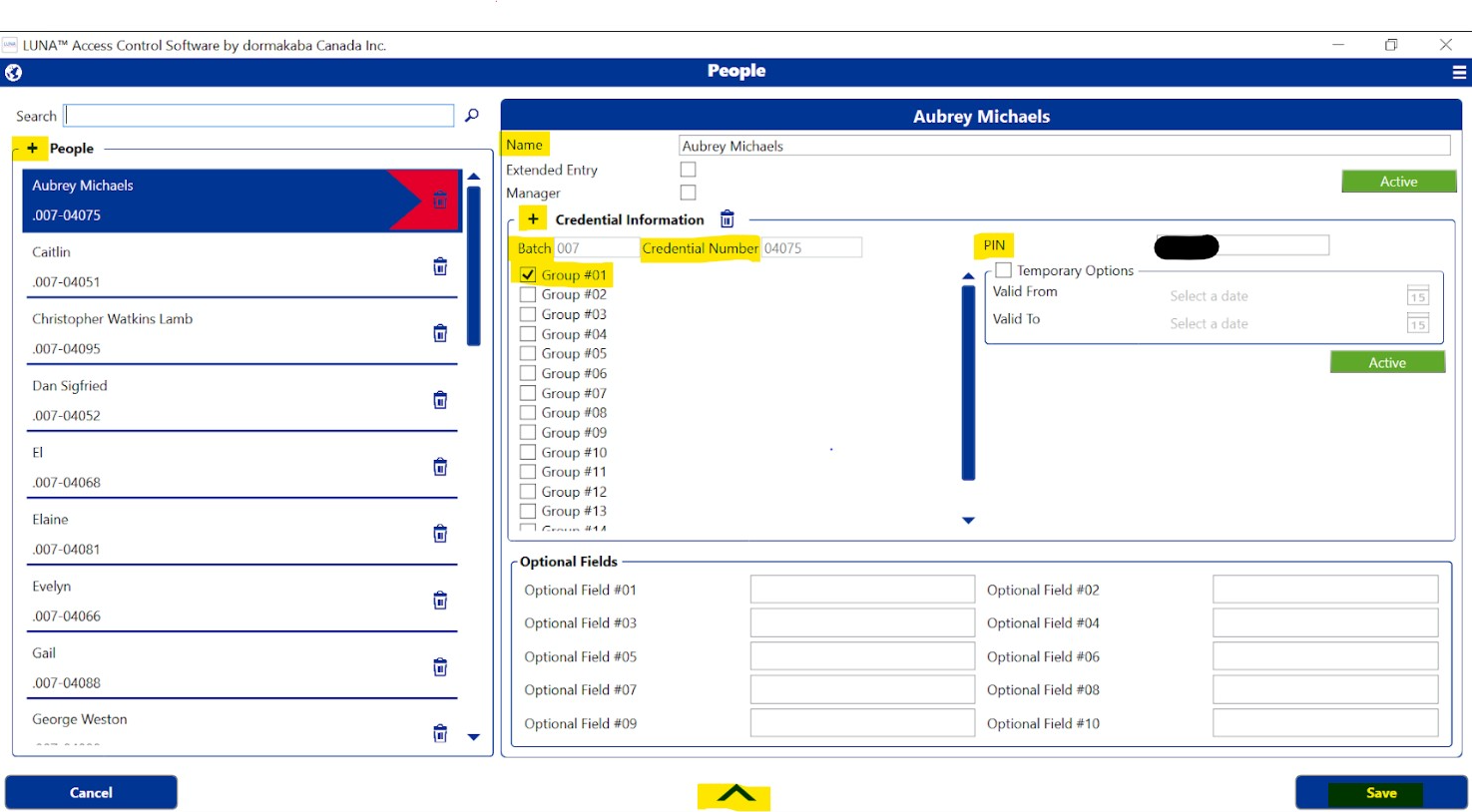
- Select People
- Click the + in the top left next to the word People.
- Enter the Name of the person.
- Click the Plus next to Credential Information
- Select Keyscan from the drop down
- Enter a Batch Number. I have been using the number 003 if not providing a card or key fob.
- Enter a credential number. This is found on the key fob. If not providing a fob you can make up the number. It has to be 5 numbers. I have started with 00001.
- Enter a 5 digit PIN number. I ask if they have one that they will remember, if not I leave what is already entered.
- Select Group #01. This will point them to our door.
- Select Save
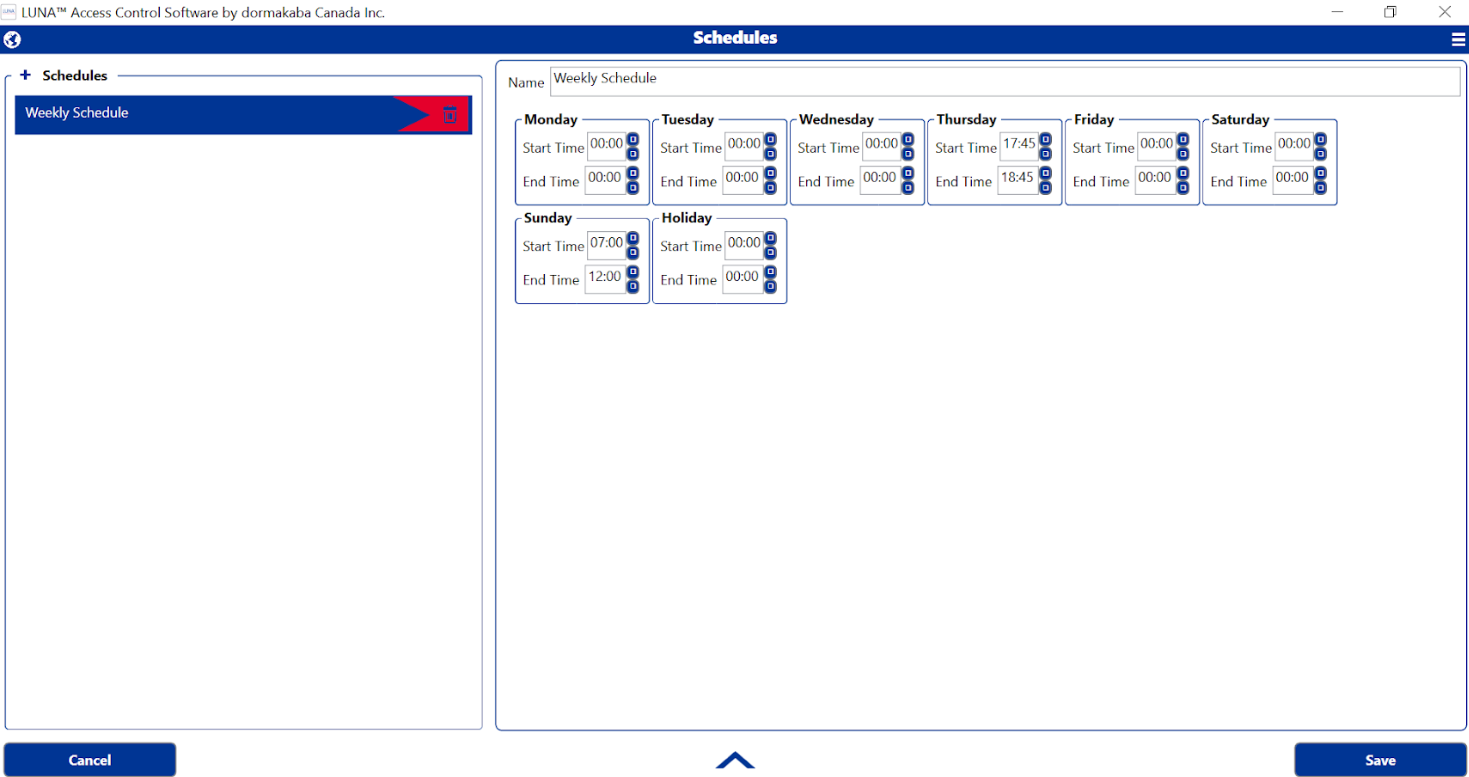
To change the schedule:
Make the desired changes to the weekly schedule
schedule. The time is based on the 24 hour clock. There can only be a single entry per day.
Select Save
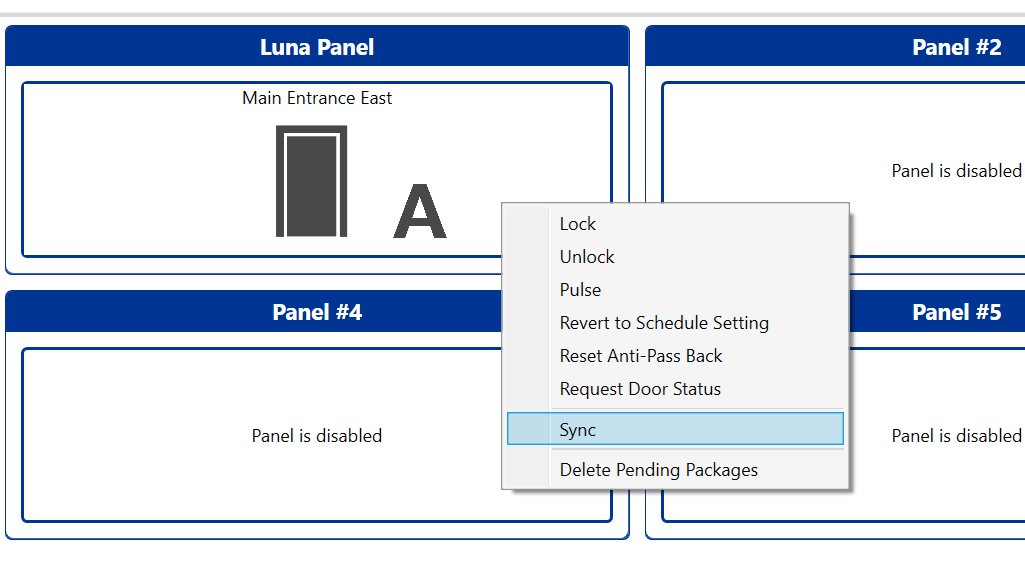
Click on the up arrow, ,arrow in the bottom middle.
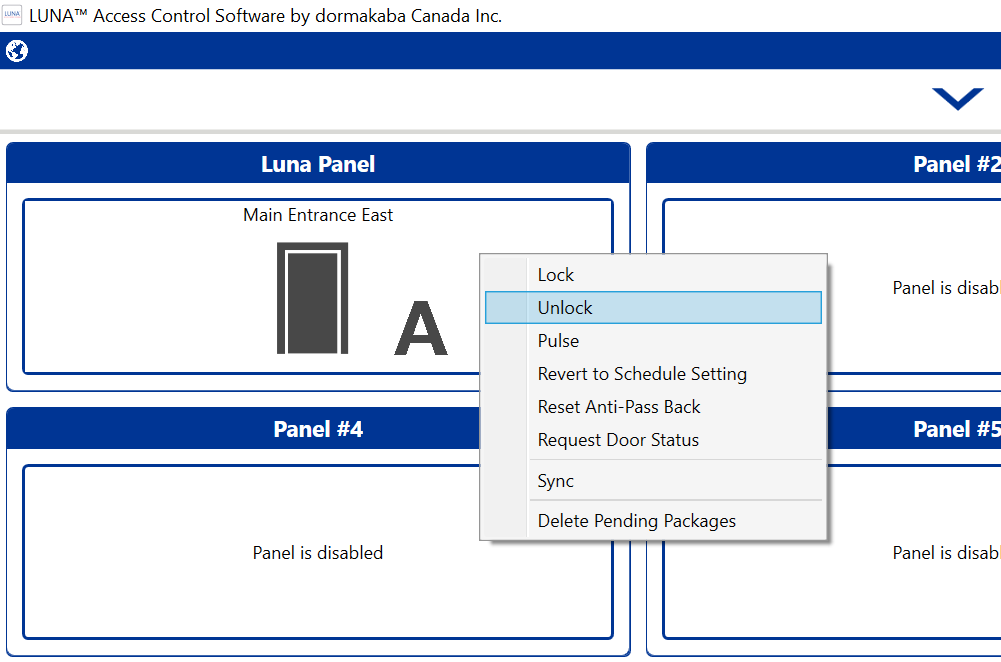
Right Click on the Luna Panel labeled Main Entrance East.
Select sync.
While you can create a new schedule only a single schedule can be followed by the software.
To unlock the door:
Right Click on the Luna Panel labeled Main Entrance East.
Select Unlock
The bar will turn green.
To lock the door:
Right Click on the Luna Panel labeled Main Entrance East.
Select Lock
The bar will turn gray.
Troubleshooting Information:
The wireless IP address for the equipment is 192.168.50.216. This is the main IP that the Luna Software uses. You must be on the CourageousLove-Tech wireless network. The laptop should already be connected to this wireless network.
If you can not connect remotely from the Luna software this is the information you will need to access the local equipment.
You must be on the network : XpicoWiFi_D58F13
IP address to connect to the local equipment is 192.168.0.1
The username and password are stored in Dashlane.
If you do not see the Xpico wifi you will need to go into the attic over the kitchen. Located on the north east wall are 2 boxes. One is a black wifi box labeled Luna and the other is a beige box that says Best. There is also power on next the beige bestBest box. You will need to unplug the black block on the bottom to reboot the wifi box.