
Intro to Guide
Why We Created Guide.Foothillsuu.org
Welcome to Guide.Foothillsuu.org, an internal documentation platform designed to centralize and streamline all documentation within Foothills from our governance policies to our processes, procedures, and resources.
This platform is built on the open-source platform called Bookstack, offering an organized, accessible structure for the various documentation needs of our staff, volunteers, and community members.
How To Use Guide
The video below gives you a good orientation to the platform and how it can support our goals for comprehensive, clear, and collaborative documentation.
Documentation Structure
Our documentation system is organized into Shelves, Books, Chapters, and Pages, which allow us to categorize and structure information logically and accessibly. Here’s an overview of the structure:
- Shelves group similar topics together, creating a high-level organization of content. Each shelf holds multiple books that fall under a particular category.
- Books contain more specific areas of documentation, such as Ministry Handbooks or Governance resources.
- Chapters break down each book into manageable sections.
- Pages within each chapter contain the detailed information, such as procedures, how-to guides, or specific policies.
This hierarchical structure ensures that staff and community members can easily find what they need. Staff can create pages within appropriate books to centralize procedures for their areas of responsibility. If you are unsure where something should go, please contact your supervisor for guidance.
We are still in the process of exploring what the best structure is for all content, so this will be an emergent system as we refine and adapt it to our needs.
Documentation Levels
{{@367}}
Gaining Access to Guide
- Go To https://211134-bookstack.peaknetworks.cloud/
- Click Sign Up on the top nav menu
- Sign up with your work email address
- Contact Sean or Katie to be given permission to edit
Creating and Updating Pages
If you are responsible for creating or updating content, the following guidelines will help:
-
Identify the Correct Book: Begin by finding the appropriate book or shelf that fits the content you are creating. If you’re unsure, consult with your supervisor.
-
Add Your Page/Chapter: Once you’ve located the correct place, you can create a page that outlines a procedure, how-to guide, or any other necessary documentation.
-
Continual Updates: As procedures and policies evolve, ensure that the documentation is kept up-to-date to reflect any changes. We are continuously refining the structure, so feel free to reach out if something doesn’t seem to fit, and we’ll work together to find the best placement.
Thank you for contributing to this collaborative documentation effort as we continue to make our systems more efficient and accessible for all at Foothills Unitarian Church!
Referencing Other Guide Pages
When building content in Guide.Foothills, it's essential to make connections between related pages to create a cohesive and easy-to-navigate system. One of the powerful features of Bookstack is its ability to display linked pages in the sidebar menu, allowing users to easily move between related documentation.
Here’s how and why to add links between pages:
Why Link Pages?
- Provide Context: Linking a procedure to the policy it implements helps users understand the rationale behind specific actions and ensures alignment with the church’s strategic goals.
- Ensure Continuity: Linking related content ensures that staff can quickly find the supporting documents they need without having to search for them separately.
- Encourage Cross-Reference: The more interconnected the documentation, the easier it becomes for staff and community members to find relevant information quickly and efficiently.
How to Add a Link to Another Page
-
Edit the Page: While editing the page, select the text that you want to turn into a link.
-
Insert the Link: Click the "Insert Link" button in the toolbar. You can then search for the page you want to link to by title or select it from the dropdown menu.
-
Save the Changes: Once you've inserted the link and confirmed it, save your page.
Sidebar Links
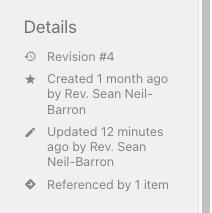 Once you’ve added a link to another page, Bookstack will automatically display that link in the sidebar. This feature is especially useful for navigating between multiple levels of documentation, such as policies, procedures, and processes.
Best Practices for Linking
- Link
ProceduresOrganizational Guidance to Policies: Whenever you’re writing a procedure, include a link to the policy that it is implementing. This not only reinforces the connection but also makes it easier for users to see the bigger picture. - Link How-To Guides to
ProceduresSOP: When creating a how-to guide, link it to any relevant procedures to provide context on why certain steps are necessary. - Use Descriptive Link Text: Ensure the text you turn into a link is clear and descriptive. For example, instead of writing "click here," use “View the [Policy on Event Reservations].”
By doing this as much as possible, you’ll ensure that the entire documentation system feels cohesive and intuitive, helping our community work more effectively.