
Mail Forwarding as an Admin
This document describes how to set/remove mail forwarding as a Google Admin.
How to Set a MailTemporary Email Forwarding Rule forin aGoogle SingleWorkspace User
Admin Console
For: Foothills Unitarian Church Staff Administrators | System: Google Workspace Admin Console
Step-by-step instructions
Step 1: Log into the Admin Console
• Open a web browser and go to admin.google.com.
• Sign in using your Google Workspace administrator credentials.
Step 2: Navigate to theGmail Routing Rules
Settings
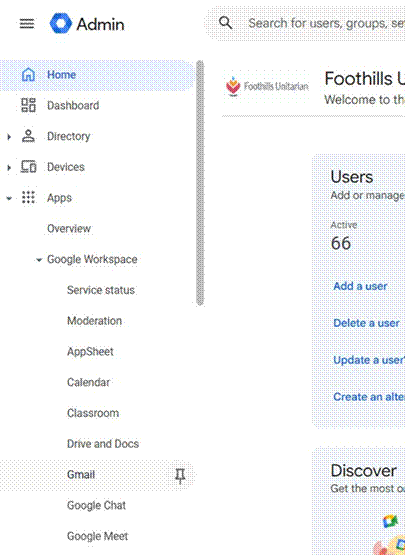
• Click Apps in the left menu.
• Click Google Workspace.
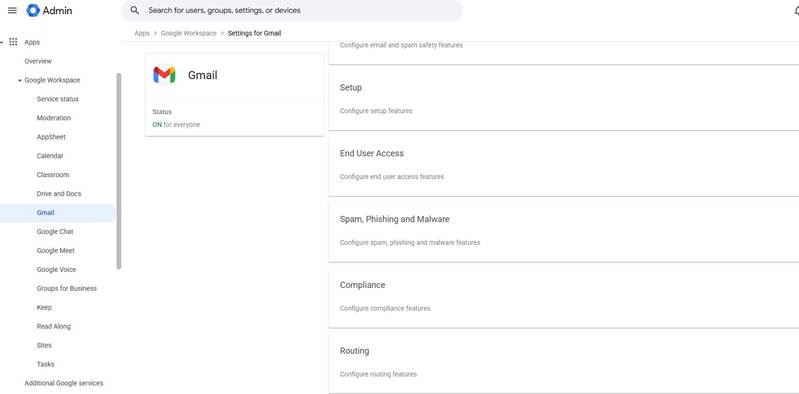
• Click Gmail.
• Scroll down the Gmail settings page.
•to You will see a section called Default routing infind the middleRouting of the page — do not click this.
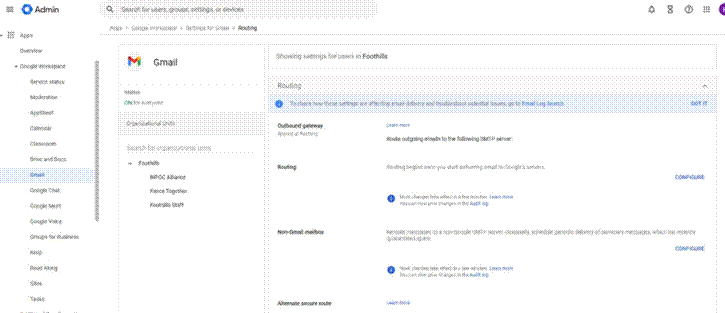
• Continue scrolling to the bottom of the page and click Routing.section.
|
Step 3: AddLocate athe NewRecipient RoutingAddress Rule
Map Section
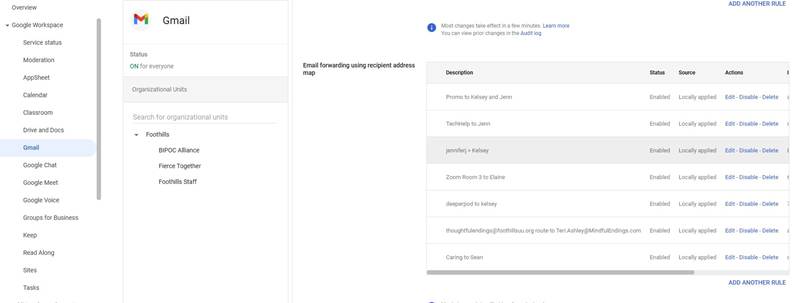
• Scroll down tountil theyou Routingsee section.a section titled Email forwarding using recipient address map.
• This section is separate from the Routing rules section above it.
• Click Add anotherto rule,create ora clicknew Configureforwarding if no rules exist yet.entry.
⚠ Note: Do not use the Routing section above for temporary forwarding. Use the Email forwarding using recipient address map section instead, as it is more reliable for single-user forwarding.
Step 4: NameEnter the Rule
Forwarding Details
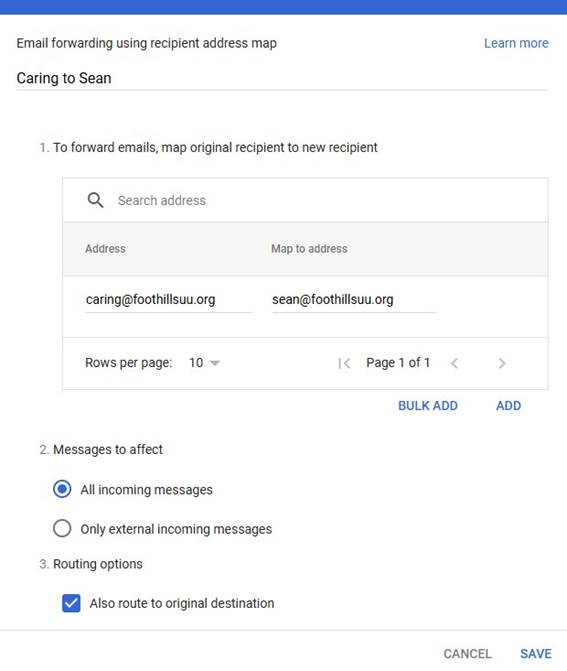
• In the ruleFrom namefield, field atenter the topemail address of the dialog,mailbox enteryou awant descriptiveto name.forward from (e.g., caring@foothillsuu.org).
• In the To field, enter the email address where mail should be delivered (e.g., sean@foothillsuu.org).
Example:• ForwardClick – Jane SmithSave.
Step 5: ConfigureConfirm the Rule Settings
is Active
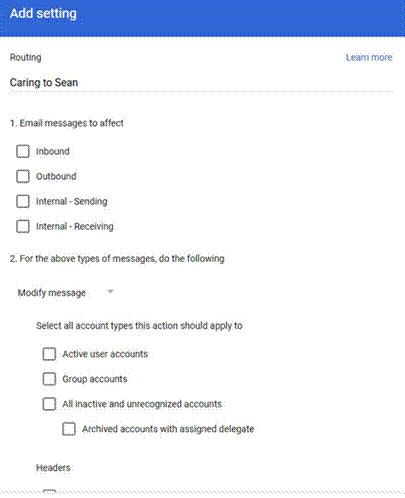
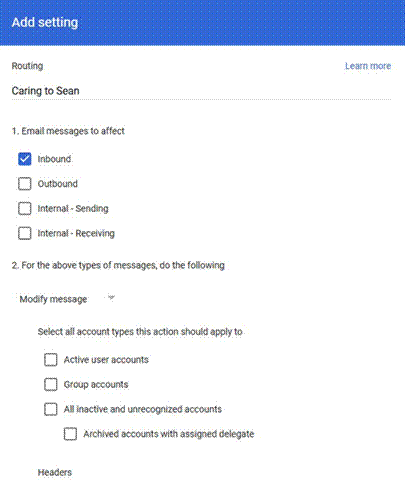
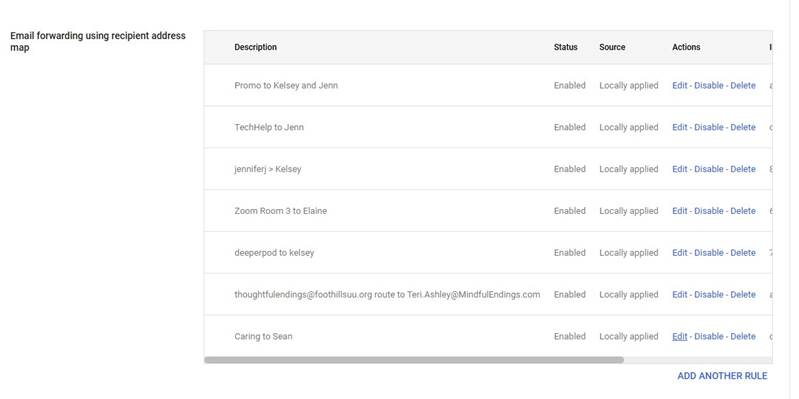
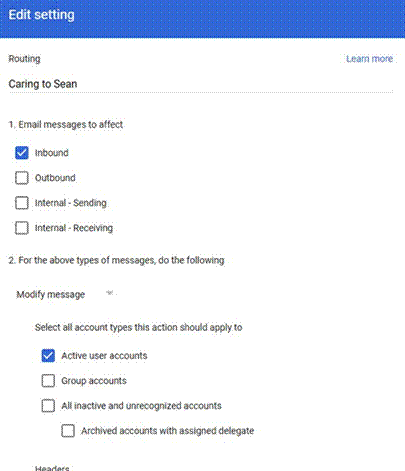
• UnderThe "1.new rule will appear in the Email messagesforwarding tousing affect,"recipient checkaddress Inbound.map list.
• Under "Select all account types this action should apply to," check Active user accounts.
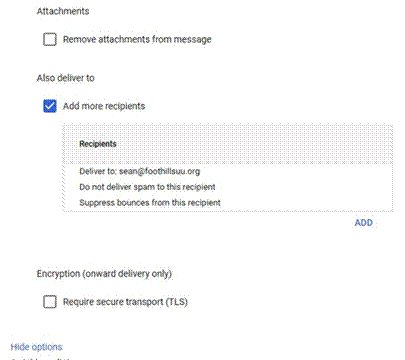
• Scroll down to "Also deliver to" and check Add more recipients.
• Click Add, enterConfirm the destinationStatus emailcolumn address,shows then click Save on the recipient entry.Enabled.
Step 6: SetVerify theForwarding Envelopeis Filter
Working
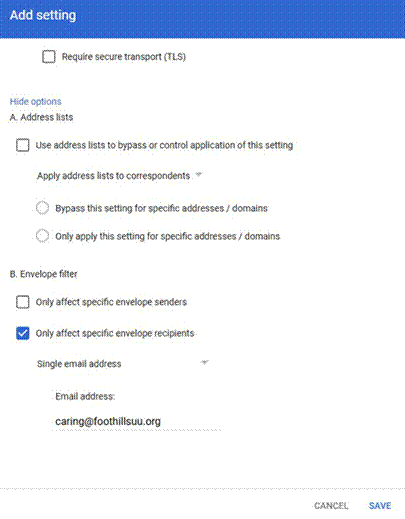
• Click Show options at the bottom of the dialog (if already expanded it will read Hide options).
• In the "B. Envelope filter" section, check Only affect specific envelope recipients.
• In the dropdown, select Single email address.
• Enter the user’s full email address (e.g., caring@foothillsuu.org).
• Click Save at the bottom of the dialog.
Step 8: Verify
• Send a test email to the user’soriginal address.address (e.g., caring@foothillsuu.org).
• Confirm it arrives at both the user’smessage originalis mailboxreceived andby the forwarding destination.destination (e.g., sean@foothillsuu.org).
|
|
Troubleshooting
The rule saved but forwarding is not working.
Wait up to 60 minutes for the rule to propagate. Then send another test email and check again.
|
I cannot find the |
Make sure you have scrolled past the |
|
The |
|
FAQs
Will the original mailbox still receive emails?
It depends on how the rule is configured. When the "Also route to original destination" checkbox is checked (the default), mail is delivered to both the original mailbox and the forwarding destination. If that checkbox is unchecked, mail goes only to the forwarding destination. Check this setting when creating the rule to confirm the intended behavior.
Can I forward to an address outside our organization?
Yes. You can enter any valid email address is entered. Ifas the filterdestination, including Gmail, Outlook, or other providers.
How do I remove this rule when the staff member returns?
Follow the instructions in Part 2 of this guide: How to Remove or Disable a Temporary Email Forwarding Rule.
Do I need the staff member’s permission or password to set this up?
No. This is blank,done entirely through the Admin Console and does not require signing into the staff member’s mailbox.
How to Remove or Disable a Temporary Email Forwarding Rule in Google Workspace Admin Console
For: Foothills Unitarian Church Staff Administrators | System: Google Workspace Admin Console
Step-by-step instructions
Step 1: Log into the Admin Console
• Open a web browser and go to admin.google.com.
• Sign in using your Google Workspace administrator credentials.
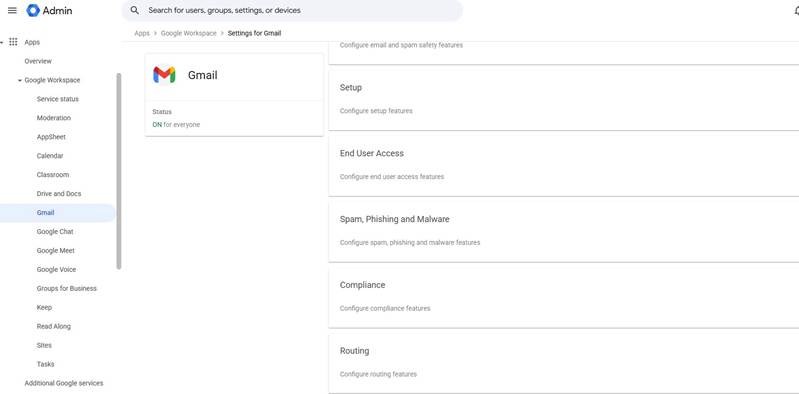
Step 2: Navigate to Gmail Routing Settings
• Click Apps in the left menu.
• Click Google Workspace.
• Click Gmail.
• Scroll down the Gmail settings page.
Step 3: Locate the Recipient Address Map Section
• Scroll down until you see the Email forwarding using recipient address map section.
• Find the forwarding rule you want to remove or disable.
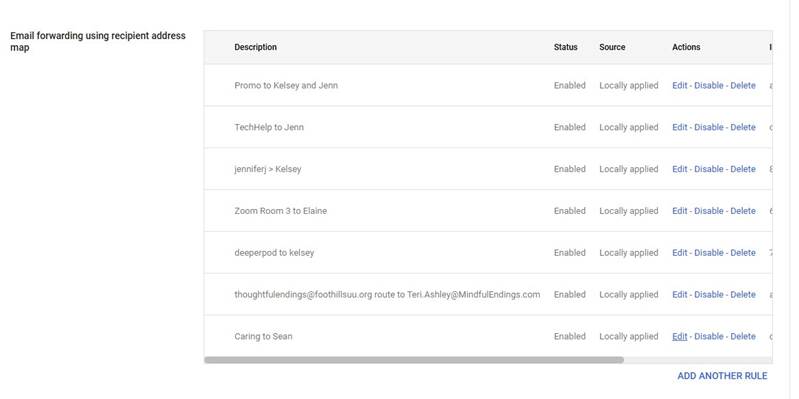
Step 4: Remove or Disable the Rule
• To permanently remove the rule: Click Delete next to the rule. Confirm the deletion when prompted.
• To temporarily pause the rule willwithout applydeleting org-wide.it: Click Disable. You can re-enable it later by clicking Enable.
⚠ Note: Use Disable if the staff member may need forwarding again soon (e.g., extended leave). Use Delete if the forwarding is no longer needed at all.
|
|
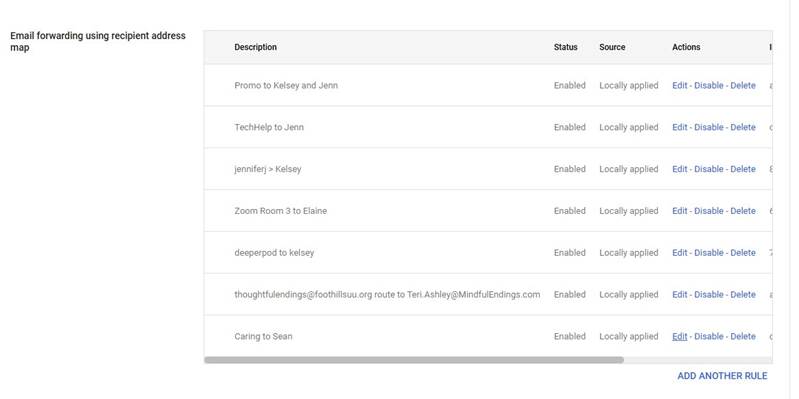
Step 5: Verify
• Send a test email to the original address (e.g., caring@foothillsuu.org).
• Confirm the email arrives in the original mailbox and is no longer forwarded to the other address.
The✓ Tip: If you disabled the rule wasrather savedthan butdeleted forwardingit, you can re-enable it at any time by returning to this section and clicking Enable next to the rule.
Troubleshooting
Mail is notstill working.being forwarded after I deleted the rule.
Changes can take up to an hour to fully propagate. Wait 60 minutes and test again. Also confirm the destination email address was entered correctly.
|
I |
You may not have sufficient admin privileges for Gmail routing. Contact your primary Google Workspace administrator.
FAQs
Will the user still receive emails in their own mailbox?
Yes. This routing rule delivers mail to both the user’s original mailbox and the forwarding destination. It does not redirect mail away from the user.
Can I forward to an address outside our organization?
Yes. You can enter any valid email address as the forwarding destination, including addresses at Gmail, Outlook, or other providers.
What is the difference between Default routing and Routing?
Default routing applies broad delivery rules to all users in the organization. The Routing section at the bottom of the page is where you create specific rules with filters, such as forwarding for a single user. Always use the Routing section for user-specific rules.
How do I remove this rule later?
Follow the instructions in the companion guide: How to Remove a Mail Forwarding Rule in Google Workspace Admin Console.
How to Remove a Mail Forwarding Rule in Google Workspace Admin Console
Step 1: Log into the Admin Console
• Open a web browser and go to admin.google.com.
• Sign in using your Google Workspace administrator credentials.
Step 2: Navigate to the Routing Rules
• Click Apps in the left menu.
• Click Google Workspace.
• Click Gmail.
• Scroll down the Gmail settings page.
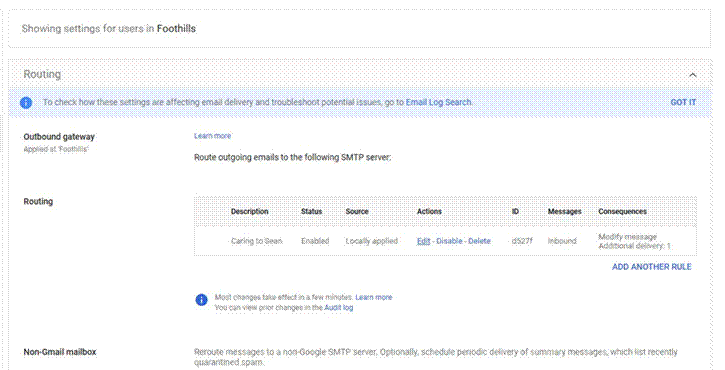
• You will see a section called Default routing in the middle of the page — do not click this.
• Continue scrolling to the bottom of the page and click Routing.
⚠ Warning: Do not select "Default routing," which appears in the middle of the page. The correct section is simply called "Routing" and is located at the bottom of the page.
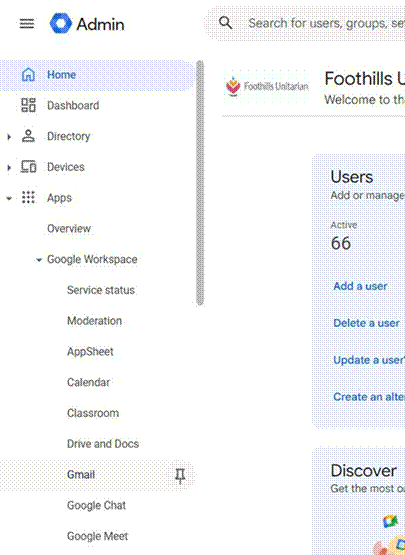
Step 3: Find the Forwarding Rule
• Scroll down to the Routing section.
• Look through the list of rules for the one that references the user’s email address or the forwarding destination address.
• Hover over the rule to reveal the action buttons.
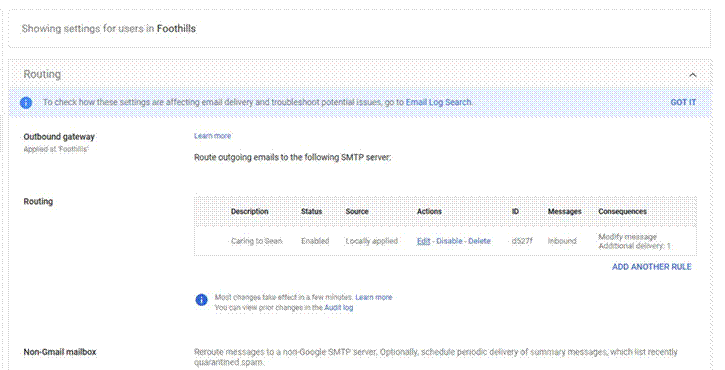
Step 4: Remove the Rule
• Click Delete to permanently remove the rule, OR
• Click Disable if you may want to re-enable it later without recreating it.
Step 5: Confirm the Deletion
• Google will ask you to confirm the deletion.
• Click Proceed to confirm.
Step 6: Verify
• Send a test email to the user’s address.
• Confirm it arrives in their mailbox only and is no longer forwarded.
Note: Changes can take up to an hour to fully propagate, though they typically take effect within a few minutes.
Troubleshooting
I cannot find the forwarding rule in the list.
TryMake searchingsure foryou are looking in the user’sEmail emailforwarding using recipient address ormap thesection, destination address. The rule may be listed under a different name or may be further downnot the Routing section.rules section above it.
|
The Delete |
You may not have sufficient admin privileges. Contact your primary Google Workspace |
Email is still being forwarded after deletion.
Changes can take up to an hour to propagate. Wait 60 minutes and test again. If forwarding continues, check for other routing rules that may reference the same address.
I accidentally deleted the wrong rule.
The rule cannot be restored once deleted. You will need to recreate it manually using the companion guide. Use the Disable option in the future if you are unsure.administrator.
FAQs
What is the difference between Delete and Disable?
Delete permanently removes the rule and it cannot be recovered.undone. Disable turnspauses the rule offbut keeps it saved so you can re-enable it stopslater forwardingwithout email,recreating butit.
Will the staff member’s mailbox automatically start receiving mail again once the rule remains in the list and can be re-enabled later without having to recreate it. Use Disable if there is any chance you will need the rule again.
Will the user lose any emails during this process?removed?
No.Yes. Removing a forwarding rule only stops future emails from being forwarded. Emails already delivered to the forwarding destination are not affected.
Do I need to notify the user before removing the rule?
That depends on your church’s policies. It is generally good practice to inform the affected staff member before making changes to their email routing, especially ifOnce the forwarding rule wasis deleted or disabled, mail sent to the original address will be delivered normally to that mailbox.
How do I set up intentionally.
Can I remove forwarding rules for any user in the organization?first place?
Yes,Follow asthe longinstructions asin youPart have1 of this guide: How to Set a Temporary Email Forwarding Rule in Google Workspace super admin or delegated admin privileges that include Gmail routing management. Standard users cannot access Admin Console routing settings.Console.