
Mail Forwarding as an Admin
This document describes how to set/remove mail forwarding as a Google Admin.
How to Set a Mail Forwarding Rule for a Single User
For: Foothills Unitarian Church Staff Administrators | System: Google Workspace Admin Console
Step 1: Log into the Admin Console
• Open a web browser and go to admin.google.com.
• Sign in using your Google Workspace administrator credentials.
Step 2: Navigate to the Routing Rules
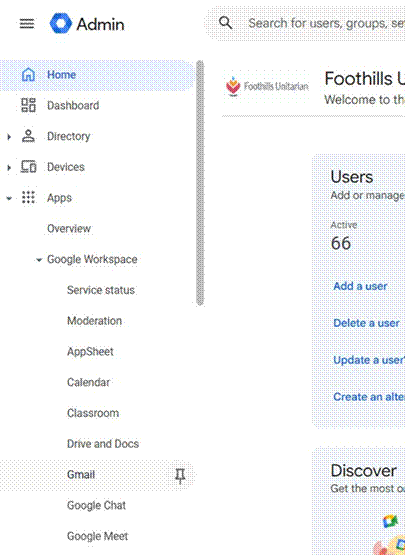
• Click Apps in the left menu.
• Click Google Workspace.
• Click Gmail.
• Scroll down the Gmail settings page.
• You will see a section called Default routing in the middle of the page — do not click this.
• Continue scrolling to the bottom of the page and click Routing.
|
⚠ Warning: Do not select "Default routing," which appears in the middle of the page. The correct section is simply called "Routing" and is located at the bottom of the page. |
Step 3: Add a New Routing Rule
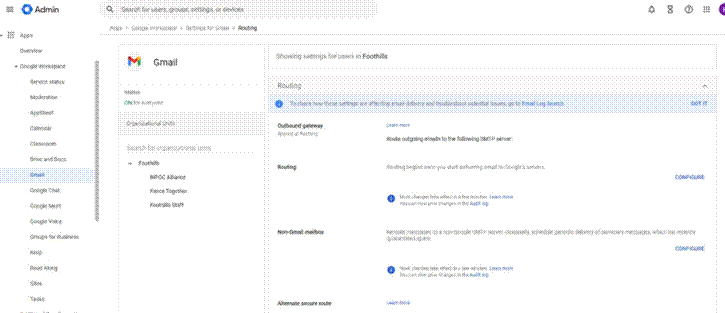
• Scroll down to the Routing section.
• Click Add another rule, or click Configure if no rules exist yet.
Step 4: Name the Rule
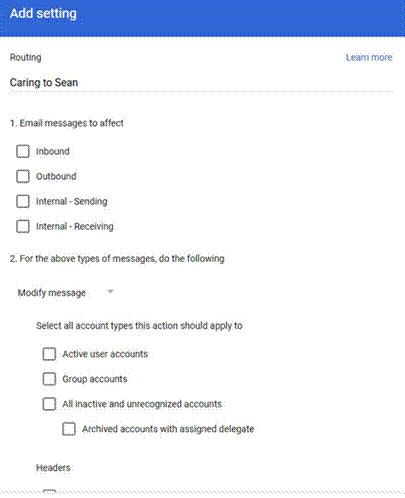
• In the rule name field at the top of the dialog, enter a descriptive name.
• Example: Forward – Jane Smith
Step 5: Configure the Rule Settings
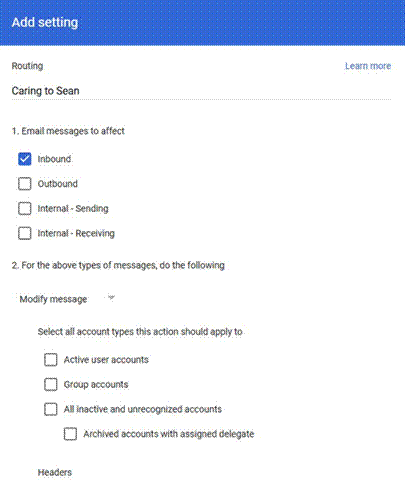
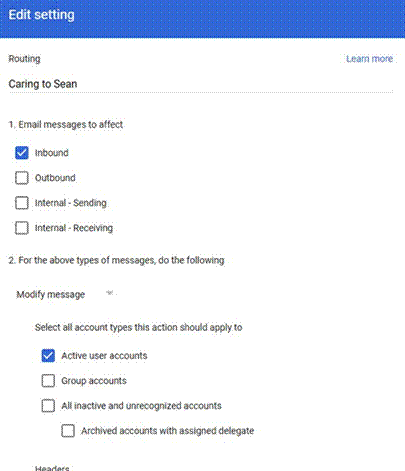
• Under "1. Email messages to affect," check Inbound.
• Under "Select all account types this action should apply to," check Active user accounts.
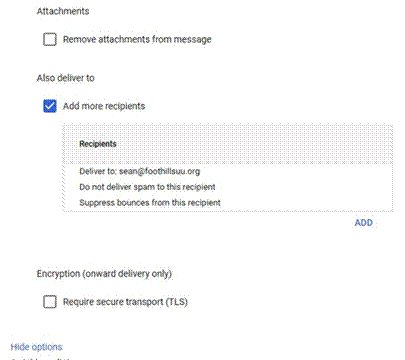
• Scroll down to "Also deliver to" and check Add more recipients.
• Click Add, enter the destination email address, then click Save on the recipient entry.
Step 6: Set the Envelope Filter
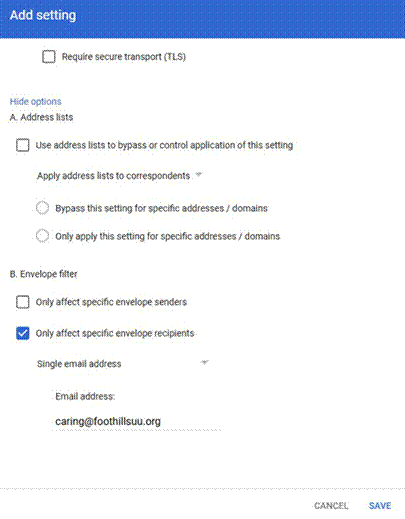
• Click Show options at the bottom of the dialog (if already expanded it will read Hide options).
• In the "B. Envelope filter" section, check Only affect specific envelope recipients.
• In the dropdown, select Single email address.
• Enter the user’s full email address (e.g., caring@foothillsuu.org).
• Click Save at the bottom of the dialog.
Step 8: Verify
• Send a test email to the user’s address.
• Confirm it arrives at both the user’s original mailbox and the forwarding destination.
|
Note: Changes can take up to an hour to fully propagate, though they typically take effect within a few minutes. |
Troubleshooting
|
I cannot find the Routing section at the bottom of the page. |
Make sure you have scrolled past the "Default routing" section in the middle. The correct "Routing" section is near the very bottom of the Gmail settings page. |
|
The forwarded email is going to all users, not just the one I specified. |
Check that you selected "Only affect specific envelope recipients" under Envelope filter and that the correct email address is entered. If the filter is blank, the rule will apply org-wide. |
|
The rule was saved but forwarding is not working. |
Changes can take up to an hour to propagate. Wait 60 minutes and test again. Also confirm the destination email address was entered correctly. |
|
I do not see an "Add another rule" button. |
You may not have sufficient admin privileges for Gmail routing. Contact your primary Google Workspace administrator. |
FAQs
Will the user still receive emails in their own mailbox?
Yes. This routing rule delivers mail to both the user’s original mailbox and the forwarding destination. It does not redirect mail away from the user.
Can I forward to an address outside our organization?
Yes. You can enter any valid email address as the forwarding destination, including addresses at Gmail, Outlook, or other providers.
What is the difference between Default routing and Routing?
Default routing applies broad delivery rules to all users in the organization. The Routing section at the bottom of the page is where you create specific rules with filters, such as forwarding for a single user. Always use the Routing section for user-specific rules.
How do I remove this rule later?
Follow the instructions in the companion guide: How to Remove a Mail Forwarding Rule in Google Workspace Admin Console.
How to Remove a Mail Forwarding Rule in Google Workspace Admin Console
Step 1: Log into the Admin Console
• Open a web browser and go to admin.google.com.
• Sign in using your Google Workspace administrator credentials.
Step 2: Navigate to the Routing Rules
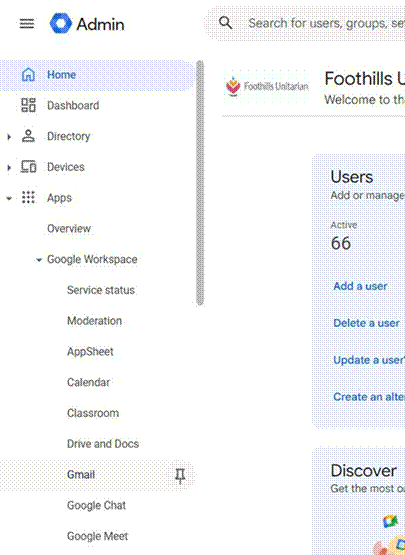
• Click Apps in the left menu.
• Click Google Workspace.
• Click Gmail.
• Scroll down the Gmail settings page.
• You will see a section called Default routing in the middle of the page — do not click this.
• Continue scrolling to the bottom of the page and click Routing.
|
⚠ Warning: Do not select "Default routing," which appears in the middle of the page. The correct section is simply called "Routing" and is located at the bottom of the page. |
Step 3: Find the Forwarding Rule
• Scroll down to the Routing section.
• Look through the list of rules for the one that references the user’s email address or the forwarding destination address.
• Hover over the rule to reveal the action buttons.
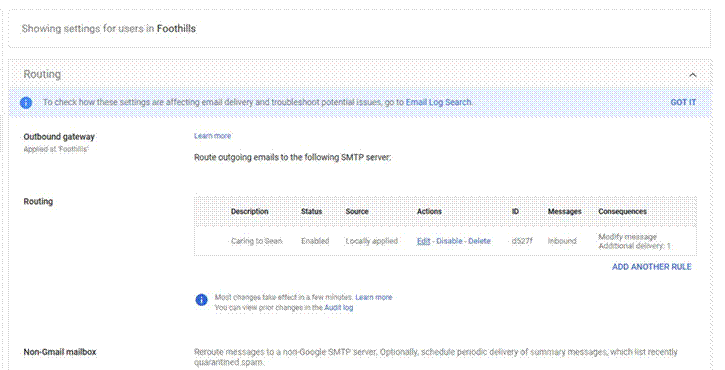
Step 4: Remove the Rule
• Click Delete to permanently remove the rule, OR
• Click Disable if you may want to re-enable it later without recreating it.
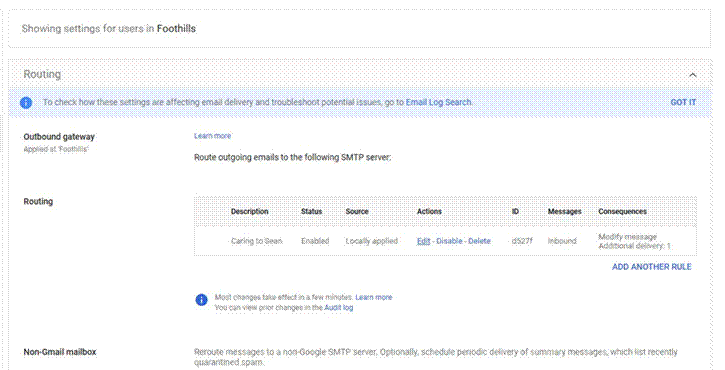
Step 5: Confirm the Deletion
• Google will ask you to confirm the deletion.
• Click Proceed to confirm.
Step 6: Verify
• Send a test email to the user’s address.
• Confirm it arrives in their mailbox only and is no longer forwarded.
|
Note: Changes can take up to an hour to fully propagate, though they typically take effect within a few minutes. |
Troubleshooting
|
I cannot find the forwarding rule in the list. |
Try searching for the user’s email address or the destination address. The rule may be listed under a different name or may be further down the Routing section. |
|
The Delete button is grayed out. |
You may not have sufficient admin privileges. Contact your primary Google Workspace administrator to request deletion rights or ask them to remove the rule. |
|
Email is still being forwarded after deletion. |
Changes can take up to an hour to propagate. Wait 60 minutes and test again. If forwarding continues, check for other routing rules that may reference the same address. |
|
I accidentally deleted the wrong rule. |
The rule cannot be restored once deleted. You will need to recreate it manually using the companion guide. Use the Disable option in the future if you are unsure. |
FAQs
What is the difference between Delete and Disable?
Delete permanently removes the rule and it cannot be recovered. Disable turns the rule off so it stops forwarding email, but the rule remains in the list and can be re-enabled later without having to recreate it. Use Disable if there is any chance you will need the rule again.
Will the user lose any emails during this process?
No. Removing a forwarding rule only stops future emails from being forwarded. Emails already delivered to the forwarding destination are not affected.
Do I need to notify the user before removing the rule?
That depends on your church’s policies. It is generally good practice to inform the affected staff member before making changes to their email routing, especially if the forwarding rule was set up intentionally.
Can I remove forwarding rules for any user in the organization?
Yes, as long as you have Google Workspace super admin or delegated admin privileges that include Gmail routing management. Standard users cannot access Admin Console routing settings.