
Procedure: Staff Facility Use (Non-Promotional Events)
For staff-organized events such as team meetings or group discussions that do not require promotion, the following procedure should be followed to ensure the event is properly scheduled and resources are allocated without being visible to the wider congregation. This ensures efficient use of our facilities while maintaining privacy and focus for internal activities.
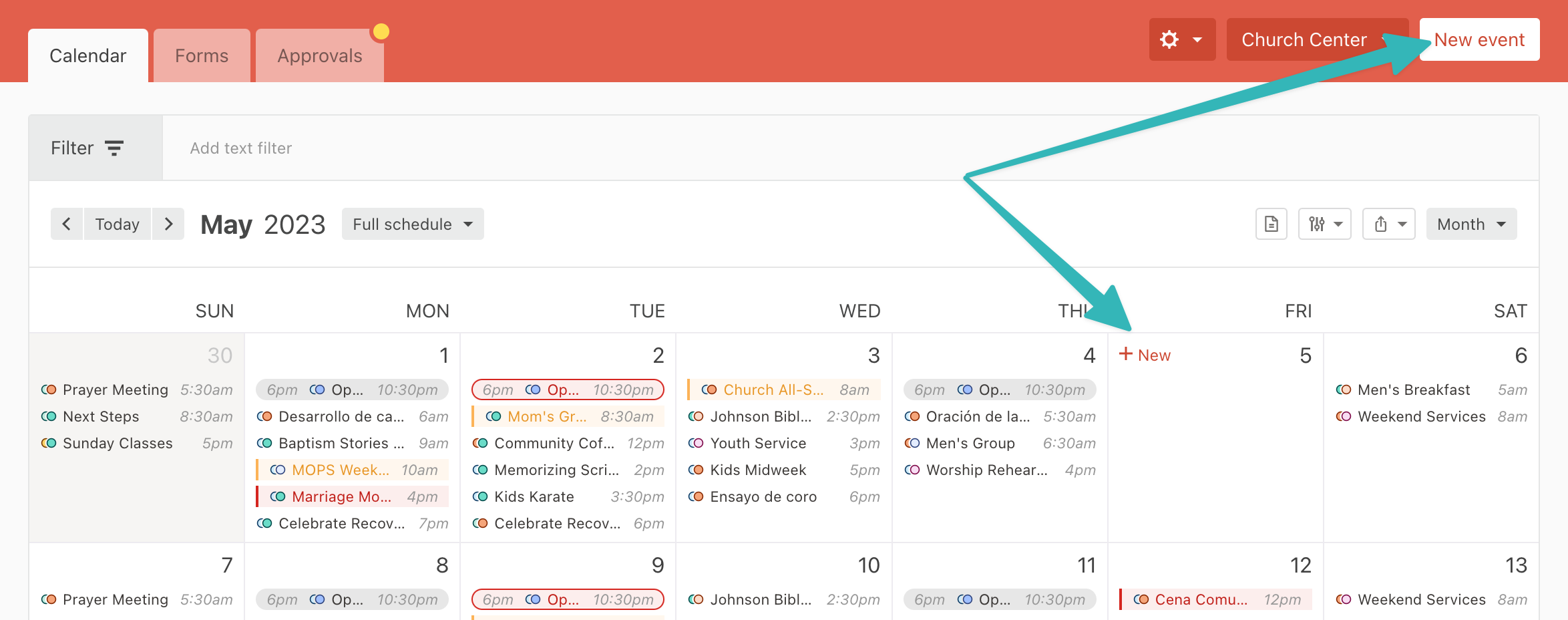
Step 1: Accessing the Calendar
Step 2: Creating the Event
|
1. From the Events page, select New Event or hover over the date and select New to create an event. |
|
|
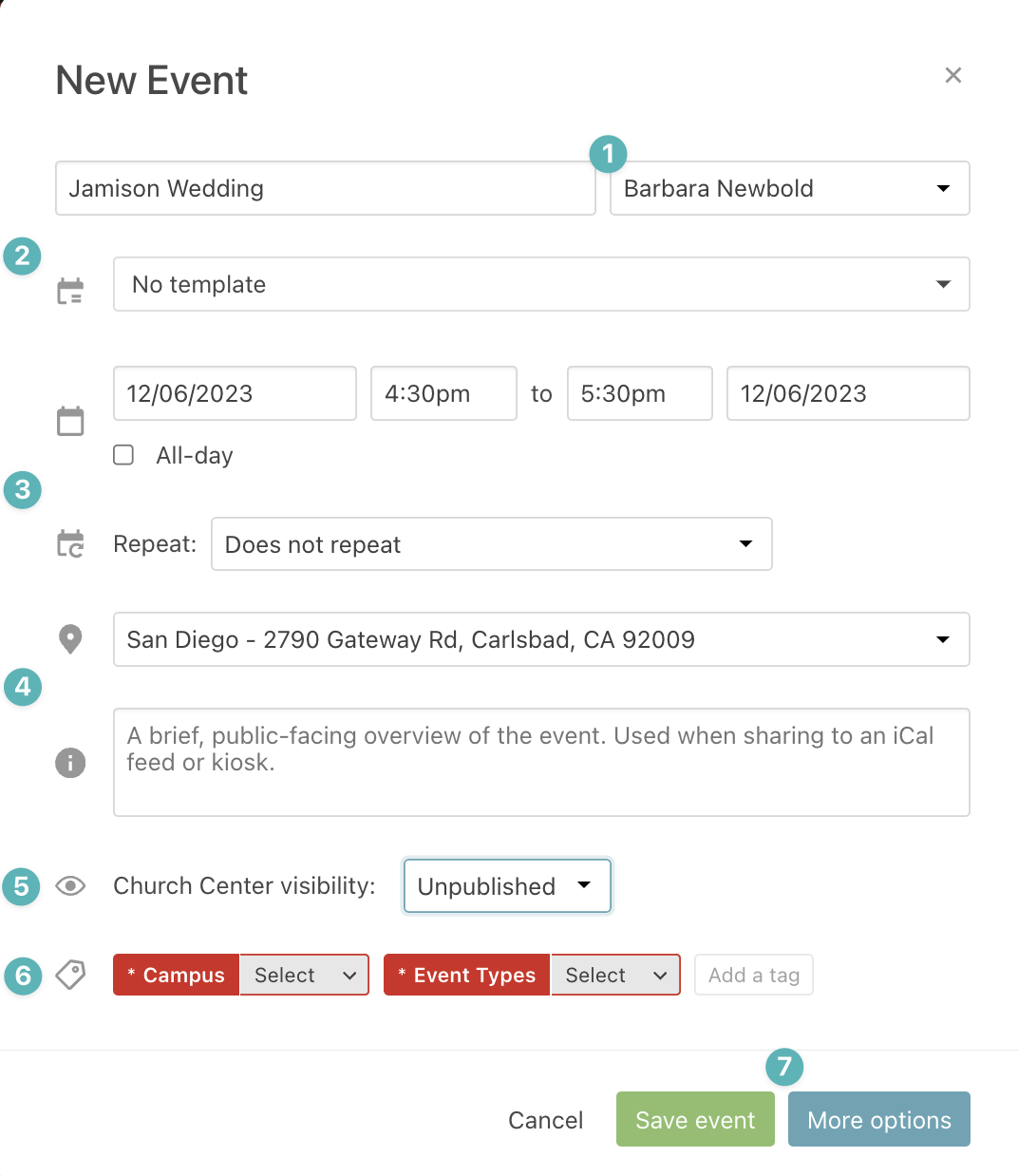
2. Compete the Event Information and click more options
There are more fields required for an event than on this set up section. Consult the Required Event Entry Section for the full list. |
|
|
3. Add Rooms and Resources on the Overview Page
|
|
|
4. Navigate to the Settings Page Complete the Summary, Notes, and ChurchCenter information (if the event is visible). |
|
Step 3: Wait for Approval
The Facilities Approval Group, will receive your request and you will receive an email with your events approval.
If there is missing information from your request, the Admin team will ask you to complete the information before approving your request.