Procedure: Event Promo & Communication
ChurchCenter Event Quality Assurance
Church Center Event Standards
The Church Center Events Calendar serves as a centralized, accessible platform with the goal of enriching the Foothills Unitarian Church community by providing a comprehensive view of congregational life. It aims to:
-
Serve as a One-Stop Shop: Ensure all church members have a single, intuitive access point to discover events, understand their locations, and navigate directly to necessary sign-ups through registrations or group affiliations.
-
Maintain Accurate Information: Guarantee that the details of each event, including dates, times, and locations, are current and precise, fostering trust and reliability within the congregation.
-
Promote Inclusivity: Offer event information that is clear and welcoming to all, avoiding insider jargon or exclusive language that could alienate members new to the church or unfamiliar with specific groups or practices.
-
Highlight Featured Events: Identify and emphasize events that have a significant impact on a substantial portion (50% or more) of the church community or those directly related to ongoing worship series, ensuring these pivotal gatherings receive the attention and participation they deserve.
Event QA Steps
This checklist serves as a quality assurance tool for ensuring all Church Center events include essential information, adhere to event naming guidelines, and provide clear, accessible details to the congregation. Use this checklist before finalizing any event to maintain consistency, accuracy, and engagement.
Part of the Event QA is the transferring of content from the submitted forms to the Event.
See Processing Calendar Forms for step by step instructions on how to accomplish this data transfer.
Step 1: ChurchCenter Visibility Determination
Under the Settings Tab, in the Church Center Section, set the Church Center Visibility Status using the following criteria:
|
Visibility Status |
Impact on Display |
Criteria for Status |
|---|---|---|
|
Unpublished |
Not visible to congregants on Church Center. For internal use only. |
Use for internal events, staff meetings, rentals, or any activities not intended for the broader church community. |
|
Published |
Appears in chronological order on Church Center. |
Suitable for church events from specific groups and teams, that aim to inform and involve the congregation but are not prioritized. |
|
Featured |
Published, starred, and positioned at the top of the gallery view. |
Events that impact 50% or more of the church community or are directly related to a worship series. |
Step 2: Overview Tab
In the Event Overview Tab, insure all the details are set out correctly
-
Event Name: Follows the event naming guidelines; clear, descriptive, avoiding abbreviations and jargon. (see Below)
-
Location: Describes whether the event is in-person or virtual; includes specifics visible on listings and kiosks.
-
Tags: Includes selections from each required group: Department, Event Type, Location.
See Naming Conventions
{{@63}}
Step 3: Settings Tab
Event Point of Contact Information
- Event Owner: Staff Lead of the Event or Lead for the Group Hosting Event
- Optional: Event Managers: If there are additional Staff involved in the Event
- Notes: This field should contain:
- Contact Information for the Event Point of contact (name, phone, email) for lay-led events
- Additional internal information for staff to know about the event
Event Descriptions
- Summary: Offers a concise overview for public engagement; suitable for iCal and kiosk display. One sentence max.
For Events Published or Featured on ChurchCenter
- Description: Detailed, rich-text overview for public viewing on Church Center.
- Registration URL: Provides a link to the registration page, whether internal or external.
- Image: Includes a representative image for display on Church Center.
Step 4: Connections Tab
|
PRODUCT |
CONNECTION |
|---|---|
|
Groups |
An individual group |
|
Groups |
A specific group event* |
|
Registrations |
A signup |
|
Services |
The Service Type where the plan is located |
|
Check-Ins |
A checkin event |
- Add Connections if the Event exists within other PCO Apps
- If needed create Signup In Registration
- If attendance is note being taken Groups, create checkin event
QA Process Automations
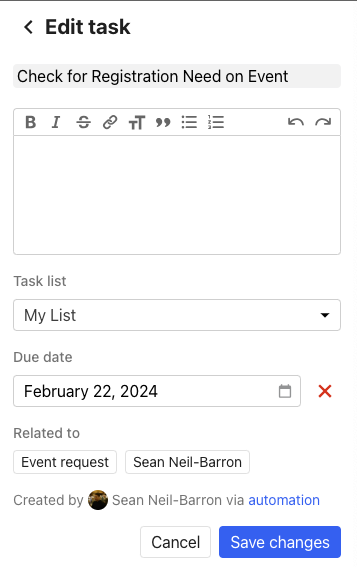
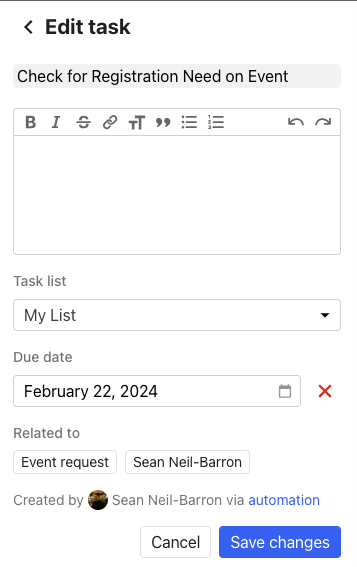
- Automation from Regular Group Meeting Space Request Form and Church Wide Events (Facility Use & Promotion Form) trigger a task to be created for the Admin Team Member in charge of QA for the ChurchCenter Events Calendar
- Task can be found in the "Home" Section of PCO or on on the PCO sidebar
- To Navigate to the Event that Created the Event Request, under "Related To" click Event Request.