# The Basics of PCO Groups
Planning Center Groups is an online application that will help you manage your members, plan events, take attendance, and share resources.
You can manage your group in one of two placed:
1. On the Church Center App. [Download Now](https://churchcenter.com/setup)
2. On The Admin Side of PCO Groups. [Access Here](https://groups.planningcenteronline.com/)
As a group leader, managing your groups can be a daunting task. However, with the Planning Center Online Groups, you can streamline the process and create a sense of community amongst your members. The platform allows you to organize groups, take signups, and track attendance effortlessly. Additionally, the platform allows you to share materials, like study questions and curriculum, with members online or in the Church Center app. With features like Group Messaging and Reports, you can stay connected with your members and keep track of participation.
# Managing Your Group From ChurchCenter App
To manage your group from Church Center, you'll need to be [logged in](https://pcochurchcenter.zendesk.com/hc/en-us/articles/6317711061275) to the Church Center web or app.
# [Add Members to a Group](http://guide.foothillsuu.org)
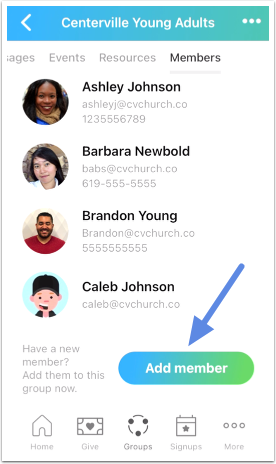
You can [add members](https://pcogroups.zendesk.com/hc/articles/4405330490139#UUID-ccb48dde-08b2-ce23-fa46-28acde7b8a67) to your group from the Members tab.
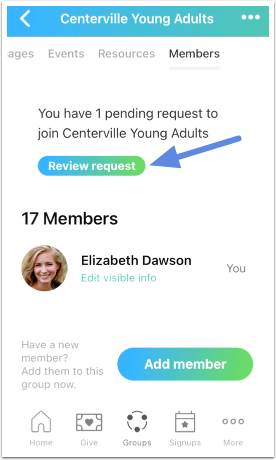
When the group member requests to join, review the request to add them as a member.
# [Create and Manage Events](http://guide.foothillsuu.org)
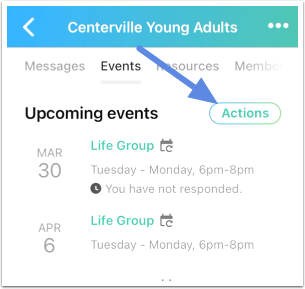
To [create](https://pcogroups.zendesk.com/hc/articles/360016079074#UUID-63c70821-4506-f110-eee6-130dc13cbf38) an event in Church Center web or app, log into Church Center, go to the group's Events tab, and select the Actions button in the app or the New button on the web.
Select an event to edit it.
# [Take Attendance](http://guide.foothillsuu.org)
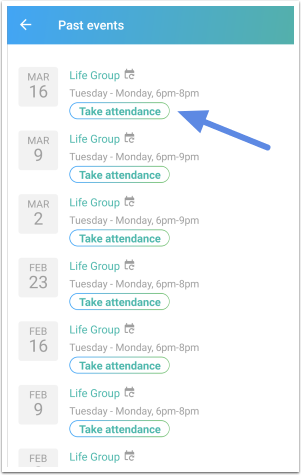
You can [take attendance](https://pcogroups.zendesk.com/hc/articles/360016180273#UUID-18289bf1-5f72-6c60-6f74-6cee64fb69be) for a group event from Church Center web or app starting from 10 minutes before the event begins.
If attendance isn’t something you’re interested in tracking, an Administrator can disable the reminders on the [Settings](https://pcogroups.zendesk.com/hc/articles/360016079154#UUID-fcefe8c0-920a-d641-0b12-8a40b989ea14) tab.
If you want to add visitors to the attendance list, you can do that from [Groups Admin](https://pcogroups.zendesk.com/document/preview/5199#UUID-c2cadb7e-3a2e-87e4-3515-65e6cc8e2c8b) if your group is set up to allow leaders to add members.
# Managing Your Group From Admin Side of PCO Groups
### Log in to Groups
The first time you log in to Groups, you may or may not need to set a password, depending on if you have previously set a password for one of our other apps.
On the [login page](https://groups.planningcenteronline.com/), select the Need a password? link below the email and password fields.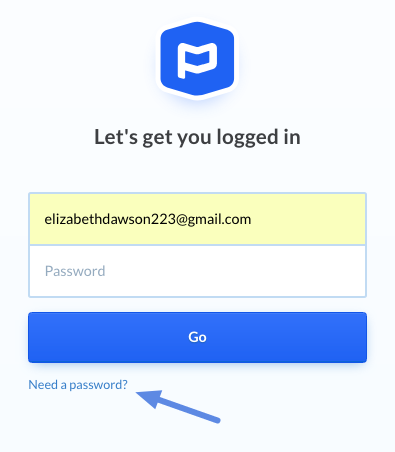
Enter the email address your administrator used to set up your profile, then a verification code will be sent to that email address. After entering the code, you will be able to create a password and then log in.
Once you are logged in, you will stay logged in until you log out or after 2 weeks of inactivity.
### Manage Members
The first page you see when you select your group is list of all your members. There are some quick actions you can take on this page, such as emailing members, removing them from your group, or printing a list of members.
You will also have the option to add new members from this page if your administrator has given you the permission to do so.
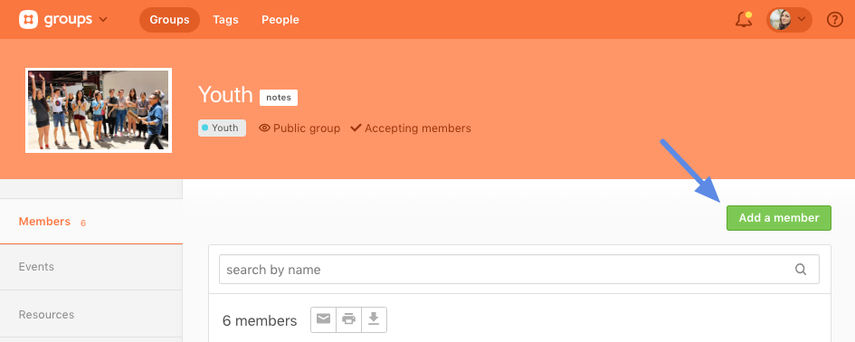
Click the Invite a new member button to email the person and invite them to join the group.
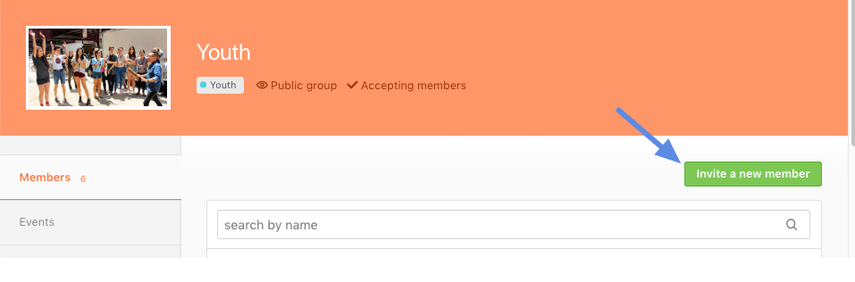
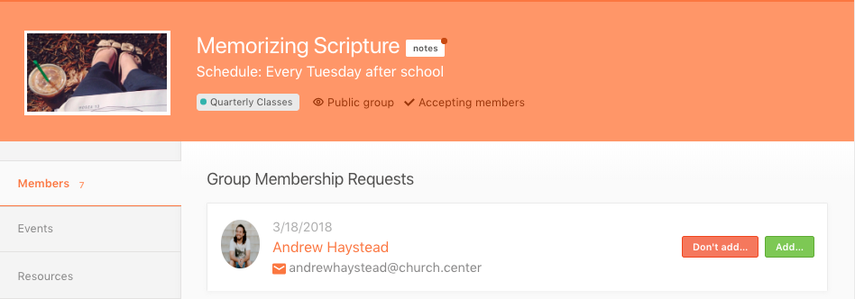
When someone requests to join your group, you will receive an email notification. You can either respond via the link in that email or respond from Groups. All requests will be displayed on top of your list of members
# Manage and Email Group Members
Updated on: March 2, 2023
You can add or invite new members, email or print member lists, and remove people from a group from the Groups Admin Members tab. Administrators can also email members of any group from the Groups People page.
Emails will be sent to the primary email address, except in the case of Account settings. Accounts sends an email to every email address listed on an Organization Administrator or Billing Manager's profile.
## [Manage Group Members](http://guide.foothillsuu.org)
You can add or invite new members, email or print member lists, and remove people from a group from the Groups Admin Members tab.
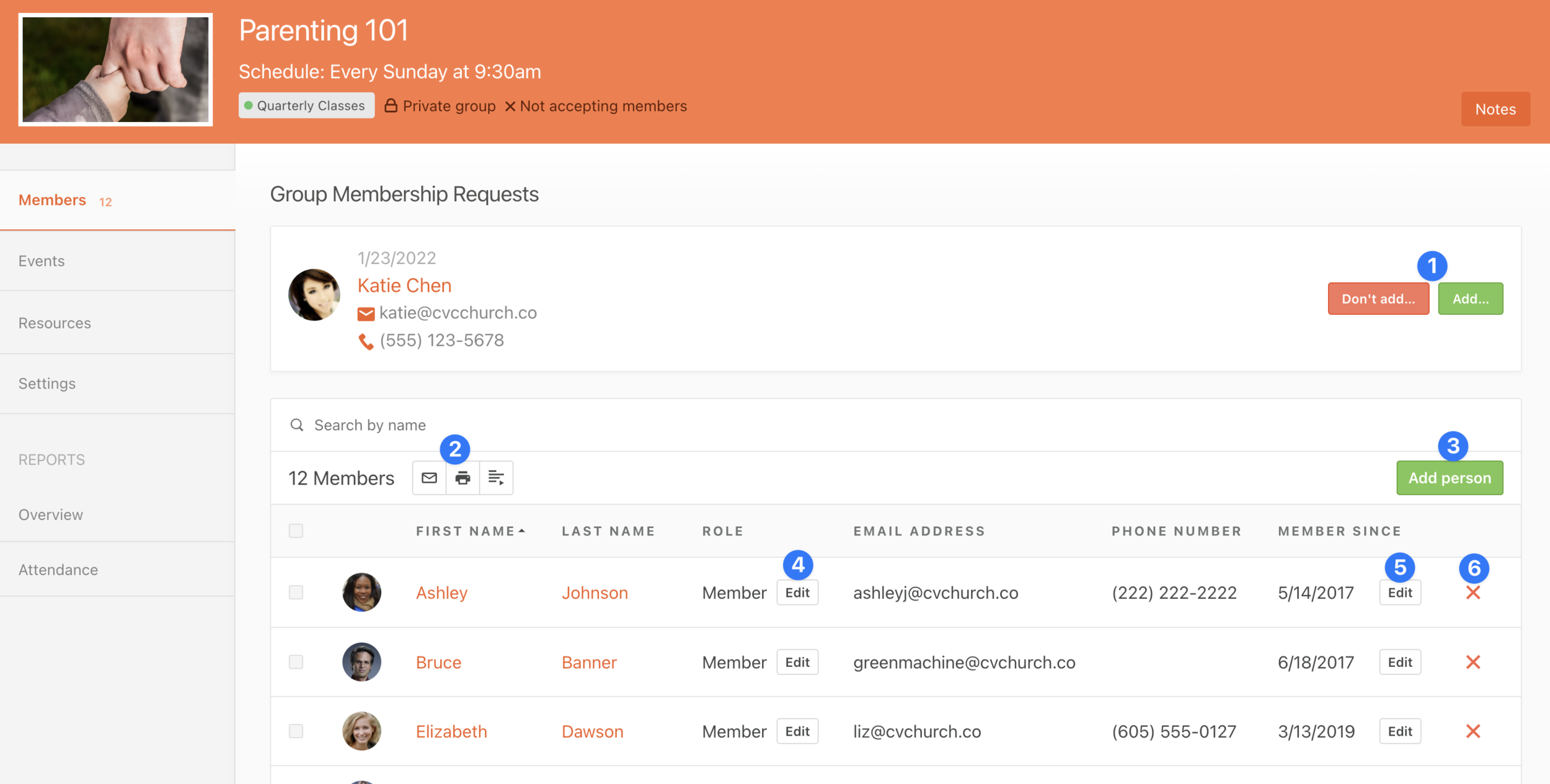
1. You'll receive an email notification when someone requests to join your group. You can either respond via the link in that email or respond from Groups.
2. Take one of these actions on selected members in the list: [Email](https://pcogroups.zendesk.com/hc/en-us/articles/360016180233) members, print a list of members, export a list of members, or remove members.
3. You can either [add or invite](https://pcogroups.zendesk.com/hc/articles/#UUID-e298b275-988c-3714-14d9-7f80bc08f582) members to the group. You'll see the Add Member button if you have permission to add a new member directly; otherwise, you'll have an Invite a new member button. Contact your Administrator if you need permission to add members directly.
4. Administrators can click to promote a member to a Leader or designate the member to take attendance.
5. Edit the date the person joined the group.
6. Click the red x to remove an individual member.
## [Email Members of One Group](http://guide.foothillsuu.org)
Leaders and Administrators can send general emails to group members from the Members tab in Groups Admin. For example, if you want to let members know about a new group resource, add the file to [Resources](https://pcogroups.zendesk.com/hc/articles/115008384387#UUID-b890d9fd-9e5c-4330-4523-ae8b65981aef), and then send an email letting your members know it's available.
To email group members about a specific event, send a [reminder email](https://pcogroups.zendesk.com/hc/articles/360016180153#UUID-83be29e7-c3b3-c022-864c-635f3a66ef90), which will include a link to the event.
- To email all members, click the email icon at the top of the Members tab.
- To email selected members, put a check next to the names of the people that you want to email, and then click the email icon.
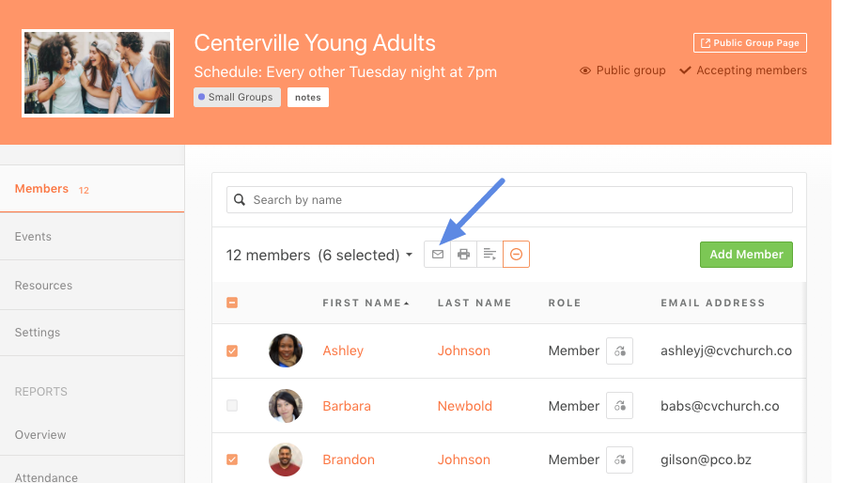
Complete the subject and message in the email form, and then click Send.
## [Email Members of Any Group](http://guide.foothillsuu.org)
[Administrators](https://pcogroups.zendesk.com/hc/articles/360016079234#UUID-9c14cfdd-13be-7b14-fde8-fd4a81a96400) can email members from more than one group. For example, if all small groups will be not meet next week due to a church-wide event, you can email all small groups with this information.
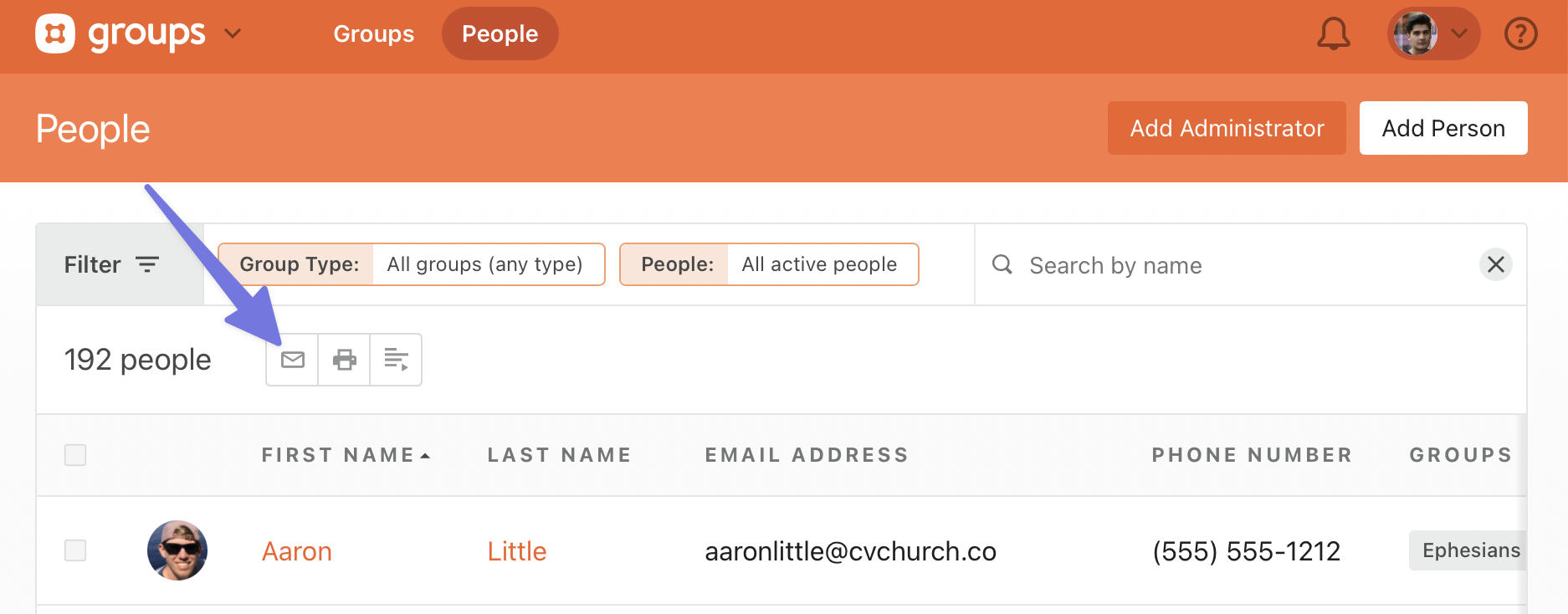
From the People page, [filter the list](https://pcogroups.zendesk.com/hc/articles/360025557994#UUID-c36436ea-0c38-8510-decb-7849638bf810) for the people that you want to email. If you want to email specific people in the list, put a check next to their names, and then click the envelope icon.
# [Create an Event](http://guide.foothillsuu.org)
Leaders and Administrators can create an event from either the Planning Center Groups or from Church Center (web and app).
## Create an Event from Planning Center Groups
From a group Events tab, click Create a new event.
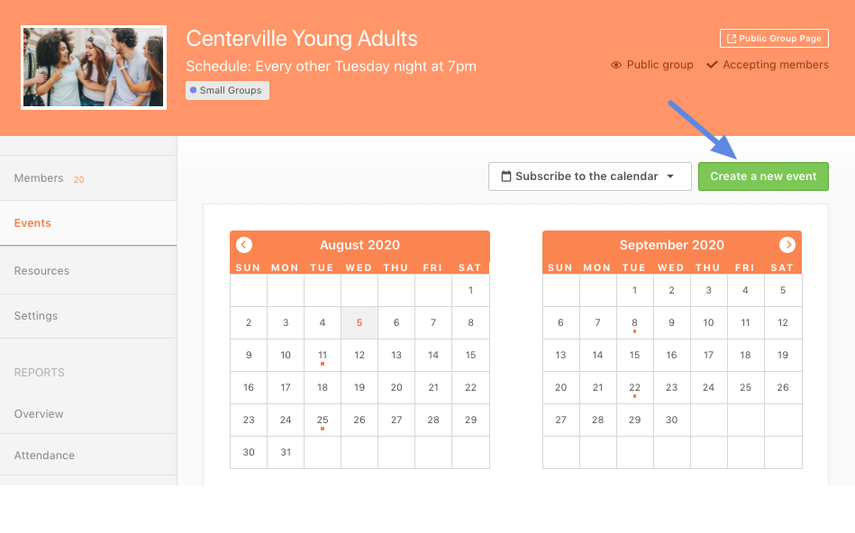
If you are an Administrator, you can also create the event from the main Groups Calendar tab. If you do this, you will need to fill in details about the event before you go to the New Event page.
Add the information about the event, and then click Create event to add it to your group calendar.
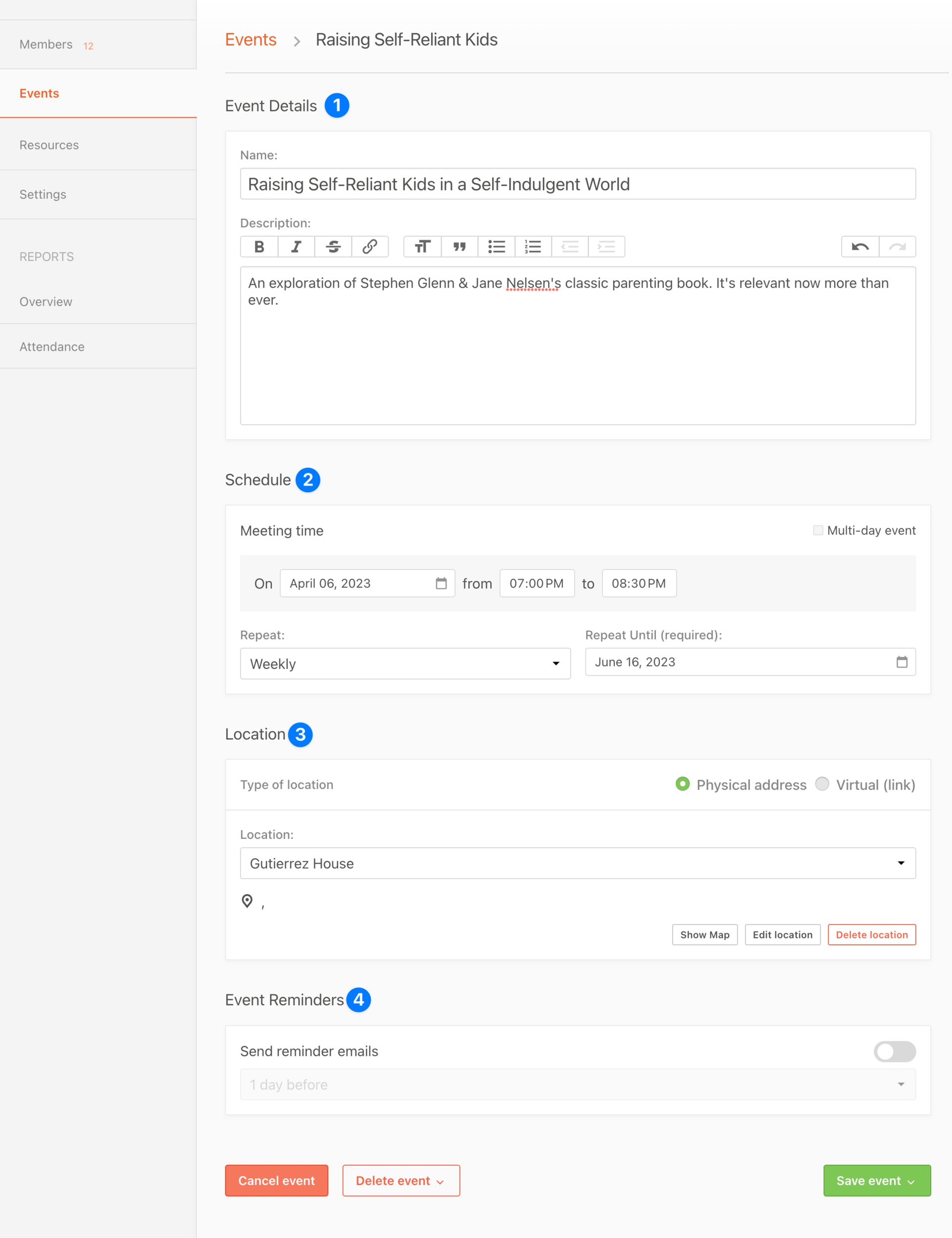
1. Fill in the event name and description. This will be shown in Church Center for the group.
2. Set the meeting schedule.
3. Choose a [location](https://pcogroups.zendesk.com/hc/articles/360016079054#UUID-906eb403-40c1-2dbe-c87c-1361decfa126) for the event.
4. Set [automated reminders](https://pcogroups.zendesk.com/hc/articles/360016180153#UUID-83be29e7-c3b3-c022-864c-635f3a66ef90) for the event.
## Create an Event from Church Center
To create an event from Church Center web or app, log into Church Center, go to the group's Events tab, and select the Actions button in the app or the New button on the web.
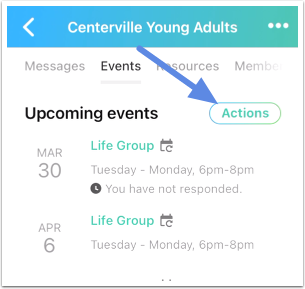
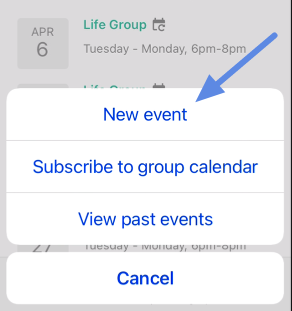
Select New event in the app.
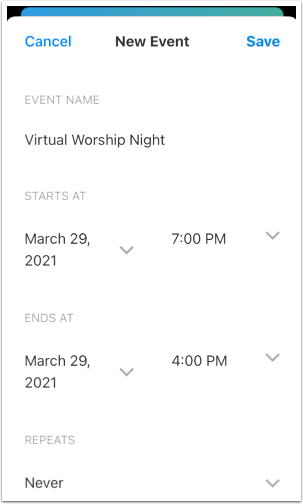
Fill out the event information, including the date and time, [location](https://pcogroups.zendesk.com/hc/articles/360016079054#UUID-906eb403-40c1-2dbe-c87c-1361decfa126), and [reminders](https://pcogroups.zendesk.com/hc/articles/360016180153#UUID-83be29e7-c3b3-c022-864c-635f3a66ef90), and then select Save.
# [Edit an Event](http://guide.foothillsuu.org)
Leaders and Administrators can edit an event from Planning Center Groups or from Church Center app or web.
## Edit an Event from Planning Center Groups
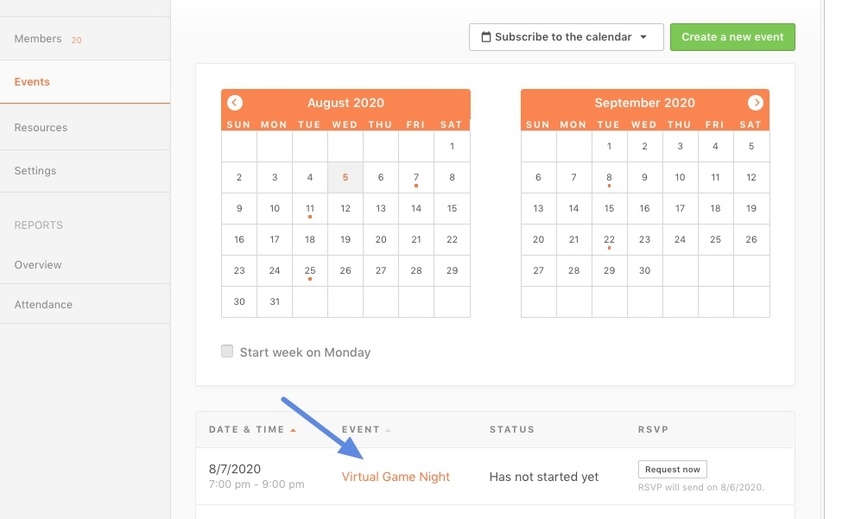
Select the event name from the list in a group's Events tab.
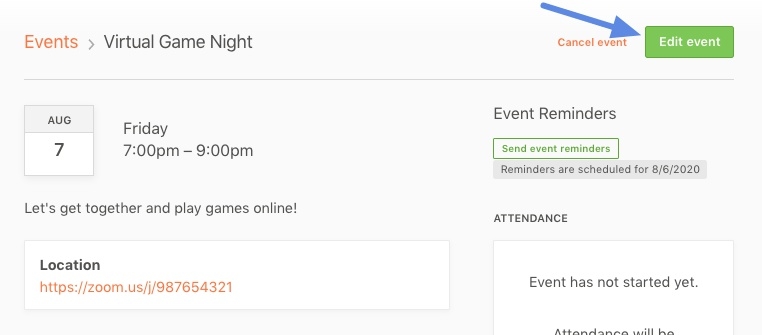
Click Edit event.
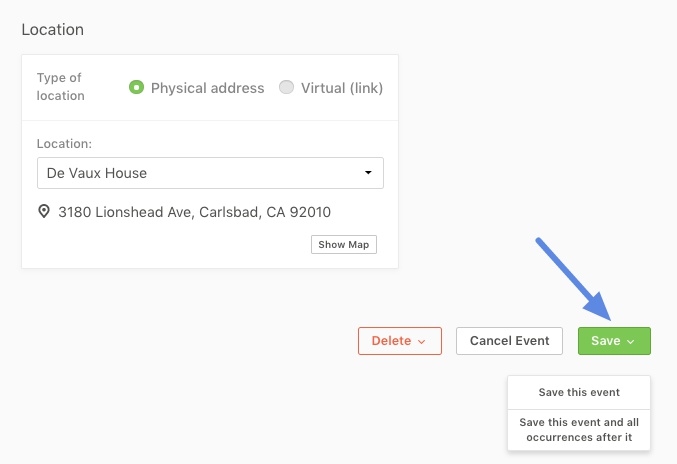
Edit any information, and then scroll to the bottom and click Save. If your event repeats, choose to save only this event or all future events as well.
##
### Resources
The Resources tab allows you to view resources that have been uploaded and shared with your group. As the leader, you will also have the option to upload resources for your members.
When your members view the group, they will have access to the list of resources you have uploaded and they can download the resources on their end.
### Settings
From the [Settings](https://pcogroups.zendesk.com/hc/en-us/articles/360016079154-manage-group-settings) tab, group leaders can modify group information such as name, description, 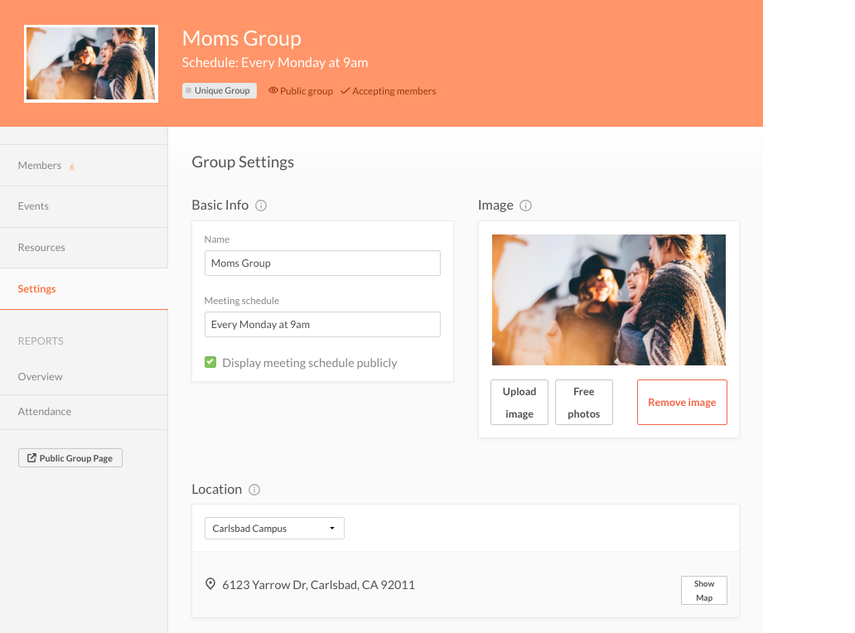and group image.
Leaders can also update the meeting location, contact information, and group description.
### Reports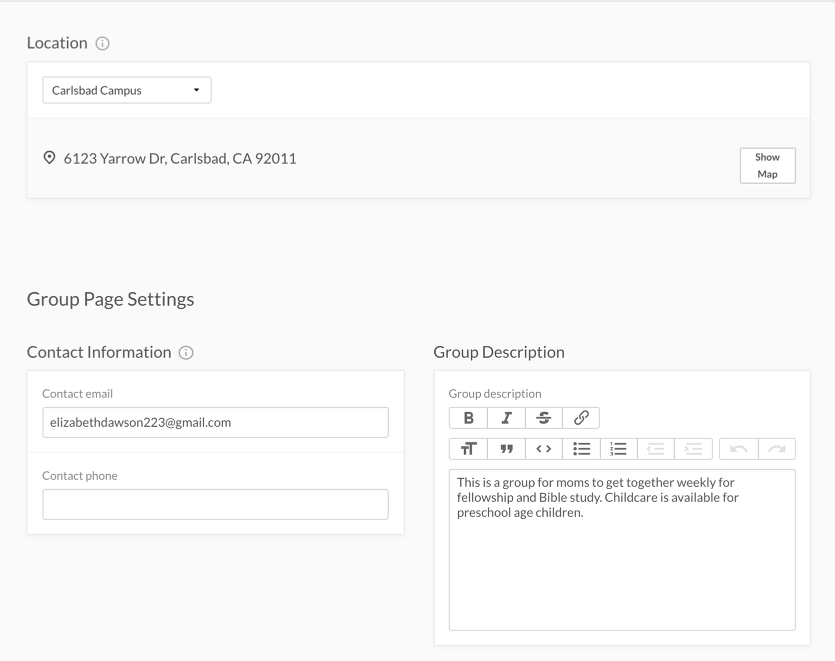
There are currently two different types of reports. The Overview report will give you a bird's eye view of how your group is doing as a whole.
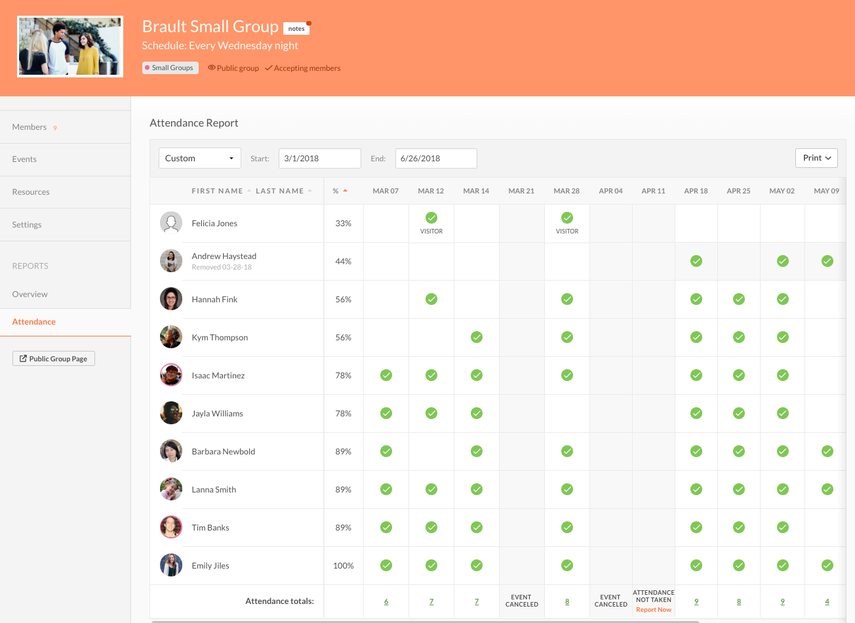
The Attendance report will give you a closer look at the individuals in your group. As you take attendance during your events, this report will begin to populate.
If you need any help as you're leading your group, use the ? in the upper right of any page to contact our Support Team.