Example: Members of the Solar Team want to have a regular meeting of their team that doesn't require any church wide communication.
#### Step 1: Create Event in PCO Group| - **Access Group's Events Tab:** Navigate to your group's Events tab in Planning Center Online (PCO) Groups. - **Select "Create a New Event":** Click on the option to create a new event. |  |
| - **Input Event Details:** - **Event Name and Description:** Provide a clear name and description for the event. This information will be visible in Church Center for your group. - **Meeting Time:** Set the date and time for the event. If it's a one-time event, set "Repeat" to "Never." For recurring events, select the appropriate frequency and end date. - **Location:** Choose the location where your event will take place. - **Automated Reminders:** Set up any necessary reminders for the event. - **Create Event:** Once all details are filled in, select "Create event" to add it to your group's calendar. |  |
| - **Select Calendar Icon:** From the group event page, click on the calendar icon. | 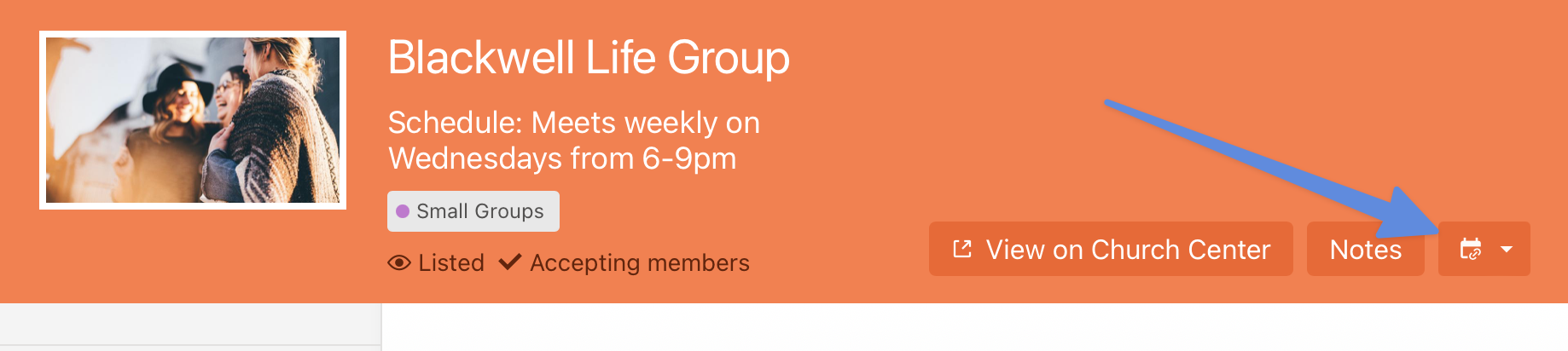 |
| - **Choose "Add to Calendar":** This will direct you to an event request form in Church Center. | 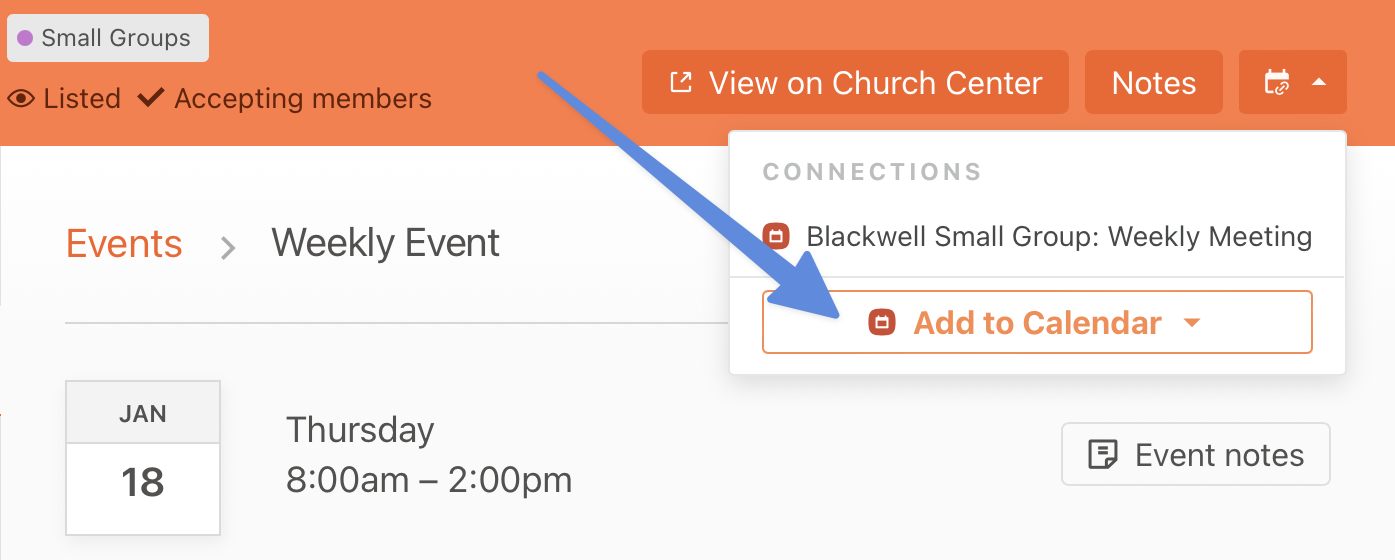 |
| - **Complete Request Form:** Fill out the form with any additional notes and information required for your event. - **Submit for Review:** After completing the form, submit your request for approval. - | [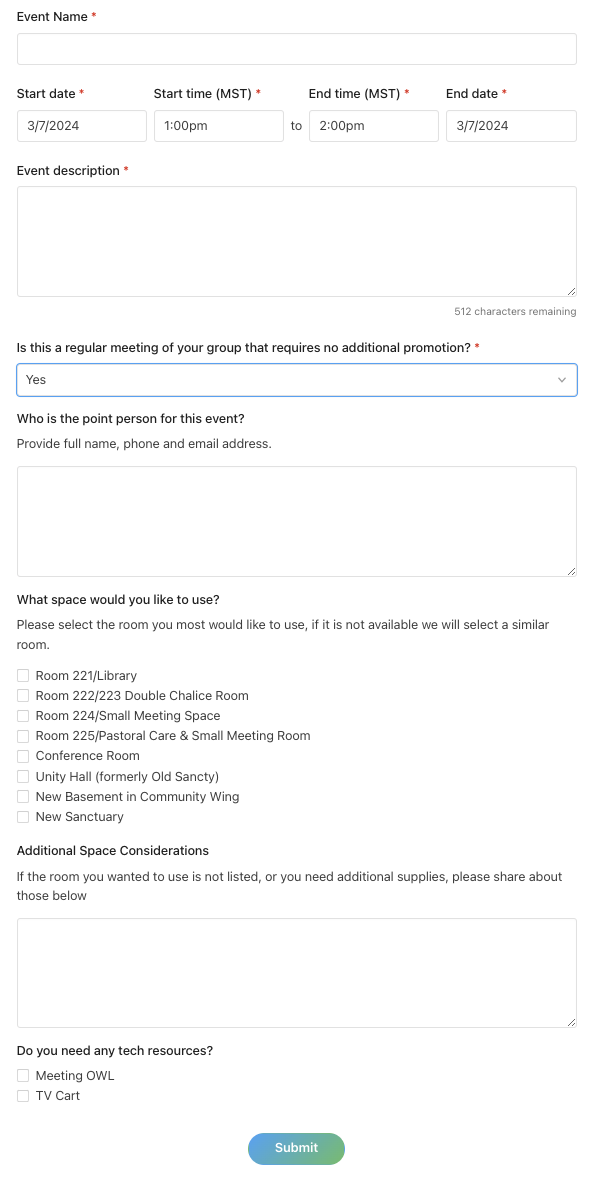](https://211134-bookstack.peaknetworks.cloud/uploads/images/gallery/2024-03/WG3zVP3gQ01YQkDW-screenshot-2024-03-07-at-12-08-17-pm.png) |
**Event Editing:** While events in your group can be updated post-creation to update information (add location once confirmed, or update description). **These changes will not update any facility usage information**. Please contact the Admin Team directly for any changes in your facilities use request.
# How To: Schedule a"Church Wide" Events (Facility Use and Promotion) Church-wide events are significant occasions aimed at engaging the broader congregation beyond specific groups or team members. These events require careful planning, approval, and promotion to ensure they reach and resonate with the entire church community. Below is a step-by-step procedure for staff and group leaders to request facility use and promotion for church-wide events. #### Step 1: Obtain Event Approval - **Verify Approval:** Ensure the event has been approved by the staff lead of your group. Approval can be direct from staff lead or as part of your group/team’s annual Shared Ministry Covenanting process, indicating the event's inclusion in the year’s plan. - **Consult Church Calendar**: Foothills is a larger church with a busy campus. Before you seek event approval it might be wise to consult our calendar or call the office to find the right date for your event. - For Group Leaders, consult: [https://foothillsuu.churchcenter.com/calendar?view=month](https://foothillsuu.churchcenter.com/calendar?view=month) - For Staff, consult [https://calendar.planningcenteronline.com/](https://calendar.planningcenteronline.com/) #### Step 2: Submit Event Request - **Access the Form:** Use the provided link ([FoothillsUU Church Center Calendar Form](https://foothillsuu.churchcenter.com/calendar/forms/11539)) to access the event submission form. ([Admin Link](https://calendar.planningcenteronline.com/forms/11539/requests)) - **Fill Out the Form:** Complete all sections of the form, providing detailed information about your event. The form will cover: - **Event Permission and Details:** Confirm staff lead approval, identify the hosting group/team, specify if the event recurs, detail A/V and hospitality needs. - **Promotion and Communication:** Offer a compelling pitch and a concise description for promotional purposes, and upload any existing promotional materials. - **Event Logistics:** Include the event coordinator(s)’ contact information, specify if food will be served, and describe the space requirements for the event. ##### Step 2A: Promotion and Communication - **Compelling Pitch:** Craft a one-sentence pitch that highlights the value or experience attendees will gain from the event. - **Event Description:** Provide a brief (25-50 words) yet engaging description of the event for use in promotional materials. - **Promotional Materials:** Upload any pre-existing promotional images or materials. Note that materials may be adjusted to align with the church’s brand standards. ##### Step 2B: Event Logistics - **Coordinator Information:** List the event coordinator(s) and their contact details, specifying roles if multiple people are involved (e.g., registration, setup, day-of activities). - **Select a Event Template**: Consult our [list of Event Templates](https://211134-bookstack.peaknetworks.cloud/books/church-events/page/event-templates) and select which setup best fits your needs. - **Food (including set up and clean up plan)** ##### Step 2C: Review and Submission - **Review Your Submission:** Before submitting, review all provided information for accuracy and completeness. - **Submit the Form:** Once all details are verified, submit the form for processing. Your request will be reviewed by the events team or relevant administrators. #### Step 3: Confirmation and Follow-Up - **Wait for Confirmation:** After submission, await confirmation and any follow-up communication from the church’s staff. They may contact you with follow up questions. - **Promotion:** Upon approval, the church’s communication team will begin promoting the event to the congregation according to the event’s prominence and the overall communication strategy. # How To: Staff Facility Use (Non-Promotional Events) For staff-organized events such as team meetings or group discussions that do not require promotion, the following procedure should be followed to ensure the event is properly scheduled and resources are allocated without being visible to the wider congregation. This ensures efficient use of our facilities while maintaining privacy and focus for internal activities. #### Step 1: Accessing the Calendar - Navigate to [Calendar](https://calendar.planningcenteronline.com/). - If you do not have the necessary permissions to create an even please contact the Admin Team. - View the day you are looking to book and see what other events are on the Calendar to make sure you can request an open space. #### Step 2: Creating the Event| 1\. **From the Events page, select *New Event* or hover over the date and select *New* to create an event.** | [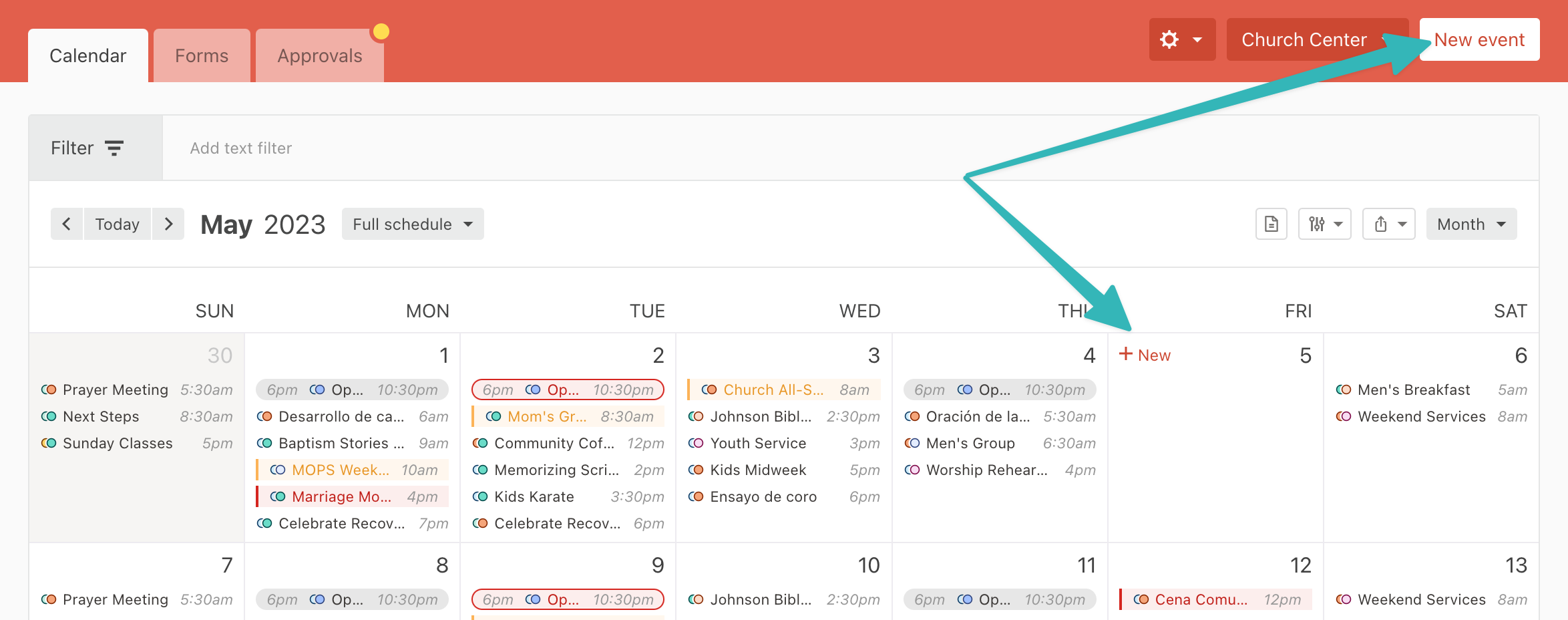](https://pcocalendar.zendesk.com/hc/article_attachments/21173802521755/uuid-ec521183-e3b5-5f93-3224-438016b52409.png) |
| 2\. **Compete the Event Information and click more options**
There are more fields required for an event than on this set up section. Consult the[ Required Event Entry Section](https://211134-bookstack.peaknetworks.cloud/books/church-events/page/event-requirements) for the full list. | 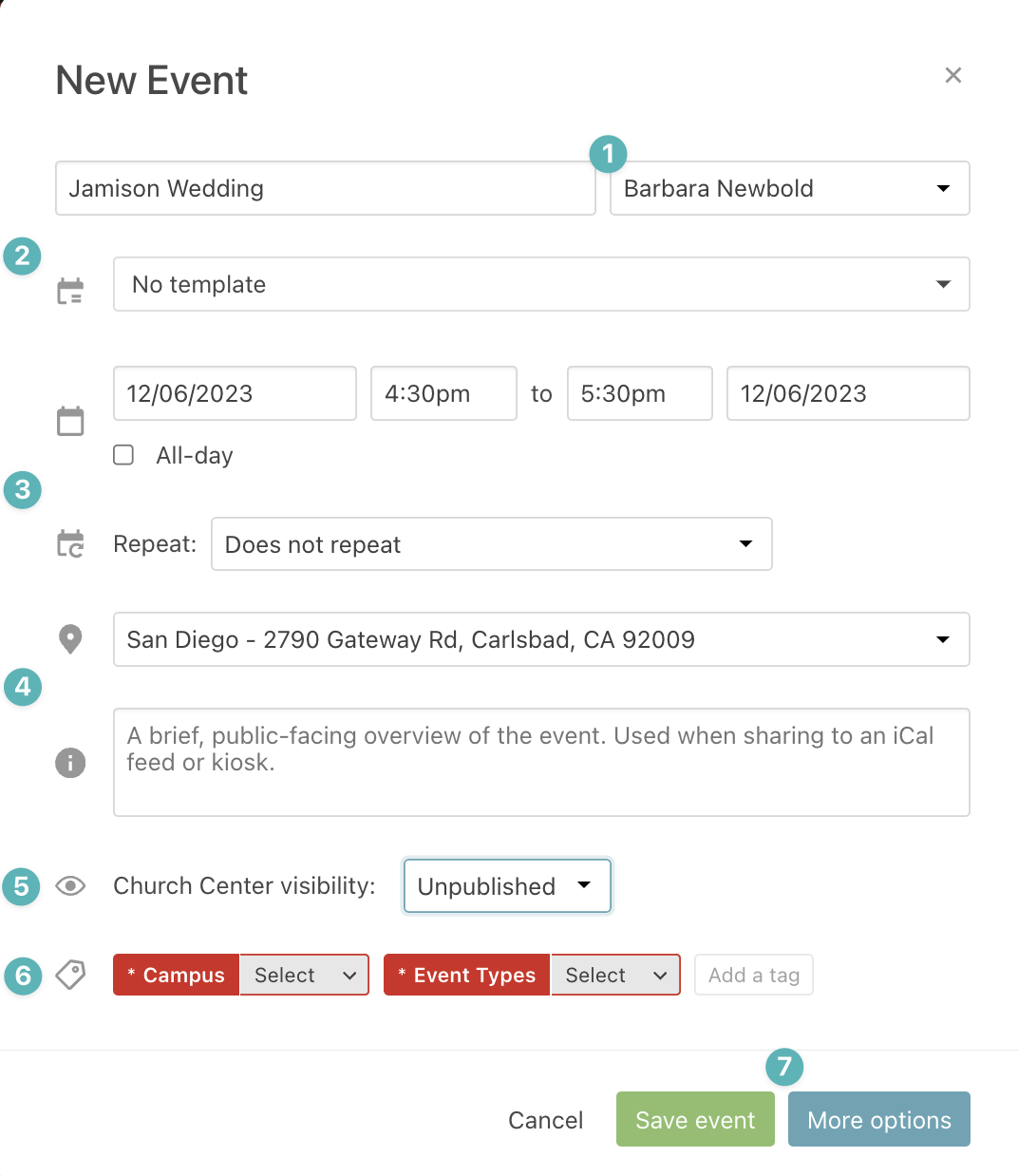 |
| 3\. **Add Rooms and Resources on the Overview Page** - Add the setup and teardown schedule as well as any other times you might need to reserve for the event. - Search or browse for rooms and resources, expanding to answer any required questions and specifying the room setup. - Remember to hit 'Save Changes to this Date" | |
| 4\. **Navigate to the Settings Page** Complete the Summary, Notes, and ChurchCenter information (if the event is visible). |
If there is missing information from your request, the Admin team will ask you to complete the information before approving your request.