Event Approval & Processing
- Facility Use Approval Process
- Rooms & Resources Approval Groups
- Procedure: Event Promo & Communication
- Procedure: Processing Calendar Forms
- Procedure: Event Administrative Activity Tracking
Facility Use Approval Process
The Foothills Unitarian Church employs a structured approval process for the use of its facilities to ensure that all events align with our community values and logistical capacities. This process varies slightly depending on the origin of the request but is designed to be straightforward and efficient.
Approval Considerations and Entities
Depending on the event different approval considerations apply. The following diagrams and tables outline the approval considerations and the involved entities.

|
Approval Considerations |
Determined By |
||
|
Internal vs. External |
Internal - Foothills Internal Events |
External - Rentals & External Uses |
Facilities Approval Group |
| Authorized - Approved by correct approval entity |
Non-Authorized - Not approved by right approval entity |
Staff Lead / Shared Ministry Covenant | |
|
Regular vs "Church Wide" |
Regular - Events that don't need promotion | "Church Wide" - events that require or desire promotion |
Group Leaders/ Staff Leads |
|
Space Availability |
Space Available - Space is open & staff have capacity to manage event | Space Not-Available - Either space is not available or staff don't have capacity to manage event | Facilities Approval Group |
|
Approval Entities |
Role |
|
Facilities Approval Group |
|
|
Staff Lead |
|
|
|
|
Group Leaders |
|
Event Approval Sequence
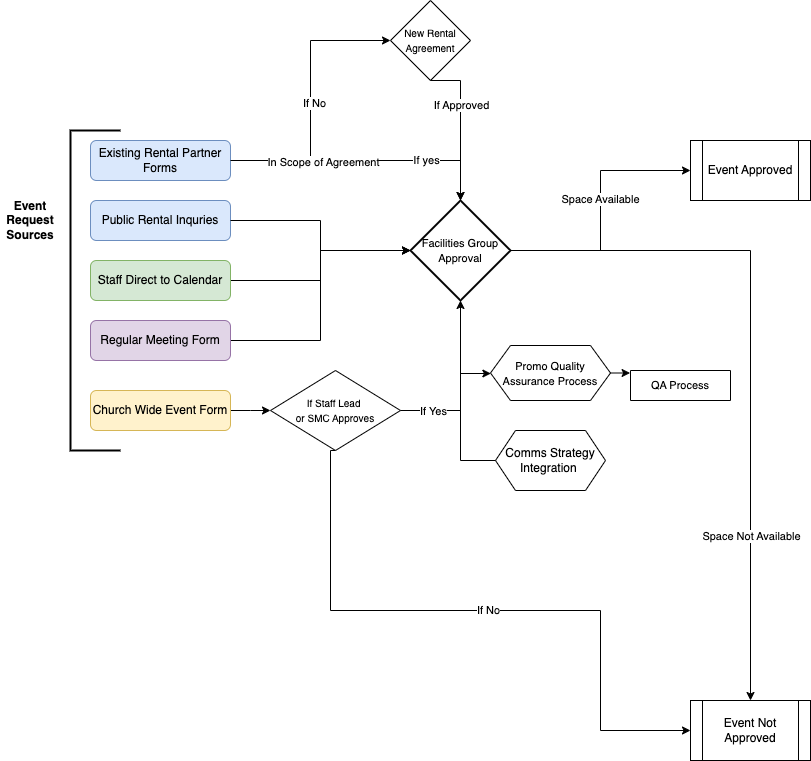
Step 1: Event Request Source(s)
-
- Staff Events: Staff members can submit events directly onto the calendar. These requests are routed to an appropriate approval group based on the specifics of the request.
- Regular Group Meetings (Group Leaders): Group Leaders request space through their groups using the Regular Group Meeting Space Request Form (Admin Link). This process ensures that recurring or one-time group events are accommodated within our church's schedule.
- Events with Promotion: Both group leaders and staff can use the Event with Promotion Form (Admin Link) for events requiring promotional efforts.
- Rental Partners: Specific forms are available for our rental partners, tailored to their unique needs and the terms of our partnership agreements.
- Public Rental Inquiries: The general public interested in renting our facilities can use the Public Rental Form. This ensures that all external requests are centralized and processed efficiently.
Step 2: Event Authorization
-
-
- Staff Events - No Additional Authorization before Facilities Approval Group
- Regular Group Meetings (Group Leaders)- No Additional Authorization before Facilities Approval Group
- Events with Promotion - Staff Lead or Shared Ministry Covenant Authorization
- Rental Partners - According to Scope of Rental Agreement
- Public Rental Inquiries- Alignment with Values
-
Step 3: Facilities Approval Group
- Queue for Approval: Event requests submitted via forms are placed in a queue awaiting review by an authorized member of the Facilities Approval Group. This ensures a systematic review of each request based on its nature and the church's capacity to host the event.
- Review and Approval: An authorized approver assesses the event request for alignment with church values, availability of space, and logistical feasibility. The approver has the authority to approve or deny the request based on these criteria.
Step 4: Promotional and Comms Strategy
- All events with promotion will trigger review of Communication team for Quality Assurance of ChurchCenter Presence and integration into Communication Strategy
- This includes determination if the event needs a Registration Signup.
Step 5: Coordination and Communication
-
-
Notification: Once a decision is made, an automatic notification is sent to the event requestor. This notification can be customized at the time of approval to include specific messages or instructions.
- Instructions for Facilities Staff will be added to the event and staff notified.
- Automation for Forms: For requests made through the Regular Group Meeting Space Request Form and the Event with Promotion Form, an automation is triggered, sending a templated email to the requestor once the form is filled out. This email outlines the next steps, providing clear guidance on what the requestor can expect following approval. Once it is approved, another automated email can be send. c.f Template Emails.
-
Rooms & Resources Approval Groups
What are Approval Groups?
Approval groups are groups of people who approve or reject booking requests for rooms and resources, as well as event requests from an event request form.
Approval groups need to have at least one person in them and each group can be attached to any number of rooms, resources, or event request forms.
Only one person from an approval group is required to approve a request.
Approval groups are managed in the Approval Groups tab on the People page.
How Approval Groups Function?
Room and Resource requests originate from two sources:
- Staff Members adding events directly to the Calendar
- When a Calendar Forms is filled out
Once the request is made, the members of the approval group are notified and they decided to approve or reject the use.
Our Approval Groups
| Approval Groups | Oversight | Who |
| Facilities | All Rooms and Resources | Jenn and Katie |
| Childcare | Childcare Staffing for Events | Lauren |
| Church Wide Event Promotion Group | All submissions to the church wide events and promo request | Katie, Jenn, Caitlin, Tatiana |
Remove Current Approval Groups: Religious Education has an approval group for Family Ministry Zooms not sure why.
Potential Future Approval Groups: AV Tech Booth, Playcrafters if they have oversight of their groups.
Procedure: Event Promo & Communication
ChurchCenter Event Quality Assurance
Church Center Event Standards
The Church Center Events Calendar serves as a centralized, accessible platform with the goal of enriching the Foothills Unitarian Church community by providing a comprehensive view of congregational life. It aims to:
-
Serve as a One-Stop Shop: Ensure all church members have a single, intuitive access point to discover events, understand their locations, and navigate directly to necessary sign-ups through registrations or group affiliations.
-
Maintain Accurate Information: Guarantee that the details of each event, including dates, times, and locations, are current and precise, fostering trust and reliability within the congregation.
-
Promote Inclusivity: Offer event information that is clear and welcoming to all, avoiding insider jargon or exclusive language that could alienate members new to the church or unfamiliar with specific groups or practices.
-
Highlight Featured Events: Identify and emphasize events that have a significant impact on a substantial portion (50% or more) of the church community or those directly related to ongoing worship series, ensuring these pivotal gatherings receive the attention and participation they deserve.
Event QA Steps
This checklist serves as a quality assurance tool for ensuring all Church Center events include essential information, adhere to event naming guidelines, and provide clear, accessible details to the congregation. Use this checklist before finalizing any event to maintain consistency, accuracy, and engagement.
Part of the Event QA is the transferring of content from the submitted forms to the Event.
See Processing Calendar Forms for step by step instructions on how to accomplish this data transfer.
Step 1: ChurchCenter Visibility Determination
Under the Settings Tab, in the Church Center Section, set the Church Center Visibility Status using the following criteria:
|
Visibility Status |
Impact on Display |
Criteria for Status |
|---|---|---|
|
Unpublished |
Not visible to congregants on Church Center. For internal use only. |
Use for internal events, staff meetings, rentals, or any activities not intended for the broader church community. |
|
Published |
Appears in chronological order on Church Center. |
Suitable for church events from specific groups and teams, that aim to inform and involve the congregation but are not prioritized. |
|
Featured |
Published, starred, and positioned at the top of the gallery view. |
Events that impact 50% or more of the church community or are directly related to a worship series. |
Step 2: Overview Tab
In the Event Overview Tab, insure all the details are set out correctly
-
Event Name: Follows the event naming guidelines; clear, descriptive, avoiding abbreviations and jargon. (see Below)
-
Location: Describes whether the event is in-person or virtual; includes specifics visible on listings and kiosks.
-
Tags: Includes selections from each required group: Department, Event Type, Location.
See Naming Conventions
- Clear and Descriptive: Use names that clearly describe the event or its purpose, ensuring it is understandable to someone not familiar with the specific group or activity.
- Avoid Abbreviations and Jargon
- Standardize Date and Time Format: For events occurring at specific times, include the day of the week and time, using a standard format (e.g., "Tues. 10am").
Formulas for Specific Event Types
Small Groups
This include Journey Groups, Gather Groups Wellspring groups and any small group that has more than one group connected.
Formula: Name of Small Group Type - Start Time (Leaders' Last Names)
ex. Journey Group - Tues. 10am (Leaders: Hazlitt & Miles)
ex. Wellspring Sources - Thursday 6:30pm (Leaders: Harder and Ferguson)
Note: When creating PCO Groups for small groups use the same naming convention.
This formula ensures that participants know the type of group, when it meets, and who leads it, providing all necessary information at a glance.
Memorials
- Formula: Memorial for [Name of the Deceased] or [Name of the Deceased]'s Celebration of Life
- Example: Memorial for Anna Jane Norris or Anna Jane Norris's Celebration of Life
Unless specifically instructed by the family avoid using the word Funeral.
Step 3: Settings Tab
Event Point of Contact Information
- Event Owner: Staff Lead of the Event or Lead for the Group Hosting Event
- Optional: Event Managers: If there are additional Staff involved in the Event
- Notes: This field should contain:
- Contact Information for the Event Point of contact (name, phone, email) for lay-led events
- Additional internal information for staff to know about the event
Event Descriptions
- Summary: Offers a concise overview for public engagement; suitable for iCal and kiosk display. One sentence max.
For Events Published or Featured on ChurchCenter
- Description: Detailed, rich-text overview for public viewing on Church Center.
- Registration URL: Provides a link to the registration page, whether internal or external.
- Image: Includes a representative image for display on Church Center.
Step 4: Connections Tab
|
PRODUCT |
CONNECTION |
|---|---|
|
Groups |
An individual group |
|
Groups |
A specific group event* |
|
Registrations |
A signup |
|
Services |
The Service Type where the plan is located |
|
Check-Ins |
A checkin event |
- Add Connections if the Event exists within other PCO Apps
- If needed create Signup In Registration
- If attendance is note being taken Groups, create checkin event
QA Process Automations
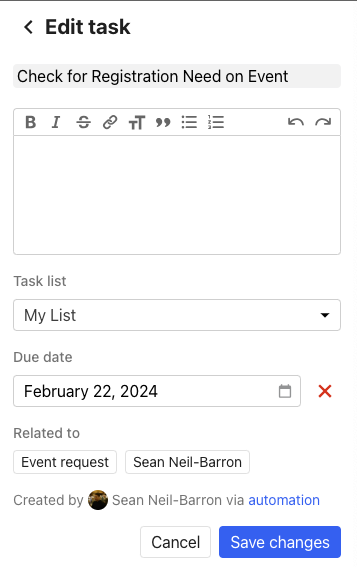
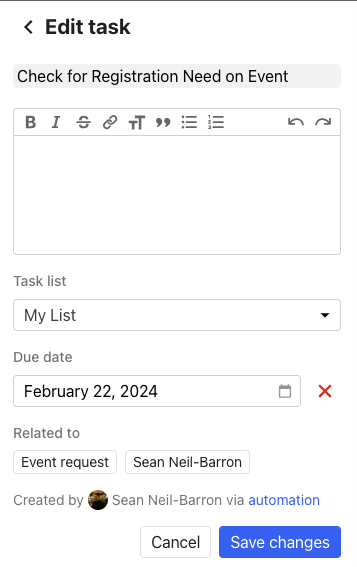
- Automation from Regular Group Meeting Space Request Form and Church Wide Events (Facility Use & Promotion Form) trigger a task to be created for the Admin Team Member in charge of QA for the ChurchCenter Events Calendar
- Task can be found in the "Home" Section of PCO or on on the PCO sidebar
- To Navigate to the Event that Created the Event Request, under "Related To" click Event Request.
Procedure: Processing Calendar Forms
This is for Foothills Staff not congregate facing
Church Wide Events (Facility Use & Promotion Form)
Until we figure out how to authorize iFrames see the PDF for the steps needed to process the information in a church wide event
Processing Church Wide Event Form.pdf
Regular Group Meeting Space Request Form
- Update Summary from Notes
- Add Contact Person
- Determine Church Center Visibility
- Update Event Managers
- Add Department Tag
Procedure: Event Administrative Activity Tracking
In order to track progress with the event approval and promotion process that is accessible to all admin staff, and able to be checked by other staff for status, we have created a Card Table in Base Camp to accompany all events. This will ensure that the admin team is aware of any events that are added, and can track all needed parts of the approval, setup and promo process. Specific activities can also be taken over by back up staff, if the primary staff responsible is out of office for any reason.
All staff have a responsibility to create a card for events they add to the calendar without a form. If you are using the Church-Wide promo form, the admin team will make the card for you.
Staff Direct to Calendar:
Step 1 (All Staff): Add event and all applicable details to the calendar.
Step 2 (All Staff): Create Event Specific Card from Template in Base Camp and link to Calendar Event.
Step 3: (Admin): Reviews Event Template Cards Daily
Public Rental, Regular Meeting, Church Wide Event:
Admin: Promo Form Received
Admin: Create Event Specific Card from Template in Base Camp
Admin: Update Assignments
Admin: Reviews Event Template Cards Daily
Admin: Move through Card Table Accordingly
Steps to Create an Event Specific Card:
1) Open the Event Approval & Promo Tracking Project in Base Camp
2) Open the Card Table
3) Open the Event Template from the Triage Step.
4) Click on the ellipses in the upper right hand corner, and select Copy.
5) From the Copy this Card Pop Up, click on "Select a Project" To open the drop down menu.
6) Select the first option, "Event Approval & Promo Tracking Card Table", then select "Copy to this new location".
You have now created your event-specific card.
1) Title your event accordingly.
2) Link to the calendar event you created.
3) Link to a canva design or any additional information that you need to include.
4) Save Changes
5) Return to the card table, and move your event into the "Approval" Step of the card table.
Admin team will now take over and ensure your event, event support, and promotion moves through our process.