Memorial Catch All
Add A Memorial To The Upcoming Memorials page on the website.
Guide: How to Upload Recording to the Memorials Playlist
Memorial Planning Process (Minister Planning)
Template Email Re: Accessing a Simulcast/Zoom Memorial Service
Deceased Database Process
-
Congregant Death Workflow (https://people.planningcenteronline.com/workflows/335347/steps/845118/assignees/26474115/ready)
-
A minister reaches out to family members/close contacts of deceased to offer condolences and begin memorial planning. Key questions to explore include:
-
Is there an obituary?
-
Is there a memorial service planned? Be sure to share info with Kelsey for congregation notification/calendar
-
Is there a preferred means for reaching out to family (website, calls, cards, etc)?
-
Refer to meal train or other caring support workflows as needed
-
Caring anniversary reminders/invitation to Tangled Blessings or other support as appropriate (refer to Milestones or other workflows, snooze etc)
-
-
Communications Staff person will reach out to minister/relevant staff to discern if there needs to be an announcement, and to whom.
-
General guidelines (adapt as needed for the particular needs and sensitivities of any given situation)
-
-Confirm that any necessary personal calls/reach outs from a minister have been made first
-
-If the deceased is a member, send an email to all other active members.
-
-If it’s someone deeply involved in a particular group, also send notice to participants in that group. Death notice processes are very personal and flexible depending on the deceased.
-
-Will always appear in next all-church announcement as small blurb
-
When a name lands in this step, Lauren will check in with other staff then proceed to move the person through the Inactive/Remove from Membership Workflow as appropriate
-
Ask the family if they would like to order a plaque. Allow for 6 week turn-around time.
-
Step 1: Ministers are notified of death. Elaine, Gretchen, Sean fully are notified by one another, other staff, family etc.
-
Step 2: Add Death Date to Profile (under Pastoral Care Tab)
-
Step 3: Outreach from Minister
-
Step 4: Communicate to Congregation and Community as Appropriate
-
Step 5: Send to Inactive/Remove from Membership Workflow
-
Step 6: Memorial Plaque
-
Memorial Logistics Process
- In the Basecamp Memorial Services Docs & Files, there is a file folder labeled "[Year] - Files for Deceased Members". If one does not yet exist for this calendar year, make one.
- Create a folder within the "[Year] - Files for Deceased Members" folder labeled with the deceased's first and last name.
-
Determine Minister Lead and let Memorial admin. (MA) know who is taking lead
-
MA reaches out to Family:
-
1) to determine the date to meet with the Minister and MA for logistics conversation and planning the service. and
-
2) MA shares possible dates for memorials services from looking at their calendars and PCO calendar.
-
Sean see google calendar
-
Elaine See Google Calendar
-
Gretchen see google calendar
-
Minister availability
-
-
MA adds the memorial date to the calendar in PCO.
-
Minister notifies Music Director of date and presumed music needs/updating after service planning with family
-
With size of service (Estimate)
-
If Simulcast more volunteers
-
Notify Minister of final date chosen
-
Notify leads of the Special Service Volunteer Team to begin recruiting
-
Notifies AV team for volunteers
-
-
Minister shares service details with MA for logistical set up/simulcasting needs.
-
If we are simulcasting, we need 3 volunteers—one in the sanctuary and one on Zoom. MA will contact Music Director who send the ask to volunteers to fill the roles.
-
-
If the deceased is a member, the Minister writes a letter to the congregation that includes the date and time of the memorial service. This letter is shared with Communications Staff who sends it to members of the congregation and publicizes details.
-
MA & Lead Minister's meeting with the family will cover:
-
-
This Memorial Planning Form: https://docs.google.com/document/d/13Y8v_0V-4VzklmRdP-2231ayLnG6-LF0rpUqFPEhAgc/edit?usp=sharing
Memorial Service Planning Form
Name of the deceased
Your name
Relationship to the deceased
Address:
Phone:
Email:
For those planning the memorial service:
Officiating Minister:
Date of the memorial:
How many family members do you expect to attend?
We typically reserve seats and adjust the room for the family based on this number.
How many total guests are you expecting for the service? We understanding if you are not sure, this guess allow us to make sure we are ready to receive everyone who might attend.
Deceased Date of Death mm/dd/yyyy
Deceased Date of Birthday mm/dd/yyyy
Veteran Status : The deceased was or was not a veteran?
Is there an obituary:
Please share obituary here:
People close to your beloved * Please use this field to share all the names and contact information of people who may be participating in the service or who we may contact to hear memories about the deceased. Click the plus sign to the right of the final box to add more people.
Full Name Relationship Contact Information Speak at the service?
Service Design
Service at Foothills?
Graveside internment?
Around the service we are planning:
Reception after the funeral or memorial service.
Viewing prior to the funeral
Visitation prior to the funeral,
without viewing
A wake
What sort of musical accompaniment would you like for the service?
Musical accompaniment is provided by our Music Ministry team and typically ranges from $150-$300 depending on the needs of the service.
Piano Accompaniment
Piano and Vocal Accompaniment
None
Other
Describe the overall feel for the survice:
Music Ideas for the service:
What elements would you like to be included in the service?
Slideshow during the service
Performed Music
Congregational Singing
Spoken Reflections from family and friends
Open Mic Sharing Time
On the stage during the service there will be:
Picture of Deceased on Stage on Easel
Ashes/Urn on Podium
Floral Arrangement
Altar table
Other special elements:
Livestream or Recording - A live stream allows for people to join in at the same time as the service through zoom.
Livestream & record Record the service for future viewing
Order of service:
Is there a quote or poem you would like to have displayed on the order of service?
Gifts made in memory of should be directed to:
Is there a picture you want to be used in the order of service:
Reception:
What is your vision for the reception?
Example: Sit-down lunch vs appetizers
Would you like to display photos or memorabilia on memory tables?
Yes
No
Other
Do you need referrals to local florists and caterers?
Yes
No
Do you want a plaque to be made for our Remembrance Garden? (They are brass and $375 each)
Yes
No
How do you want the deceased name to be written:
What is their DOB and DOD?
-
-
Ask family if they want to have a slide show during the service or during the reception at all / other option is picture on boards etc.
-
If yes to slide show, have family drop it off 2-3 days before the service if possible to make sure it works with our tech
-
Preferred a file of images named in apha numerical order that we will build in pro presenter. Videos are ok as individual, but not the entire slideshow, as we need to enter into our system. They can email to soundbooth@foothillsuu.org OR bring on a thumb drive 2 full biz days before the memorial. So if the service is on a Saturday, then Foothills needs the slides/images by Thursday at noon.
-
Remind the family that multiple images on one slide does not read well to the congregation.
-
-
Guest book? We can make one or the family brings one of their own.
-
Go over we have volunteers
-
Ask if they want a plaque made for $375 / 6 weeks to manufacture / no guarantee it will be ready by time of memorial
-
MA orders plaque
-
-
Share about the family room on day of and go over arrival times for family/flower delivery/caterer delivery
-
Minister’s meeting with the family will cover:
-
All service details
-
Items on chancel: ashes, photos, etc.
-
Pastoral check-in: How can we support you on the day of the service?
-
-
Music:
-
Music slides in propresenter
-
Securing guest musicians - Music Director will be responsible to secure the musicians for the service.
-
- Invoicing the Family
- Invoice will be sent to the Deceased member's family once all costs have been determined via PayPal. An invoice may include one or all of the following:
- Musicians playing during the service fee - @$200-$300
- Plaque for Remembrance Garden - $375
- Food (if we order for them) - this varies
- Flowers (if we order for them) - this varies, but most arrangements for the stage now cost $350 or more.
- Invoice will be sent to the Deceased member's family once all costs have been determined via PayPal. An invoice may include one or all of the following:
-
Program:
-
In “Notes” include:
-
Birth and death dates
-
Name family wishes is used (e.g. )Dick instead of Richard or vice versa….)
-
Donation request (if applicable)
-
Quote (if applicable)
-
Information about reception
-
Obituary
-
Other inserts or song sheets.
-
-
Minister should have all order of service details entered into PCO Services at least 4 days in advance. E.g. For a Saturday service, Admin. needs all details by the Tuesday prior. Ping Admin. team when it is ready.
-
Add A Memorial To The Upcoming Memorials page on the website.
-
Step 1: Create Event in PCO Calendar
-
Log into Planning Center Online (PCO).
-
Navigate to the "Calendar" section.
-
Click on "Add Event" and enter the necessary details for the memorial service.
- Overview
- Schedule
- Enter Set up time (90 min. before the service) / Event Time (typically 1 hour) / Teardown Time (typically 1 hour)
- Rooms & Resources
- Choose the Sanctuary
- Choose resources in the Sanctuary
- Staff Managed AV - this will trigger approval from Music Director who will staff the AV team for the service
- Easel for the stage - not always, but common
- Altar for the stage - sometimes this is chosen by the family and tells the set up team to provide it.
- Choose resources in the Sanctuary
- Choose Unity Hall if there will be a reception following
- Choose resources in Unity Hall
- Slides projected - families like seeing the slideshow during the reception in the backgroound
- 5' round tables - usually at least 6
- Sanctuary chairs - usually 6 per table
- Choose resources in Unity Hall
- The Commons
- 6' tables for the memory tables
- 8' tables for the reception food and drink set up
- cocktail tables used either in the Commons or Unity
- The Kitchen
- Choose the Sanctuary
- Schedule
- Overview
-
-
Step 2: Tag the Event
-
After creating the event, add the tag "Memorial" to help in categorizing and searching for the event.
-
-
Step 3: Add Image and Timing Details
-
Upload the memorial image to the event.
-
Enter the date and time of the memorial service.
-
If the specific time is not yet decided, make it an "all-day" event.
-
-
Step 4: Make Event Visible on Church Center
-
Go to the visibility settings of the event.
-
Select "Visible on Church Center" to make the event publicly viewable.
-
-
Step 5: Add Additional Information
-
If there is a Zoom link for the memorial service, add it to the event description.
-
Add a link to the obituary in the event description.
-
Provide the address where condolence cards can be sent.
-
Make a note in the description if the memorial service will be recorded.
-
-
Step 6: Confirm Event Listing
-
After a reasonable time has passed, check to see if the event is correctly listed on foothillsuu.org/memorials.
-
Post-Memorial Steps
-
Step 7: Upload Recording to YouTube
-
If the memorial service was recorded, upload the video to YouTube.
-
Make sure the video is set to "Unlisted".
-
Add it to the "Memorial Services" playlist on YouTube.
-
Guide: How to Upload Recording to the Memorials Playlist
https://scribehow.com/shared/Memorial_Service_Archive_Process_How_to_Upload_an_Unlisted_Video_on_YouTube_Studio__KlehyC1zTSqqYlVkZkobvw
Memorial Planning Process (Minister Planning)
-
Rev. Elaine contacts the family, secures a date and time for memorial after checking with Jenn.
-
Elaine meets with family to discuss the service, eulogy, and music choices.
-
Jenn gets details of flowers, catering, desire for an altar, memory tables, and AV needs from Family and Elaine.
Order of Service for Memorial Process
Once the Memorial has been scheduled, you can begin the Order of Service (OOS) process.
- Creating the Canva Document
- Navigate to Canva.com
- Open the Memorial OOS Template
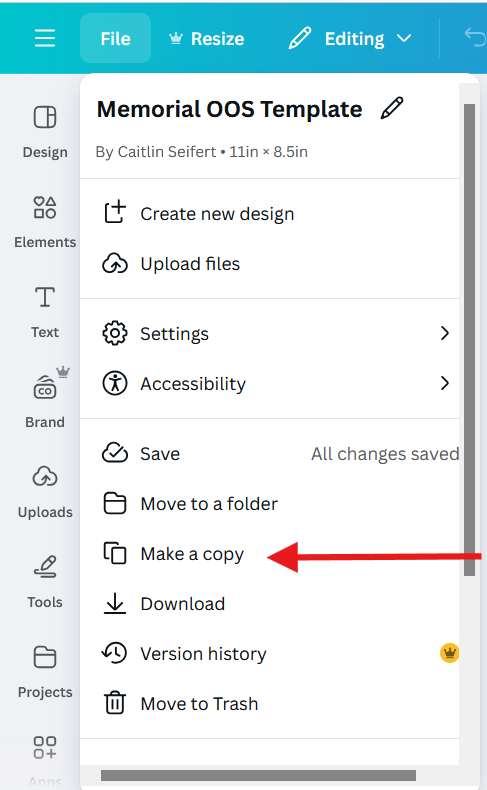
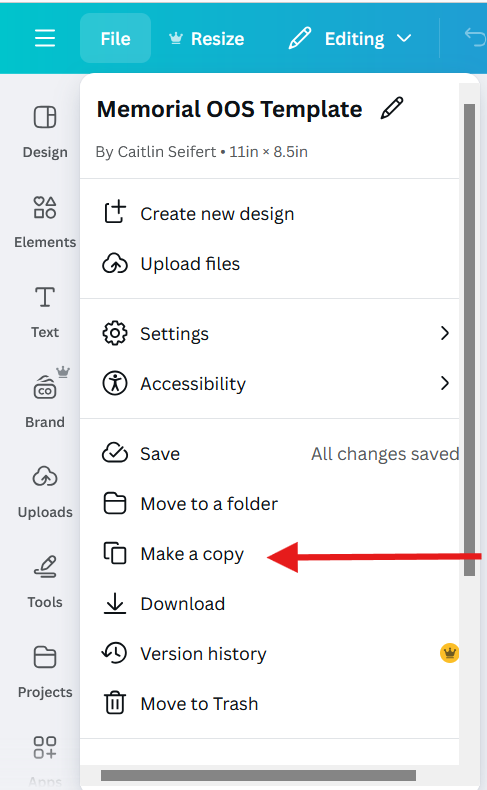
- Make a Copy of the Template
- Select File on the top left hand corner of the website page

- Select "Make a Copy" in the drop down menu
- Rename the copy by clicking on the title on the top right corner of the website page

- Name the new OOS with the First and Last Name of the deceased followed by the words "Memorial OOS"

- Select File on the top left hand corner of the website page
- Navigate to Canva.com



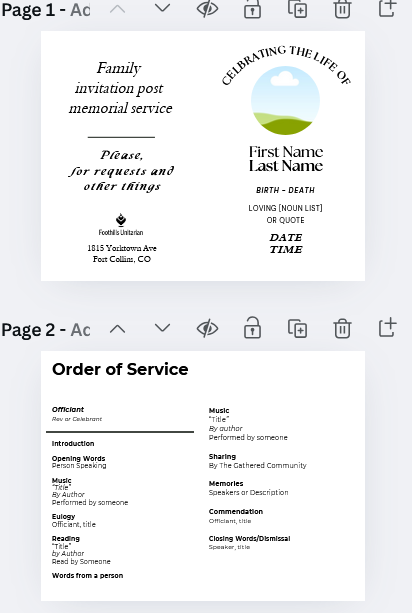
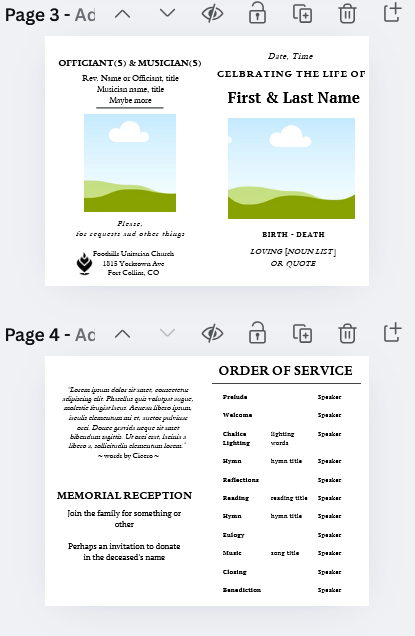
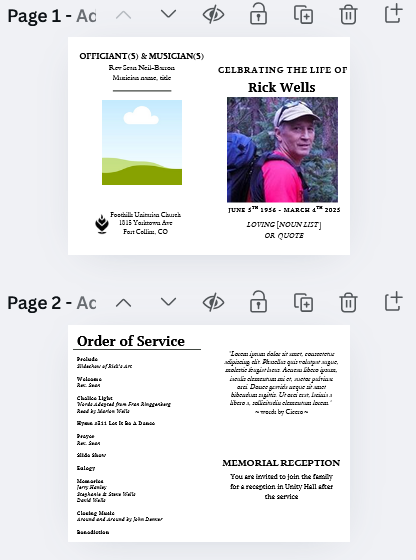
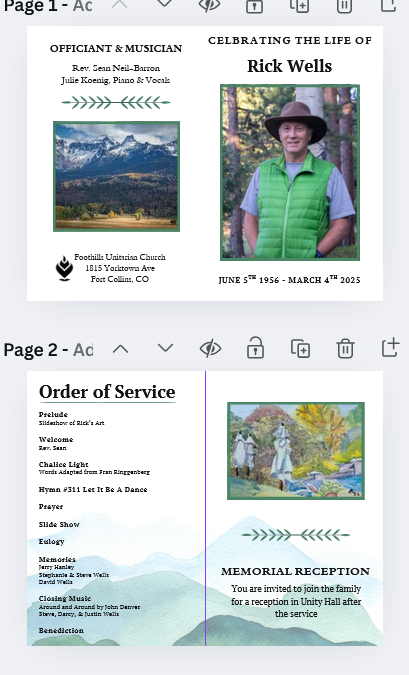
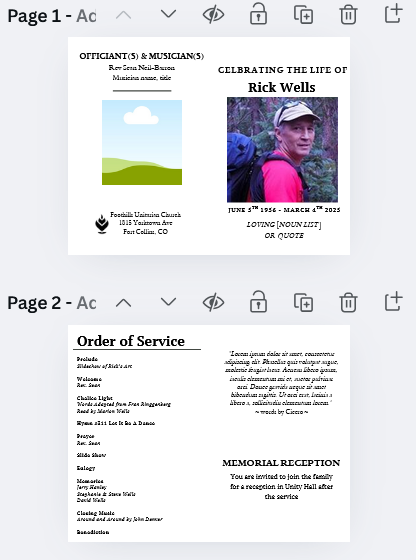
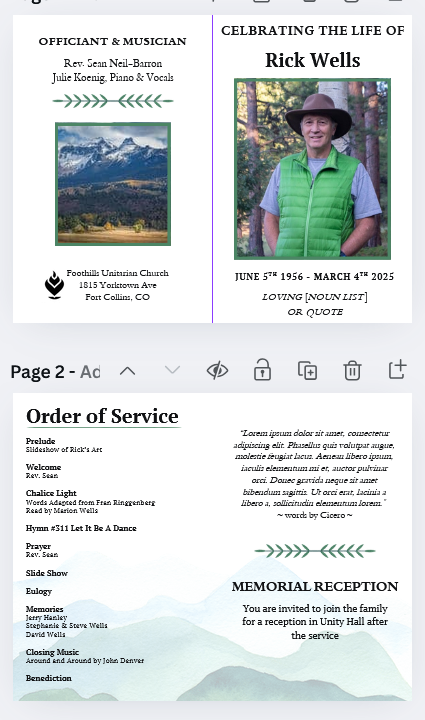
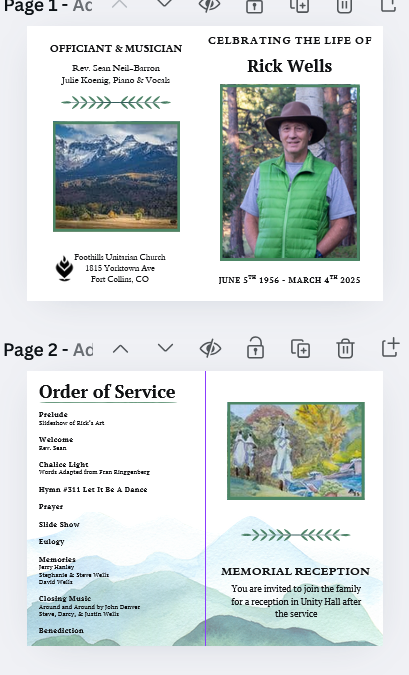
This template includes two different cover pages and two different inside pages (pictured below). In determining which style to use, you may defer to the lead minister if you need help. Design choices can be related to the length of the OOS, opinions of the deceased and family, and any included pictures, quotes, or recipes which the family and/or deceased wishes to be included. You may mix and match which formats you use, just make sure to have a single font in use. It is a subjective choice so if you are unsure, fill in both templates to the best of your ability and go to the lead minister for where to go next. It is unlikely that the first draft will be the finalized OOS.
Once the OOS has been finalized in PCO, you can begin updating each service element into the OOS
- Input OOS information from Services
- While having the Canva OOS open, open PCO Services in a new tab
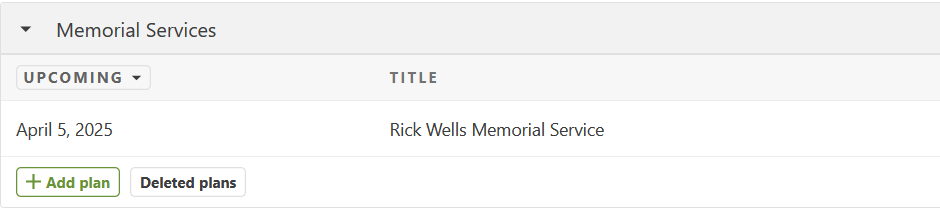
- Scroll down to the bottom of the page until you see the section labeled "Memorial Services". If there are scheduled memorials, you will see them here
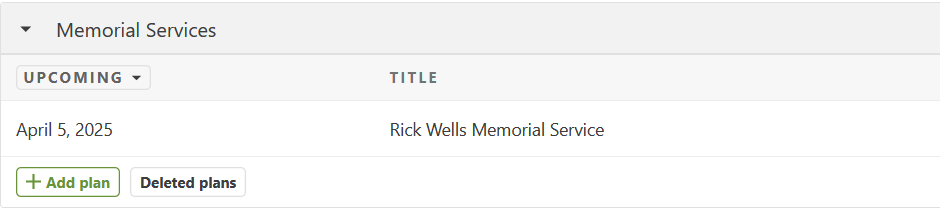
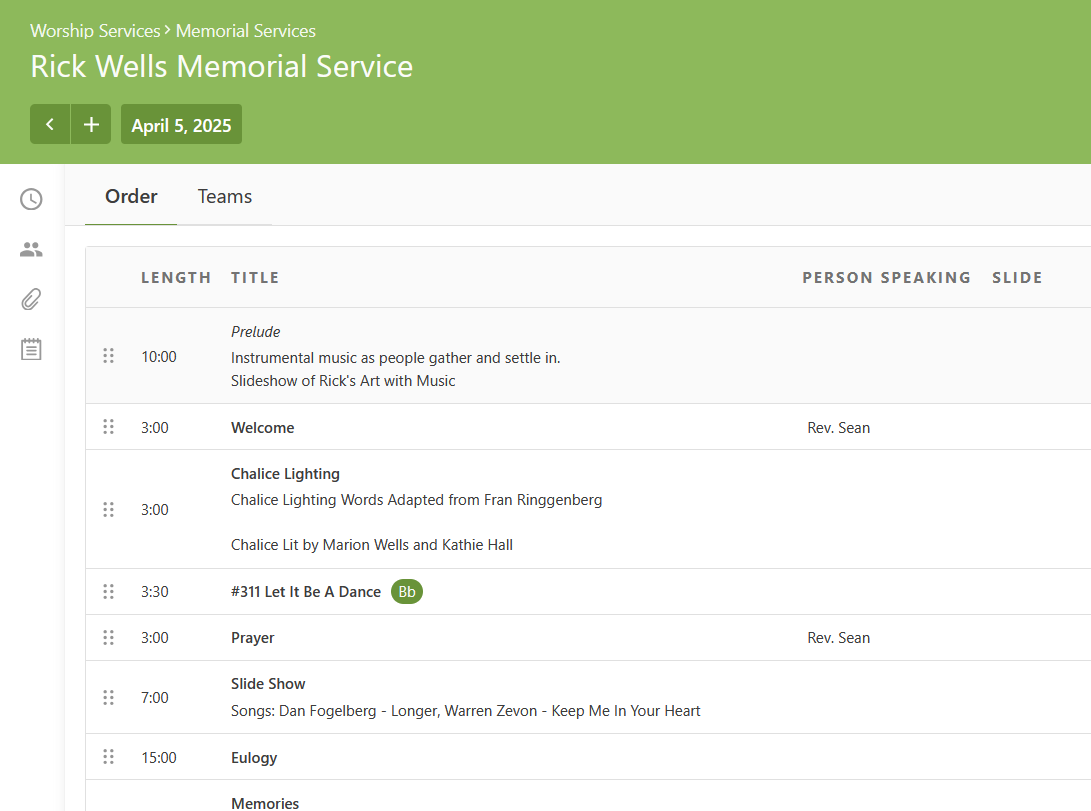
- Click on the memorial service on which you are working
- Input each item's title in the Canva OOS doc under the "Order of Service" label
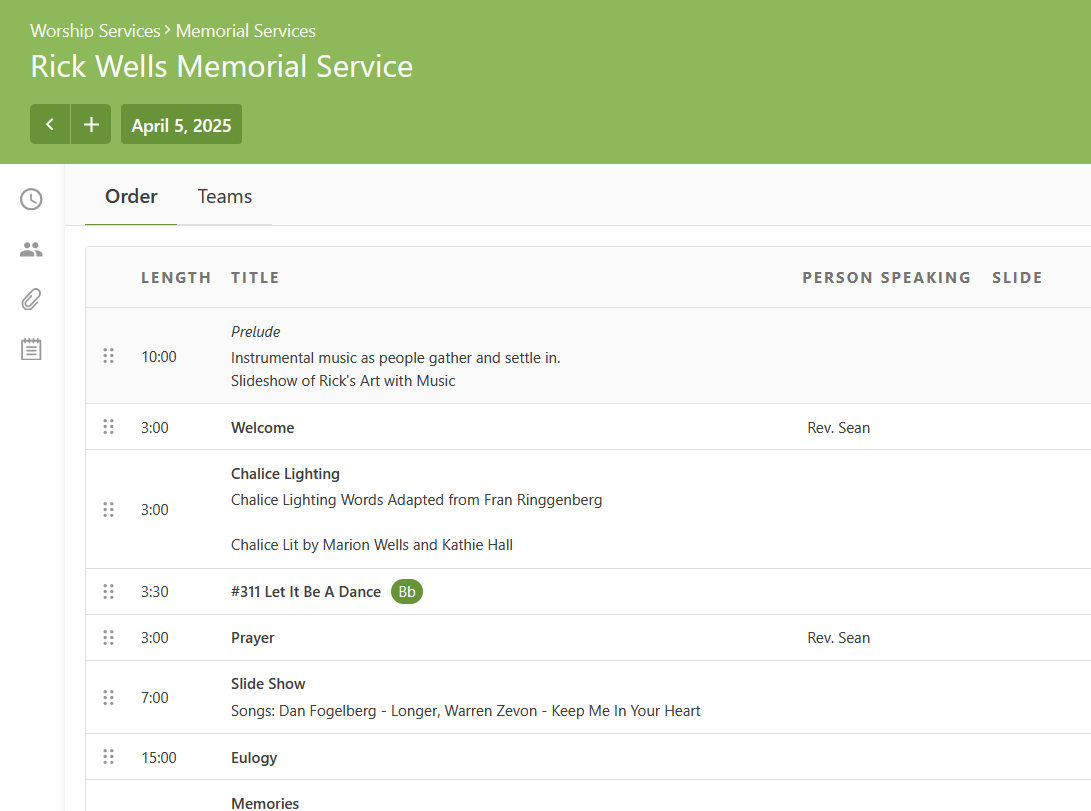
- All service elements should in bold with any speaker or song title information either in plain text or italics
- Add any pictures which have been provided by the family to the
- Once you have a first draft, send it to the lead minister for notes/adjustments. It may not have all elements or colors yet
- Include fields which may be filled in with more information from the family so they can make choices in the OOS process. This may look like:
- Include any suggestions which you think would improve the OOS
- Include fields which may be filled in with more information from the family so they can make choices in the OOS process. This may look like:
- Editing and Finalizing the OOS
- Once you have received changes from the lead minister and anyone else involved in leadership of the memorial, you may make changes to the OOS
- When moving to this step of the process, you should begin finalizing formatting. To do this, make sure to include a guide ruler:
- Click on File to bring down the drop down menu, then click on settings
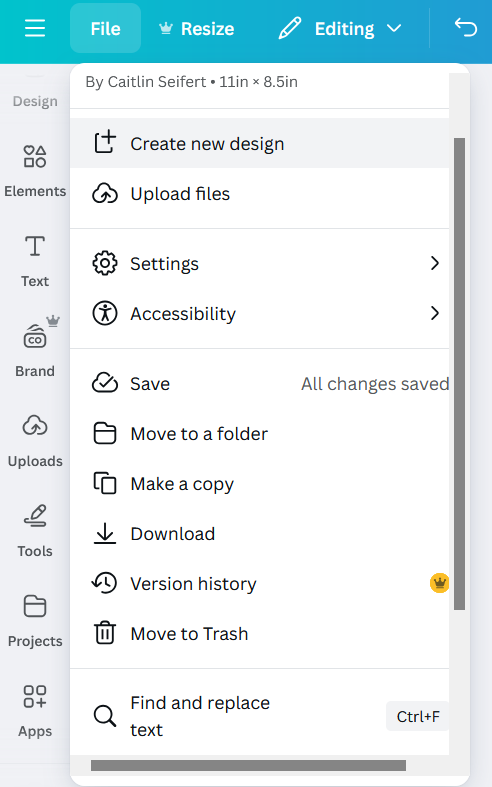
- In settings, select "Add guides"
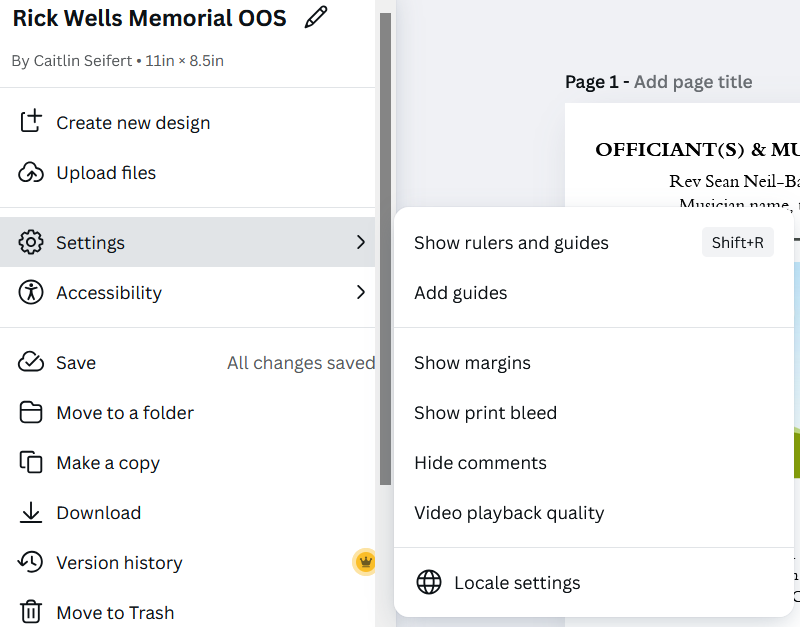
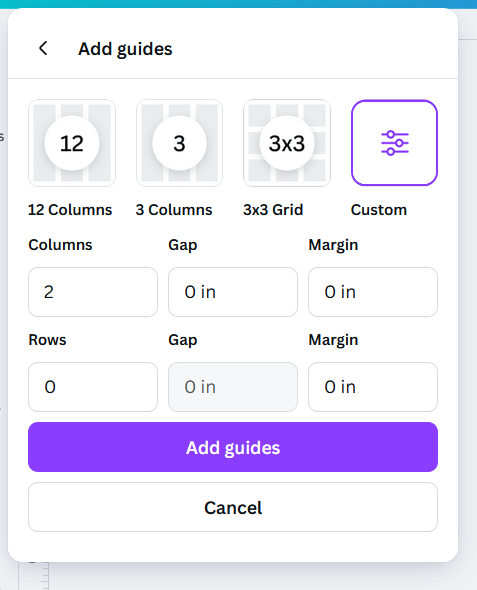
- In order to put a guide line at the center of the OOS, select the custom option, input 2 columns, and set all other settings to 0
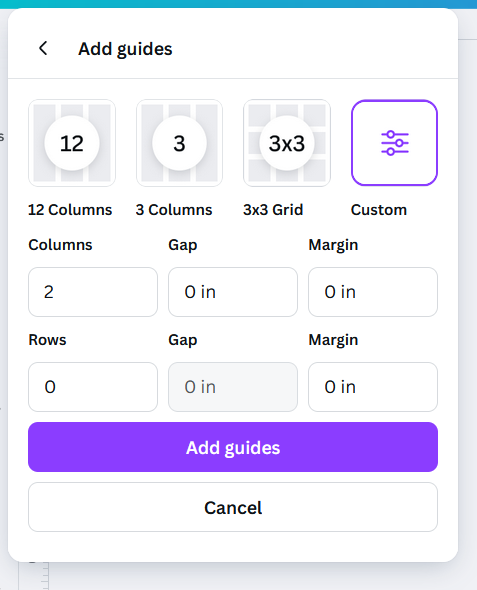
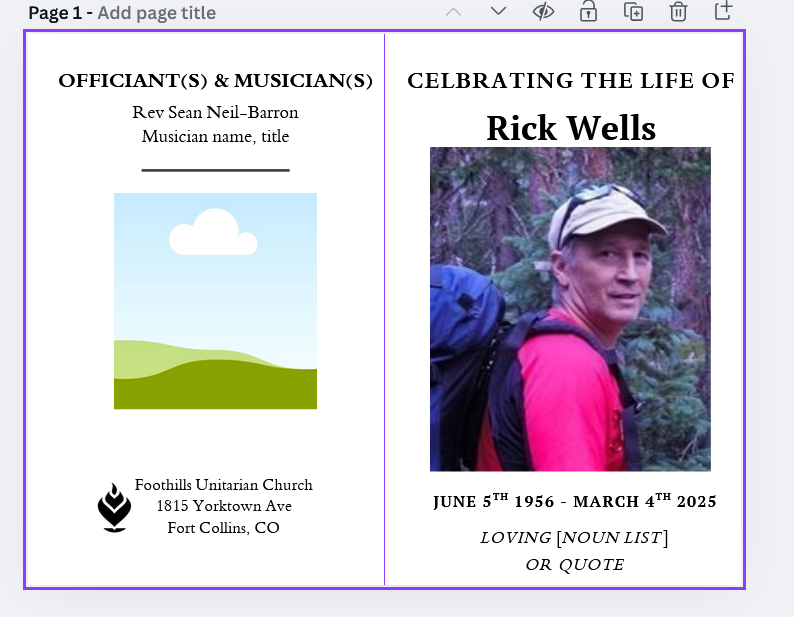
- This will help make sure everything is centered appropriately and will help with printing later. With the guide ruler, the OOS will look like the following:
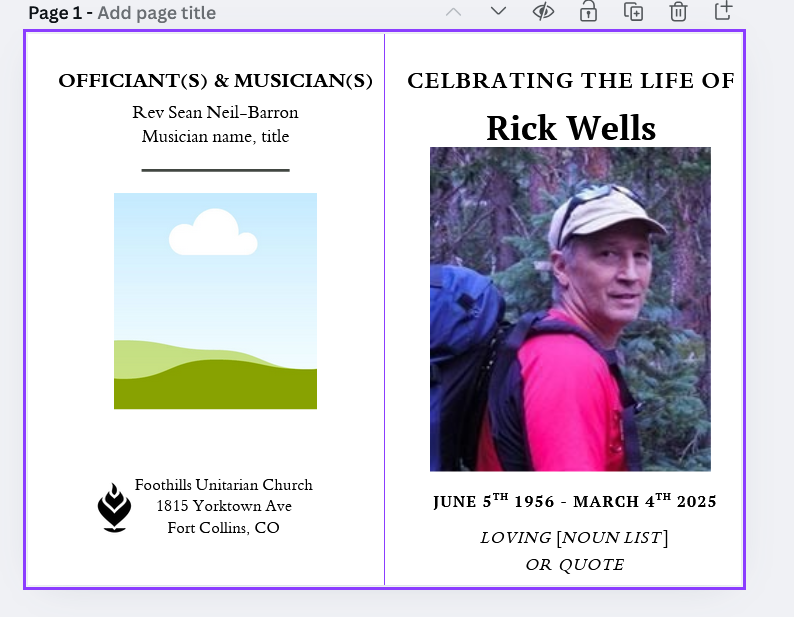
- Continue the process of editing and seeking approval from the lead minister until a final draft is reached. Once all edits have been confirmed, approved, and finalized, you can move on to printing.
- A not yet finalized draft may look like this:
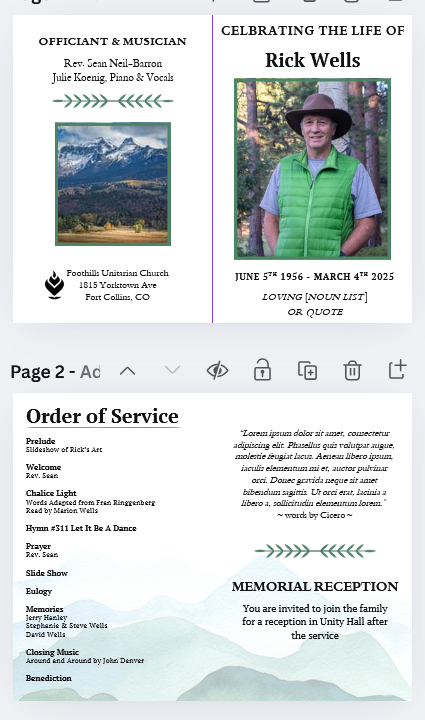
- Whereas, a finalized draft, ready for printing, may look like this:
- A not yet finalized draft may look like this:
- Click on File to bring down the drop down menu, then click on settings
- Printing the OOS
- Before printing all copies of the OOS, begin with a test print on standard printer paper.
- Fold the paper in half to gauge if the spacing is correct. Photos and text should be centered and legible.
- To fix any centering issues, adjust the document in Canva and re-print samples until spacing is correct
- Once spacing has been sorted, print OOS onto linen paper. Defer to lead minister and Jenn for total number needed. You will need to print 50-200 copies, depending on expected attendance.
- If time, fold printed copies. If there is not time, leave on the mail desk in the office for volunteers to fold before the service starts.
- Before printing all copies of the OOS, begin with a test print on standard printer paper.
Volunteer Memorial Process
AV/Simulcast Memorial Process
Simulcast Memorial Process
Template Email Re: Accessing a Simulcast/Zoom Memorial Service
Date and Time:
[Date of Service], [Time of Service] ([Timezone])
Location:
The memorial service will be held in person at Foothills and virtually via Zoom.
How to Access the Zoom Memorial Service
-
Go to the Foothills Unitarian Church's Memorials webpage: Foothills UU Memorials (foothillsuu.org/memorials)
-
Click on the specific memorial service for [Deceased's Name].
-
You will find the Zoom link there, which you can click to join the memorial service.
Basics of Accessing a Zoom Meeting
If you're new to Zoom, here's how you can join the meeting:
-
Click the Zoom link provided.
-
You may be prompted to download the Zoom application. If you already have Zoom installed, the meeting should automatically open in the app.
-
Once in the meeting, you'll have the option to turn on or off your video and audio.
-
There is a "Chat" function if you wish to send messages during the memorial, if appropriate.
Recording Availability
We understand that not everyone may be able to attend the live service. A recording will be made available under the "Past Recordings" section on the Foothills UU Memorials (foothillsuu.org/memorials) webpage three days after the service.
Day of Memorial Process
-
Pre-Service
-
Plaque is installed ideally a week before by Rich Roberts.
-
Space is prepared 2 hours before the service or the day before.
-
A classroom is set up in RE for the family to gather before the service.
-
Flowers can be delivered the day before or 2 hours before the service.
-
Guestbook is set out to be signed.
-
-
Before Service
-
Family arrives an hour before the service with items for the memory tables.
-
Caterers arrive at least 30 minutes before to set up food.
-
Volunteers arrive 1 hour before.
-
Minister visits family after sound check, about 30 minutes before the doors open.
-
Family takes their seats right before the service begins.
-
Print up eulogy for the family.
-
-
Post Memorial (Day Of)
-
Memorial service takes place.
-
Reception / guests can visit the memorial garden.
-
Checks collected for musicians.
-
Clean up - requires 3+ volunteers.
-
Send the guest book home with family/partner or make copies of pages and send home with multiple family members.
-
Send home flowers and left over foods
-
Send home pictures, memory table items
-
Have a copy of the sermon available for the family
-
A few order of services to go home with family
-
-
Post Memorial Process
-
Pictures taken of event shared in a google album with family
-
Video of the recorded service is shared on a private page on our Youtube channel with family members.
-
Memorial Email Templates
Invitation to fill out Memorial Form
Hi [Family Members],
I want to begin by sharing how truly honored I am to be part of the process of creating a memorial service for [Name of deceased]. It is a privilege to help honor her life and legacy in a way that reflects her spirit and the love you all shared.
As we begin this process, the first step is coordinating the completion of the Memorial Planning Form at foothillsuu.org/memorialplanning. The form only needs to be filled out once, so you may want to work through it together as a family. We’ve also produced a short video that will guide you through the process, which you can view at this link. Please don’t worry if you don’t have answers to all the questions—this is just the beginning of the planning process, and we’ll work together to fill in any details later on.
Once the form is completed, we can find a time to meet via Zoom to continue planning the service. Please let me know if there are times you are all generally available to meet.
Jenn Powell will be in touch soon to coordinate logistics, but I will take the lead on planning the service itself.
Again, I am deeply grateful for the opportunity to help honor [name of deceased]’s life, and I look forward to walking with you through this process.
Warmly,
Rev. Sean
Foothills Unitarian Church